

iPhone language settings translate system menus after a new primary language is selected. Open Settings > General > Language & Region > Add Language, choose the language, then accept it as primary.
Region and keyboard language are separate choices.
Add the language and select it as primary
Open Settings, tap General, then Language & Region. Select Add Language and find the desired language. Read the alert and choose that language as the primary one when prompted.
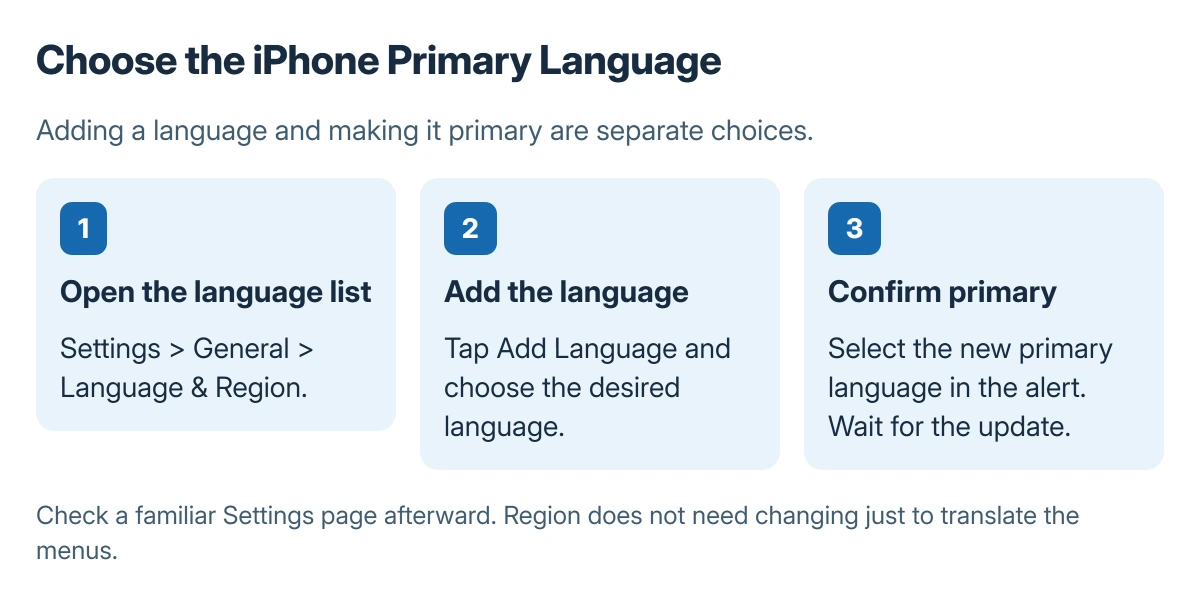
Status: Apple's current iPhone language procedure. The picture shows the sequence as a diagram. No device language or account region was changed here.
Apple documents that the device displays the selected language after it updates the language setting. Wait for that change to finish, then open a familiar Settings page to confirm the result.
Use Apple's illustrated language instructions when the current menus are in an unfamiliar language. Compare the sequence of screens rather than guessing at an unrelated reset control.
Leave Region alone when only menus need changing
Apple says Language & Region contains separate regional settings, including region, calendar, temperature unit, measurement system, and date and number formats. A menu-language change does not require choosing a different country there.
Keep the existing Region selection when its formats are already correct. If a date or measurement format also needs changing, adjust that particular regional setting deliberately rather than adding languages repeatedly.
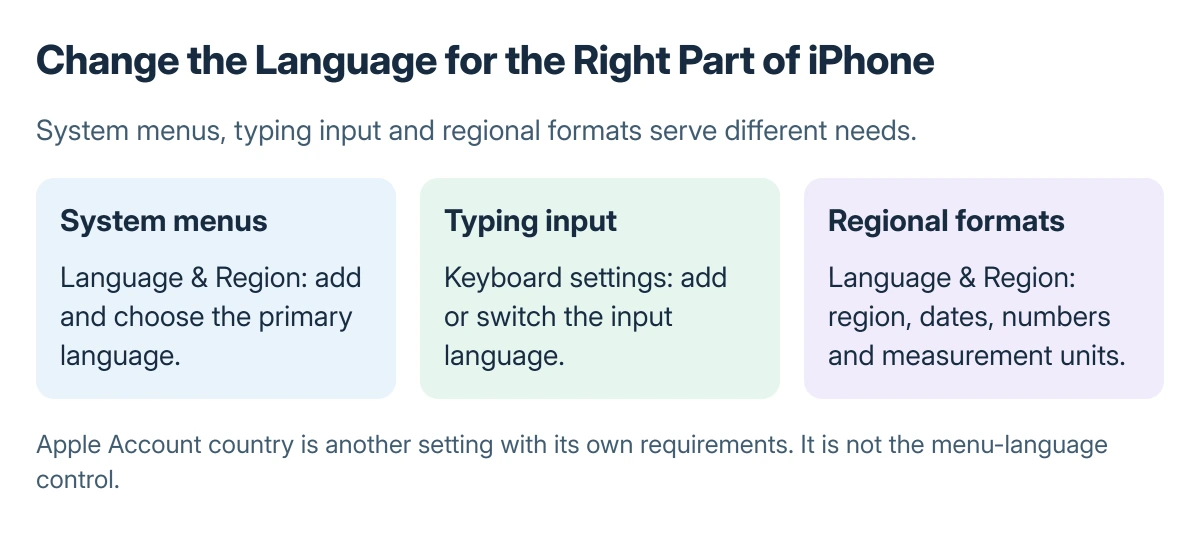
The Apple Account region guide concerns the account's country and related requirements. That account setting is not the control for translating Settings menus on the phone.
Change typing input separately
The iPhone keyboard language guide covers keyboard switching. Adding a keyboard is appropriate when the goal is to type in another language while keeping the system menus as they are.
Apple states that languages can also be removed from the Language & Region list by swiping left on a language and choosing Delete. Do not remove a needed language simply to fix a keyboard switching issue.
If the chosen language is not appearing
Return to Language & Region and confirm the primary choice, rather than assuming adding a language alone made it primary. If the menus are correct but one app still differs, check that app's available language settings or ask its developer.
For a managed iPhone with unavailable controls, contact the administrator. Changing language is a settings task; a factory reset or Apple Account country change is not a normal step in this procedure.
The Short Version
Add the desired language in General > Language & Region, then choose it as primary. Keep Region unchanged when only the menus should change, and use keyboard settings for typing languages.

Isaac Smith is the founder and editor of PC Glance, a website that covers computers, laptops, and technology. He is a tech enthusiast and a computer geek who loves to share his insights and help his readers make smart choices when buying tech gadgets or laptops. He is always curious and updated about the latest tech trends.