
Chrome can pause a video when you switch tabs even after its site has been muted. For Google's workaround, turn sound on in the website's own player first, then right-click the tab and choose Mute site.
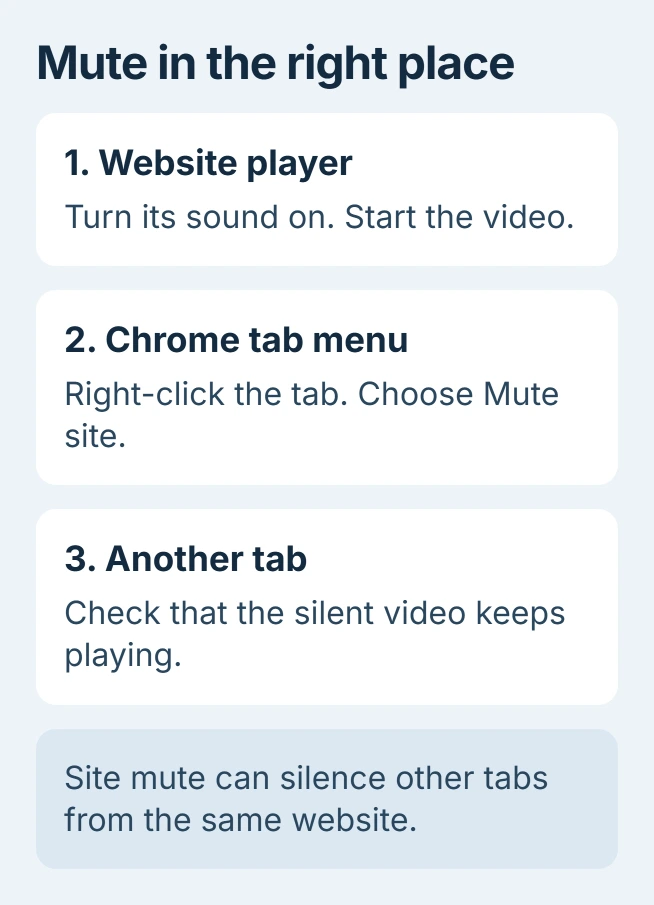
Chrome applies the mute to the whole website, which also silences its other tabs. This suits a silent background video, but it cannot keep a second stream from the same site audible.
Keep the player audible before muting the site
Google's Chrome support manager connects background-video pauses with resource saving in its workaround explanation. This procedure concerns videos that stop after changing tabs, rather than a mute command that leaves audio playing.
Start the video with player sound enabled, right-click the tab and select Mute site. Change tabs to check playback. This can briefly play sound, so adjust volume first.
Status: Google's workaround and later replies checked October 30, 2026. It is owner-confirmed for the stated setup, not a browser fix tested here.
One owner corrected their initial failure report: enabling player sound before muting made it work.
Will Mute site silence the other tabs too?
Yes. Owners report that two Twitch tabs cannot keep separate audio states this way. Several embedded streams also lack individual controls through site mute. Use it when the whole site can be silent.
Find another player when audio continues
Open Chrome's Media control at the upper right while something plays. Google's media-control instructions explain how to pause media and return to its tab.
Check the tab belonging to the remaining player. A second website can keep producing sound after the first site has been muted. Pausing that player checks whether it is the source being heard.
Google says website sound defaults are under Settings > Privacy and security > Site settings > Additional content settings > Sound. Those settings control permission to play sound; they are separate from the player's playback position.
A Peacock video that never starts needs playback-permission and stream-limit checks before adjusting how Chrome mutes the site.
When the problem becomes missing audio after undoing a mute, follow the Chrome sound-permission checks. When the whole tab stops responding, use the browser freezing procedure.
Report a repeatable pause with the relevant details
If the player remains unmuted and Chrome's site mute still does not preserve playback, record the affected website, Chrome version and whether one or several streams were open. Do not report this as a confirmed fix for that setup.
Google's steps for sending Chrome feedback use More > Help > Report an issue. Describe what happens after switching tabs and remove private information from any attached screenshot.
The Short Version
Unmute the player, then mute its site in Chrome. This can silence other tabs too. Report a continuing pause with the website and stream details.

Isaac Smith is the founder and editor of PC Glance, a website that covers computers, laptops, and technology. He is a tech enthusiast and a computer geek who loves to share his insights and help his readers make smart choices when buying tech gadgets or laptops. He is always curious and updated about the latest tech trends.