
No sound from Chrome can come from a blocked site permission even when the speakers work. Open the affected site's Site settings and check Sound. If every site is silent, check the browser default and its Windows app volume.
These instructions cover desktop Chrome on Windows and Mac. Separate a video that will not start from one that plays without audio.
Let the affected website play sound
Start playback on the silent website and check the player's own mute button and volume.
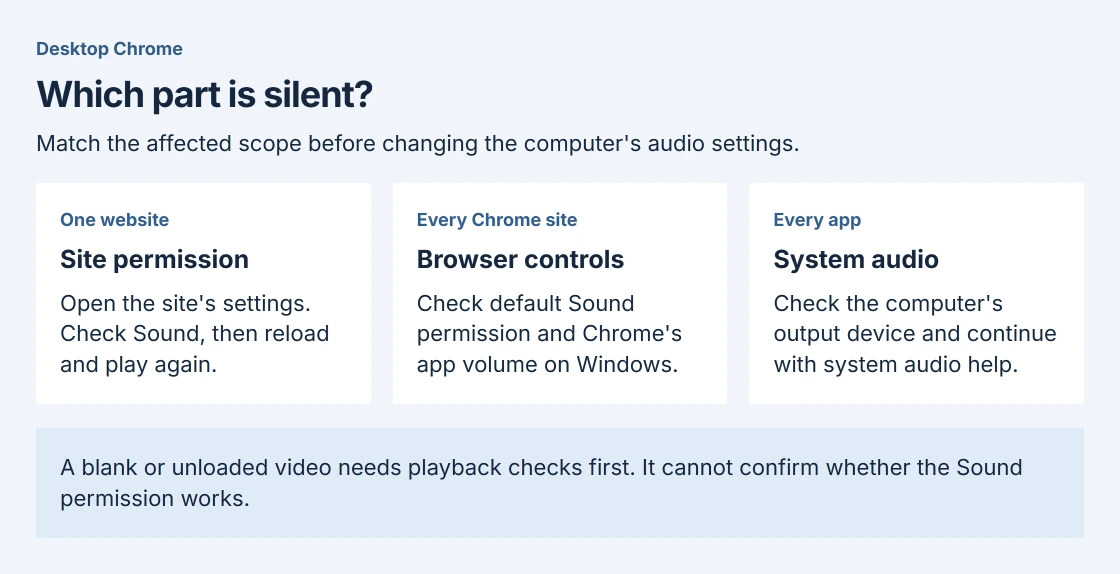
Select View site information to the left of its address, then choose Site settings. Find Sound and allow audio for that site. Return to the page, reload it and start playback again.
Google says in its site-permission instructions that a website's saved permission overrides Chrome's default. Other sites working therefore does not rule out a browser permission blocking this particular site.
Status: Google's desktop Chrome sound permissions and Microsoft's app-audio guidance checked October 28, 2026. One owner confirmed a Windows mixer cause. No browser setting was changed.
If sound returns, keep the permission change limited to the site you intended. Allowing that site's audio does not require camera or microphone access, which control recording rather than hearing ordinary media.
Check the default when several websites are silent
Open Chrome's More > Settings > Privacy and security > Site settings. Under Content, open Additional content settings > Sound. Choose the default that lets sites play sound.
Google's route is documented in its Chrome sound-control guide. Review any site-specific exceptions too; changing the default does not override an individual site's saved choice.
Play a clip with known audio on two different sites. If only one remains silent, return to that site's permission and its player controls. A successful second site means Chrome can produce sound through the current output.
Check Windows when the whole browser stays silent
Windows can mute Chrome independently of other apps or give it a different output device. Microsoft documents both causes in its app-audio guidance.
On Windows 11, play audio in Chrome, then open Settings > System > Sound > Volume mixer. Under Apps, check Google Chrome's mute state, volume and Output device. Select the speakers or headphones actually being used.
One owner with no audio on YouTube, Meet or other sites later confirmed that Windows Volume mixer was the issue.
If other apps are silent as well, continue with the computer audio checks.
On a Mac, open Apple menu > System Settings > Sound > Output and select the intended speakers or headphones. Retry the same media after choosing the output. macOS does not use Windows Volume mixer.
Separate missing audio from a video that cannot play
A paused, blank or unloaded video cannot confirm whether sound permission works. Google's media playback help treats loading failures separately and recommends checking extensions when media works in Incognito.
Open the same page in an Incognito window for comparison. If playback works there, use More > Extensions > Manage extensions, turn extensions off, then test them individually in a normal window.
Restore unrelated extensions after the comparison.
Chrome can run extensions in Incognito when they have that permission, so this comparison cannot clear every extension. When tabs or the whole browser also hang, the Chrome freezing checks address that separate behavior.
For a site that remains silent, contact its support team with the page and whether other sites work.
For Chrome-wide silence after permissions and app output are correct, report the Chrome version, operating system and comparison results to the Chrome Help Community.
The Short Version
Check the site's Sound permission, then Chrome's default if several sites fail. Windows also has a separate app volume and output. A video that never loads needs playback troubleshooting before it can establish whether sound works.

Isaac Smith is the founder and editor of PC Glance, a website that covers computers, laptops, and technology. He is a tech enthusiast and a computer geek who loves to share his insights and help his readers make smart choices when buying tech gadgets or laptops. He is always curious and updated about the latest tech trends.