
You have already checked the volume, probably twice. You have looked at the speaker icon in the corner as well, and everything seems completely normal.
Silence with nothing obviously wrong is maddening, so I want to start where the answer usually is rather than where the tinkering usually starts.
Eight separate fixes, and they are independent, so stop as soon as yours makes a noise.
1. Windows is playing to something that cannot make a sound
More people land here than on all seven that follow, and ruling it out takes about ten seconds.
Documented by Microsoft: "select the arrow to the right of the speaker volume slider to open a list of audio devices connected to your computer. Check that your audio is playing to the audio device you prefer".
Click the speaker icon in the taskbar, then the arrow beside the slider. You get a list.
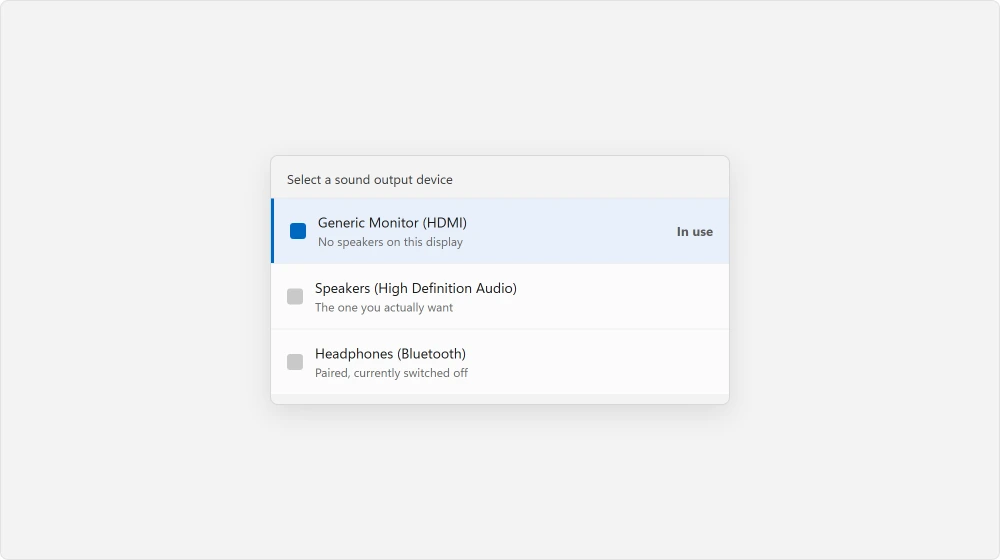
Now look at what is selected. A monitor connected over HDMI or DisplayPort counts as an audio device, and most monitors have no speakers at all. Plug one in and Windows switches to it and goes quiet.
The same goes for a dock, a TV you used last week, and headphones that are switched off but still paired over Bluetooth. If a monitor is involved and the picture is misbehaving too, a black screen at startup covers that side of it.
Pick your real speakers from the list. Sound back? That was it.
If a crossed-out speaker icon sits on your screen instead, the monitor may have drawn it, and the speaker icon page shows how to clear it.
2. One app is silent while everything else works
If everything makes noise except your browser, or except one game, your PC is not the problem.
Right-click the speaker icon and choose Open Volume mixer. Every app that has made a sound recently gets its own slider. Each one has its own mute button too.
Something muted in there stays muted indefinitely. Easy to hit by accident, and almost impossible to spot afterwards.
Silent only inside a Remote Desktop session? That sound starts on the other PC, and two services there decide whether it reaches you.
3. Audio enhancements are strangling the output
Windows applies processing to your sound, and it does not always suit your particular hardware.
Documented by Microsoft in its sound troubleshooting guide: "set Audio enhancements to Off from the dropdown menu".
Go to Settings, System, Sound, click your output device, and find Audio enhancements. Set it to Off.
Reported working by owners on the Windows 11 board, with a warning attached. Several hit the opposite on machines running Realtek software, where turning that enhancement off stopped audio and video playing at all.
So change one thing, test it, and put it back if things get worse.
4. Let the troubleshooter look
Do this before you start the manual work, because it checks several things at once and can repair some of them for you.
Documented by Microsoft: "Select Start > Settings > System. Scroll down and select Troubleshoot > Other troubleshooters. Go to Audio section and click Run".
It checks the default device, the services and the driver state. If it finds something and offers to repair it, say yes.
5. Restart the three services that carry your sound
Your audio depends on background services, and those can stop without ever restarting themselves.
Documented by Microsoft, and it names three: "Select each of the following services, select and hold (or right-click), select Restart, and then select Yes: Windows Audio, Windows Audio Endpoint Builder, Remote Procedure Call (RPC)".
Press Windows + R, type services.msc, then Enter. Find all three in the list and restart each one.
If Windows Audio sits at Stopping instead of restarting, end its process from an admin Command Prompt, then start it again.
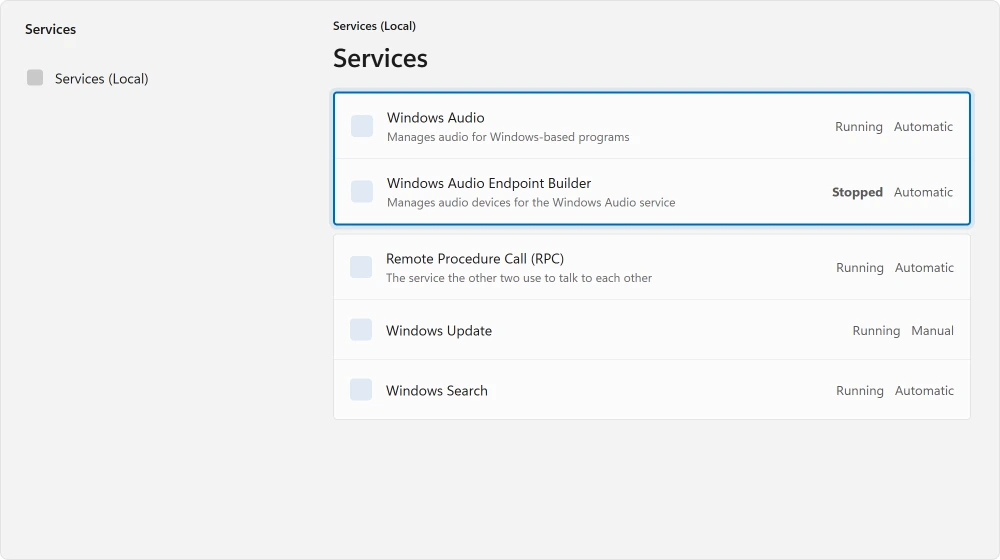
The third one is the surprise, because Remote Procedure Call is not an audio service at all. It is the plumbing the other two use to talk to each other, which is why Microsoft lists it beside them.
Services stopping after every restart? Look at your security software. One administrator traced it across several PCs: "It looks like our Anti-Virus program (Sophos Endpoint) was causing the issue."
Their fix: "I reinstalled the Anti-Virus program and enabled it and it is no longer blocking this service from starting."
6. Try a different audio format
This one sounds obscure and it fixes a specific, recognisable case.
Documented by Microsoft as trying different audio formats. Open Settings, System, Sound, click the output device, and look at the Format dropdown.
Step down to a lower setting. Try 16 bit, 44100 Hz, then test your audio again.
If your speakers cannot handle the rate Windows picked, you get silence rather than an error, and nothing warns you. That is why this fix looks like superstition until it works.
7. Reinstall the driver rather than updating it
Updating a driver that is already the newest version does nothing at all. That is where the trail usually goes cold.
Press Windows + X and open Device Manager. Expand Sound, video and game controllers. Right-click your audio device. Choose Uninstall device and confirm.
Then restart. Windows reinstalls a working driver by itself. If Windows has been failing to install updates lately, sort that first, because the driver arrives through the same pipe: a stuck Windows update covers it.
Ours, and marked as ours: do not tick any box offering to delete the driver software unless you have a copy from the manufacturer ready. On a laptop especially, the generic replacement is sometimes worse than what you had.
8. Windows says there is no audio device at all
This is the narrow one, and to you it will look exactly like a dead sound card.
The symptom is very specific, because Settings lists no output device at all. Device Manager has nothing useful under Sound, video and game controllers either.
Reported working by an owner on the Windows 11 board, 25 September 2024, on a Lenovo 81WR. They had already reinstalled Windows and installed the manufacturer's own Realtek drivers, and still had nothing.
The audio controller was sitting in the wrong category. In their words:
> "In Device Driver: System Devices→Intel Smart Sound Update driver → Pick from list → High Def Audio Works!"
So in Device Manager, open System devices rather than the sound section, and look for Intel Smart Sound Technology.
Right-click it, choose Update driver, then Browse my computer, then Let me pick from a list, and choose High Definition Audio Device.
That hands the controller to Windows own driver, and your audio device reappears in the list.
A second owner found something simpler in April 2026: "i found a setting in sounds about speakers that said that said DONT ALLOW i clicked on the link then it said ALLOW. that fixed the problem."
Ours: in Windows 11 that switch sits in Settings, System, Sound, under All sound devices. A speaker that offers an Allow button has been switched off for audio. Press Allow.
Status: last verified 20 August 2026 against 24H2 and 22H2. Microsoft names three services to restart, not one: Windows Audio, Windows Audio Endpoint Builder and Remote Procedure Call.
Why is there no sound on my computer all of a sudden?
Check the output device first. Plugging in a monitor, a dock or a TV over HDMI adds an audio device, and Windows will switch to it even though most monitors have no speakers. Click the arrow beside the taskbar volume slider and pick your real speakers.
Why does my PC have sound in some apps but not others?
That is the volume mixer. Right-click the speaker icon and open it, and you will find a separate slider and mute button for every app that has played audio recently. One of them is muted.
A slider that keeps sinking by itself during calls or voice chat is different again. Windows lowers other apps by 80% on purpose, and you can switch that ducking off.
Why does Windows say no audio output device is installed?
Usually the audio controller has been assigned the wrong driver rather than failing. Look in Device Manager under System devices for Intel Smart Sound Technology, update its driver, and pick High Definition Audio Device from the list.
Should I turn audio enhancements off?
Try it, and be ready to turn it back on. Microsoft lists it as a fix, but owners with Realtek software installed have reported the opposite, where disabling it stopped playback entirely. Change one setting, then test, so you always know what to undo.
The Short Version
- An HDMI monitor counts as an audio device, and most have no speakers.
- The volume mixer mutes single apps, which is easy to hit and hard to spot.
- Microsoft names three services, and Remote Procedure Call is one of them.
- A sample rate your hardware cannot handle gives silence, not an error.
- Uninstall the audio driver and restart rather than updating it.
- No audio device at all usually means a misassigned controller, not dead hardware.
Where to Next
If picking the right output device fixed yours, it will happen again the next time you plug that monitor in. Windows remembers per device rather than per person, so learn where to click instead of trying to prevent it.
When everything else makes noise and only one music app stays silent, that app has its own page here.
Once it is working again, the settings behind it are worth understanding once, particularly the per-app volume screen.
Where the troubleshooter itself opened something unexpected, Microsoft moved nine of them and removed the rest.
If the silent device is a USB headset or interface and it stopped after the September 2026 update, the USB audio page covers Microsoft's known issue and what owners did.
If you got as far as the last one and it worked, I would like to hear which machine you have. That fix is reported on specific hardware and I suspect it applies far more widely than the one model it is documented against.

Isaac Smith is the founder and editor of PC Glance, a website that covers computers, laptops, and technology. He is a tech enthusiast and a computer geek who loves to share his insights and help his readers make smart choices when buying tech gadgets or laptops. He is always curious and updated about the latest tech trends.