
Your Remote Desktop session works, but no sound reaches your speakers. The Remote Audio icon may even sit in the remote tray, its volume bar moving.
I would start on the remote PC. Two services there build that Remote Audio device, and one of them stalling is the common cause.
Asked on Super User in May 2017, the question about this fault has 186,217 views. On Microsoft Q&A, a home user who wanted the far PC to keep playing to its own speakers shows 20+ people with the same question.
Where the sound goes in a session
Remote Desktop sends the remote PC's sound to you by default. Microsoft says on its RDP settings page that value 0, the default, means "Play sounds on the local device".
To send it to you, the remote PC needs a stand-in sound device, Remote Audio. The Port Redirector service creates it. Windows Audio has to pick it up.
One answer on Super User explains the split. In their words, the Port Redirector "has to be enabled for audio redirection to work", while restarting the audio services makes Windows see the new device.
Microsoft's general Remote Desktop troubleshooting page agrees on the first half, saying that on both PCs "the following services should be running", and the Port Redirector is one of them.
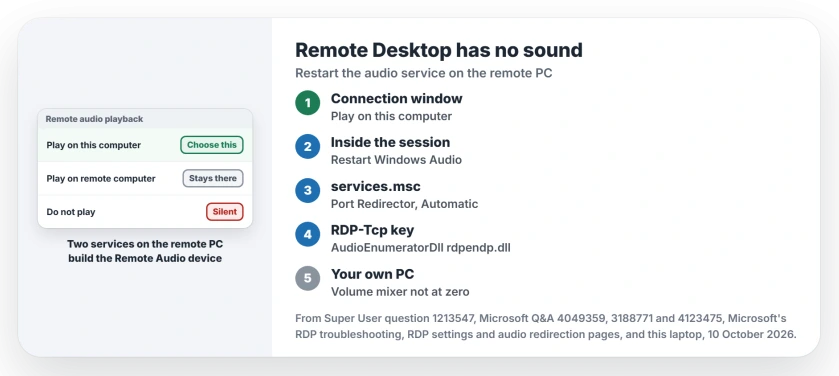
Status: I went through Microsoft's RDP troubleshooting, RDP settings and audio redirection pages and the owner threads on 10 October 2026. Restarting Windows Audio did it for owner after owner.
Check the connection window first
On your PC, open Remote Desktop Connection, select Show Options, and on the Local Resources tab, under Remote audio, select Settings.
Ours: this laptop's Remote Desktop app offers three playback choices, Play on this computer, Play on remote computer and Do not play. You want the first.
The same box holds Remote audio recording. One owner found notification sounds came through while Firefox and Slack stayed silent. Ticking that box too fixed it.
1. Restart Windows Audio on the remote PC
Do this inside your session, so the service picks up the session's sound device: press Windows key + R, type services.msc and press Enter.
Find Windows Audio, right-click it and choose Restart, then play something to test it.
This came from a comment under the accepted answer, and owners went on confirming it until 2023. One said it worked "with an active remote desktop session open". Another wrote "Restarting Windows Audio service worked".
A Mac owner said the same. Their Port Redirector was already fine, so the audio restart alone did it. Some owners restarted Windows Audio Endpoint Builder too, the service it depends on.
2. Set the Port Redirector to Automatic
Still in services.msc on your remote PC, open Remote Desktop Services UserMode Port Redirector, change Startup type to Automatic, then select Start.
The Super User asker had it disabled. Their own answer says that after turning it on, "all was working again".
A Q&A owner lost sound after the remote PC woke from sleep. Turning this service on looked like the cure, and their reply was "That fixed the problem".
A month later the silence returned once the PC restarted. Only signing in at the PC itself cleared it.
Ours: on this laptop the service exists even on Windows 11 Home, set to Manual and stopped. That is normal here, because a Home PC cannot accept Remote Desktop connections at all.
If yours refuses connections outright, our Remote Desktop connection page starts with the edition.
3. Check the audio value in the registry
If neither service brings the sound back, check one value on the remote PC, so open Registry Editor as an admin there and browse to this key.
HKEY_LOCAL_MACHINE\SYSTEM\CurrentControlSet\Control\Terminal Server\WinStations\RDP-TcpFind AudioEnumeratorDll. Ours: on this laptop it reads rdpendp.dll.
An owner in October 2025 found theirs pointing at another file. In their words, "In my case it was set to rdpendp_winip.dll which does not exist in Windows 11". An old tweak of theirs, years before, may have broken it on purpose.
Setting rdpendp.dll back restored their sound. Export the key first, to undo later.
Sound arrives, but at zero
Check your own PC too. One owner tried every service fix and found the answer on the client side, where their Remote Desktop app had its own volume set to zero in the per-app list.
On Windows 11 that list is the Volume mixer, under Settings, System, Sound.
If your PC plays nothing at all, even outside the session, start with the no sound on your computer page instead.
When the music should stay on the remote PC
Some people want the opposite. The 20+ asker used the remote PC as a music player wired to speakers in another room, with Play on remote computer chosen.
Connecting still stopped the music in their browser. Yet with VLC, "the audio continues to work", they noted. No fix was confirmed for the browser, so I would use a desktop player for that job.
The Short Version
- Remote Desktop plays the remote PC's sound on yours by default.
- Pick Play on this computer under Remote audio in the connection window.
- Restart Windows Audio inside the session first.
- Set the UserMode Port Redirector to Automatic and start it.
- AudioEnumeratorDll should read rdpendp.dll; check your own volume mixer last.
Where to Next
Hearing it again? Which step worked on your PC? Write it in a comment for the next reader. If sleep breaks it again, I want to hear that as well.

Isaac Smith is the founder and editor of PC Glance, a website that covers computers, laptops, and technology. He is a tech enthusiast and a computer geek who loves to share his insights and help his readers make smart choices when buying tech gadgets or laptops. He is always curious and updated about the latest tech trends.