The Windows Update Disabler project on GitHub is tsgrgo/windows-update-disabler. It includes batch files to disable updates, restore them, or temporarily start the service. I'd use Windows 11's built-in Pause updates for a short delay.
This script changes protected Windows components, not just a preference in Settings. Before you use it, check what its restore file can undo. A stopped update service alone doesn't tell you whether updates are blocked.
In this guide
Check which project the download belongs to
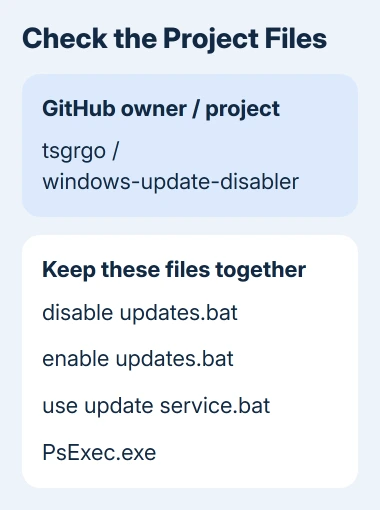
Open the Windows Update Disabler repository. Check the owner and project name in the address. Similar names can describe different tools with different changes and recovery steps.
The file list includes disable updates.bat, enable updates.bat, use update service.bat, and PsExec.exe. Keep these together if you download the project. The scripts call the accompanying PsExec executable from their own folder.
Read the script files on GitHub before downloading. A batch file is a list of commands that Windows runs. Opening its file page to read it doesn't carry out those commands; launching the downloaded batch file does.
The project uses PsExec to run commands with system permissions, a more powerful account than an ordinary administrator session. That's why the download needs more than the file that disables updates.
This is a different utility from Sordum's Windows Update Blocker. If that's the program already on your PC, use its own controls rather than another project's restore script. Matching the original tool matters when reversing changes.
Decide whether a temporary pause solves the problem
For a deadline or an inconvenient restart, open Start > Settings > Windows Update and use Pause updates. Microsoft's Windows Update guidance describes the supported update controls.
The pause and active hours guide explains scheduling when the main complaint is timing. A pause keeps you in the normal update system and has an end date, so fewer settings need restoring later.
An update that fails repeatedly needs a different answer. Write down the failing update's KB identifier and error code, then use the Windows Update error explanations. Turning off the service hides that failure without repairing it.
On a managed PC, ask IT about the required update policy. A blocker you run yourself can conflict with your organization's settings. If Pause is missing, IT may have turned it off through policy; the button might not be broken.
Understand the changes before running the batch file
The saved disabling script stops and disables several update services, including wuauserv, UsoSvc, uhssvc, and WaaSMedicSvc. It also changes the automatic-update policy and disables scheduled tasks in several update-related task folders.
More significantly, the current code takes ownership of two Windows DLL files, changes permissions, and renames them with a _BAK suffix. These are WaaSMedicSvc.dll and wuaueng.dll, files Windows uses to run updates.
It deletes downloaded update files from C:\Windows\SoftwareDistribution as well. That means restoring the services won't bring those cached downloads back; Windows must download any needed update content again.
Those details go further than the short description of disabling automatic updates. The restore file reverses many of these edits, but it sets particular service values rather than putting back a saved copy of your old settings.
Make a backup you can restore first, and let any downloading or installing update finish. The project warns against interrupting active updates. Blocking updates also delays their security fixes.
Download the files and start the intended action
If you choose the project, use Code > Download ZIP on its repository page. Right-click the ZIP in File Explorer and select Extract All. Work from the extracted files; don't launch the batch file from inside the archive.
Check the complete filenames. disable updates.bat applies the blocking changes; enable updates.bat restores updates. Keep the restore file and PsExec available before you launch the disabling file.
Run disable updates.bat and read the Windows permission prompt. The script requests administrator access and then system access through PsExec. It finishes with a message and waits for input, but read any errors that appeared earlier.
Don't treat a final completion message as confirmation that every command succeeded. Pay attention to errors about file access or services. Save the error text and stop there instead of applying a second tool to an already changed system.
Restore updates with the matching file
Run enable updates.bat from the same extracted project folder. The current code re-enables update services and scheduled tasks, removes its automatic-update policy value, and attempts to restore the renamed DLL filenames.
After it finishes, open Settings > Windows Update > Check for updates. Check that Windows can find, download, and install an update again. Complete any requested restart and check the result.
The restore file isn't an undo history. For example, it can't know whether a task was already disabled before the blocker ran. It also doesn't contain a separate saved copy of each original service setting.
If restoration reports a missing backup DLL or access error, don't download unrelated replacement system files. Give the maintainer the error and Windows version; ask Microsoft Support about repairing update components.
Use the temporary service file for its narrower job
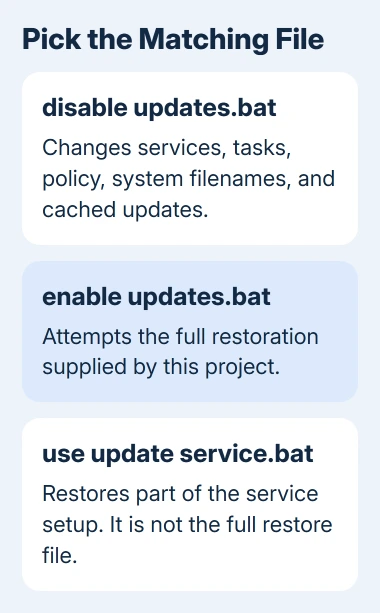
use update service.bat is intended for software that needs the Windows Update service, including some Microsoft Store operations. In the saved code it restores wuaueng.dll from the backup name and sets wuauserv to start automatically.
It doesn't perform all the work in enable updates.bat. Use the complete restore file when your aim is normal Windows updating. The temporary file and the full restore file don't do the same job.
When reporting a problem to the maintainer, include the project revision, batch filename, exact error, Windows edition, and build. For Windows Support, add the update error from Settings and explain which system files the blocker changed.
The Short Version
Read the tsgrgo scripts before downloading. Use Pause for a short delay. The blocker changes services, tasks, policy, and system filenames; restore with its matching enable file and verify through Check for updates.
Checked November 12, 2026.