Windows 10 offers password recovery without opening the desktop. For a Microsoft account, verify your identity online. For a local account, use recovery questions or a reset disk you already made. For a work account, ask IT.
A PIN is different from a password. Check Sign-in options before resetting anything: a working PIN can still let you into the PC, and a forgotten PIN has its own recovery button.
In this guide
Choose the account and sign-in method first
Select your user account on the Windows sign-in screen. Click Sign-in options and choose the password option if you're trying to enter a password. A PIN entered into the password box won't work, even when the digits are correct.
Check the keyboard language indicator and whether Caps Lock is lit. The password is case-sensitive, and a changed layout can put punctuation on different keys. Correcting either problem avoids an unnecessary password change.
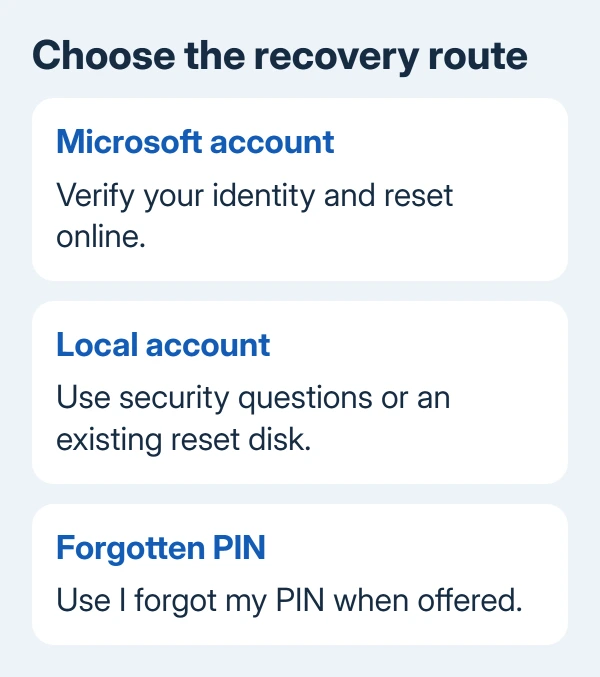
An email address associated with a personal Microsoft account points to online account recovery. A local account keeps its sign-in details on that PC. Your organization handles recovery for its work and school accounts.
If you're unsure which account it is, check what you normally use to sign into Microsoft services on another device. Don't reset an unrelated email account just because its address looks familiar.
Reset a personal Microsoft account password
From the password sign-in option, select I forgot my password when available and follow the recovery prompts. Use the sign-in screen's network control to put the computer online if necessary.
Microsoft explains online recovery in its password reset instructions. Use its Reset password link for the account belonging to the locked PC.
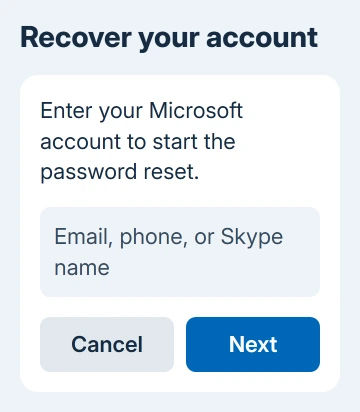
Enter that account's email address, phone number, or Skype name. Choose an available verification method. Confirm the requested part of the recovery email or phone, then request the code.
Read the code from the recovery email or phone and enter it in the reset process. Create the new password when verification succeeds. This changes the Microsoft account password, so you'll also use it for that account's other services.
Keep the Windows PC online, choose the password sign-in option and enter the new password. Don't put it into a PIN box. You'll know it worked when the desktop loads instead of another password error.
If the recovery email or phone is no longer available, use the sign-in helper offered by the reset process. The Microsoft account recovery guide explains the recovery form and its limits.
Recovering that account doesn't involve reinstalling Windows. I'd finish the online recovery options before considering a reset of the PC, particularly when the account also holds email and subscriptions.
Answer the security questions for a local account
Select the password entry option for the local account. Try entering the password, select OK when the error appears, then choose Reset password. Answer the security questions that were set up for this account.
Once Windows accepts the answers, follow the prompts to set a new password, then use it to sign in. Windows checks your answers against those saved for the account. It isn't asking you to set up new questions while you're locked out.
If no questions appear, this account may never have had them configured. Older Windows 10 installations and accounts without security questions need another route. Don't assume every local account has the same reset screen.
A password reset disk works only if it was created for the local account before the lockout. Connect that disk, choose Use a password reset disk instead when offered, and follow the wizard to set another password.
An ordinary Windows installer USB isn't a password reset disk. Making a Windows installer on another PC won't give it your account's recovery information. These USB tools do different jobs.
Recover a PIN or ask the account's administrator
When only the PIN is forgotten, choose I forgot my PIN when the sign-in screen offers it. Complete account verification, then choose a replacement PIN. This is the Windows Hello route, not a Microsoft password change.
If that link isn't available, use Sign-in options to try the password. A PIN belongs to that device's sign-in setup; an online password change doesn't replace the Windows Hello PIN.
With a company or school login, use the organization's reset service or ask its help desk for account recovery. They can tell you whether self-service recovery is enabled and whether the PC needs a company connection afterward.
An existing administrator on the PC can reset a local account. On editions with the management console, the route is Computer Management > Local Users and Groups > Users > Set Password.
Windows 10 Home doesn't include that Local Users and Groups console. If you're using Home, you aren't missing a setting. Ask the administrator to use a supported way to manage accounts on that edition.
Having an administrator reset a local password can affect access to encrypted files and saved sign-in details. Have that administrator review the reset warning before proceeding, especially on a PC with files you can't replace.
Use Windows recovery only when account recovery is exhausted
Without usable questions, a previously made reset disk, or another administrator, the remaining supported local-account route is resetting Windows. This reinstalls Windows. It won't reveal the password you forgot.
Before proceeding, check your backups and get the BitLocker recovery key if the device is encrypted. Windows recovery can ask for that key. It isn't the Windows account password, and a technician can't substitute one for the other.
At the sign-in screen, hold Shift while choosing Power > Restart. In the recovery environment, select Troubleshoot > Reset this PC and review the options presented for your device.
With Keep my files, Windows removes applications and settings but retains personal files. Remove everything deletes those files too. Read each screen carefully and stop if you don't have a key or sign-in detail it asks for.
For a reset that won't finish, use the Reset this PC failure checks before repeating the operation. Ask the manufacturer for recovery media if the PC's built-in recovery tools won't work.
For a Microsoft account that still can't be verified, continue through the account sign-in helper. For a managed PC, contact IT. Reinstalling the computer doesn't recover access to the online account or remove its verification requirements.
The Short Version
Match the recovery method to your account and sign-in option. Use online verification for a Microsoft account, or questions and a previously made disk for a local account. Recover a PIN separately. Reinstall Windows as the last resort.
Checked November 12, 2026.