
Your music or game drops to a whisper soon after you join a voice chat or a browser call. Its slider in Volume Mixer has moved down. I would open one old Control Panel tab before you touch any driver.
Windows turns other sounds down by 80% whenever it decides you are on a call. A November 2012 Super User question about the drop, asked on Windows 8, has 146,038 views. A Q&A thread where Do nothing failed to stop it is marked 50+.
Windows decides when you are on a call
Microsoft calls it ducking. Its page on the default ducking experience describes your three choices on the Communications tab.
In Microsoft's words, "the user can choose an attenuation level (default value is 80%), mute all non-communication streams, or disable the default stream attenuation experience."
What counts as a call is broad. Microsoft says "The operating system considers the stream opened on a communication device to be a communication stream". A game or website that opens your headset microphone can set it off.
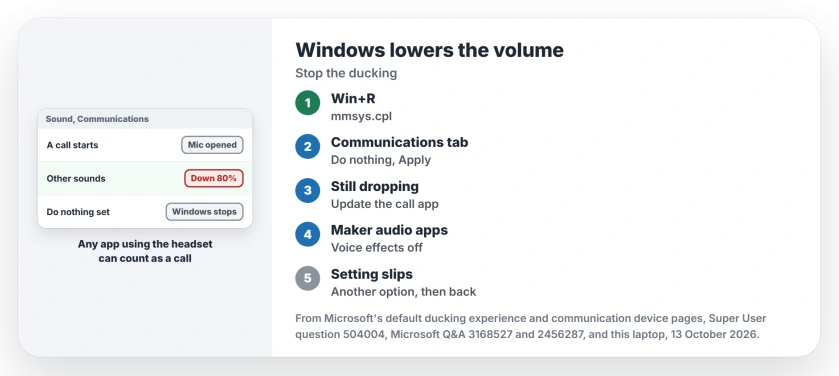
Status: the Communications tab, as found on 13 October 2026 in Windows 11 25H2. Set it to Do nothing. If sound still drops, your call app or audio software is lowering it.
The sound should come back by itself. Once every communication stream closes, Microsoft says the system "restores the volume of the streams that were attenuated during the communication session."
1. Set the Communications tab to Do nothing
Press Windows+R, type mmsys.cpl and press Enter. Open the Communications tab.
Under When Windows detects communications activity, pick Do nothing instead of the 80% choice. Then click Apply.
Ours: the tab on this laptop, running Windows 11 25H2, lists four choices. You can mute every other sound, lower them by 80% or by 50%, or do nothing.
The accepted Super User answer blamed Windows "thinking (often incorrectly) you are running an application that uses a microphone/telephony".
The comments under it are the confirmation. One reads "Wow. I thought that I was just going deaf". Another adds "Works for windows 7 too!"
One commenter found that plugging in hardware set it off: "I connected my wireless mouse dongle and it lowered the volume". The same switch fixed it for them.
2. Do nothing is set and it still happens
Then something other than the tab is turning your sound down. Microsoft's ducking page says "An application can override stream attenuation and implement a custom ducking experience".
In plain terms, a call app can lower other sounds on its own. The tab cannot stop that.
Reported by an owner in December 2018, on a 10+ Q&A thread. Their sound dropped by about 80% on the first Skype call after each restart. Do nothing was already selected.
Their fix: "Updating Skype was the key to success!" Before that, they had found a stopgap. Choosing another option, clicking Apply, then going back to Do nothing held until the next restart.
For Discord, check the supported Windows download before replacing an old client. The desktop requirement includes a 64-bit operating system.
Owners named other culprits under the Super User question:
- A Lenovo laptop: the commenter turned off a Lenovo setting named Optimize sound effects for voice communications. Do nothing alone had not helped.
- Dolby Digital Plus: another owner switched off the Dolby program. Its Volume Leveler kept changing their volume.
- A voice chat app: "I found that Mumble was actually the cause".
Look in your call app's voice settings for an option that lowers other apps while people talk. Turn it off. Then check any audio program your laptop maker installed, such as a voice or sound enhancement app.
Ours: this laptop carries ASUS's AI Noise-cancelling input and output. They are two extra audio devices added by the ASUS Utility. Software like that sits between your apps and the speakers, so test with it off.
If a whole app goes silent instead of quieter, that is a different fault. We sorted no sound on a PC by its causes, from the wrong output device to drivers.
Does the main volume slider move too?
Ducking lowers apps inside Volume Mixer. Microsoft says the mixer "lowers the slider, displays the new attenuated volume, and displays the original volume level."
Your main level should not move. If the volume popup appears and that level climbs or falls, something is pressing volume keys.
One 100+ Q&A asker saw exactly that: "the volume bar would pop up and it would go to 62 or 64 on its own". No fix was posted there.
I would unplug the headset, dongle or keyboard and watch the level for an hour with each one out.
Bluetooth headphones can also drive the Windows slider directly, through their own volume buttons. We explained how absolute volume links the two and how to separate them.
The Short Version
- mmsys.cpl, Communications tab, Do nothing, Apply.
- Still dropping: update the call app and look in its voice settings.
- Check audio software from your laptop maker, Dolby or your headset.
- Setting does not stick: pick another option, Apply, then Do nothing, Apply.
- Main slider moving with a popup: unplug devices one at a time.
Where to Next
Skype, Discord, a game or a maker's audio app: which one ducked your sound? A comment naming it helps the next reader, and new culprits go into step 2.

Isaac Smith is the founder and editor of PC Glance, a website that covers computers, laptops, and technology. He is a tech enthusiast and a computer geek who loves to share his insights and help his readers make smart choices when buying tech gadgets or laptops. He is always curious and updated about the latest tech trends.