

You open your USB serial adapter's settings to move it to COM1 or COM3. Every low number is marked in use, though nothing else is plugged in.
I would look for ports Windows still remembers from old devices. Each one keeps its number reserved until you remove it, even years after the device is gone.
On Microsoft Q&A, the question about deleting unused COM ports is marked 300+, and another about clearing ports that show as in use is marked 200+. The April 2012 Super User question has 449,585 views.
What in use really means
Windows hands out your COM numbers from a small database that every Ports installer is meant to use. Microsoft says on its COM port database page that it is there "to ensure that each port number is assigned, at most, to one port."
It stores almost nothing else. In Microsoft's words, "the database does not contain any information about which device is assigned a given port number". So your number list can say COM3 is taken, but never by what.
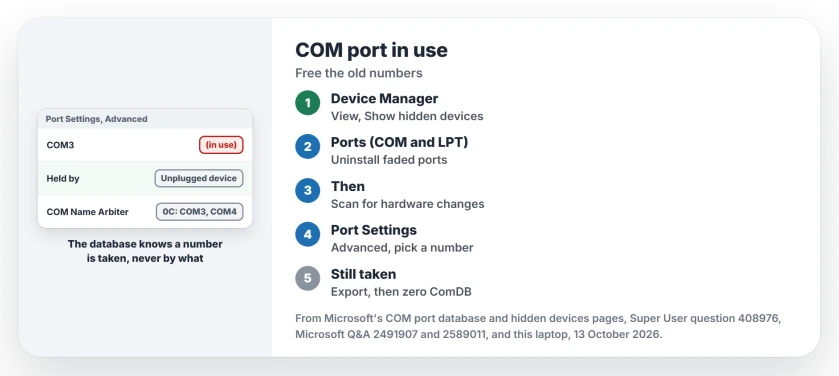
Status: what frees COM numbers in Windows 11 25H2, as of 13 October 2026. Uninstall the faded ports under Show hidden devices first. Reset ComDB only if numbers stay taken.
Ours: this laptop has no serial port at all, and no USB serial adapter plugged in. Its database still marks COM3 and COM4 as taken. I ran Get-PnpDevice in PowerShell, without admin rights, to see which devices were holding them.
Two Standard Serial over Bluetooth link ports showed up, COM3 and COM4. Both are installed, but neither is present. Yours may hold many more.
1. Find the ports for devices you unplugged
Every adapter, phone, GPS or Bluetooth link you ever used as a serial port can leave one behind. One Q&A asker's Bluetooth device made a new port at each reconnect, until it reached COM 28.
Open Device Manager. From its View menu, turn on Show hidden devices. Then open Ports (COM and LPT). The faded entries belong to devices you have not connected right now, including old Bluetooth links.
Older answers, including the accepted one on the 300+ thread, tell you to set DEVMGR_SHOW_NONPRESENT_DEVICES first. Microsoft's page on viewing hidden devices says that step applied "Prior to Windows 8". Today the View menu does it alone.
Right-click each faded port you do not need. Choose Uninstall device. Leave the box for deleting the driver clear if that device may come back one day.
Confirmed by an owner on Super User: "I have a simple solution that worked for me… my count was up to 45 com ports in use!" After the uninstalls and a scan for hardware changes, their devices were "re-allocated from COM1".
A second answer made the same point the long way, through Computer Management and an environment variable. One commenter called it "the only answer that actually solved my problem on Win7".
If a Bluetooth device itself refuses to go, we covered clearing its hidden copy as well.
2. Give your adapter the number you want
Right-click your adapter under Ports and choose Properties. Open Port Settings and click Advanced. Pick a number from the COM Port Number list that your serial program can reach. Avoid any marked in use.
A Microsoft Support agent who gave those steps on Q&A added a warning. Device Manager keeps the old label. The adapter "will show up on the new port if you close the device manager and open it again".
Ours: the Ports class message file on this laptop holds the Port Settings and Advanced labels. It also holds the in use marker you see beside each taken number.
Close and reopen the program that talks to the port, too, such as a terminal or a flashing tool. It may keep looking at the old number. If your adapter shows a yellow mark instead, the Device Manager error code tells you more.
If a CH341A never creates a serial port, check its interface mode before trying to change COM numbers.
3. No faded ports left, numbers still taken: reset ComDB
Sometimes the hidden list is empty and your low numbers still say in use. The database then holds claims that were never released when their devices were removed.
One Super User answer resets it. In Registry Editor, open this key and double-click ComDB. Set every byte to 0. Then restart.
HKEY_LOCAL_MACHINE\SYSTEM\CurrentControlSet\Control\COM Name Arbiter
Back up first. Right-click COM Name Arbiter and choose Export. That answer explains the layout too: 32 bytes, where "A bit of value 1 makes a port number (1…256) reserved."
Ours: the first byte here reads 0C. That sets the bits for COM3 and COM4, the two Bluetooth ports Device Manager hides. I would uninstall such ports before any reset.
Otherwise a Bluetooth device that comes back later could end up sharing its old number with a new adapter.
An owner confirmed it in a comment there, and stressed the restart: "I couldn't find any other way to force a re-read of the registry". Another commenter wrote that it "didn't remove any of them". Do step 1 first.
The accepted answer on a 70+ Q&A thread from 2013 gives the same registry reset. It adds a caution: "you may need to reinstall any USB to serial convertor."
The Short Version
- Device Manager, View, Show hidden devices, then Ports (COM and LPT).
- Uninstall the faded ports you do not need, then scan for hardware changes.
- Port Settings, Advanced: pick a number not marked in use, then reopen Device Manager.
- Numbers still taken: export the COM Name Arbiter key, zero ComDB, restart.
Where to Next
How high had your COM numbers climbed before you cleared them? Post the number in a comment, along with the device that kept making new ones.

Isaac Smith is the founder and editor of PC Glance, a website that covers computers, laptops, and technology. He is a tech enthusiast and a computer geek who loves to share his insights and help his readers make smart choices when buying tech gadgets or laptops. He is always curious and updated about the latest tech trends.