
Your headphones misbehave, so you try to remove them and pair again. Windows answers Remove failed, and the device stays in the Bluetooth list no matter how often you try.
I would look in Device Manager for a hidden second copy of the device first. That one step fixed it for two owners, and it needs no script.
Asked on Super User in August 2022, the question has 58,214 views. One Microsoft Q&A thread on the same fault shows Same question 1400+, a huge number for that forum.
The device that would not leave
It began on Windows 10 for the asker. Settings refused, and "The same thing happened when I tried to remove it through the control panel".
They removed the driver. They even deleted its registry entry. After a restart, the headphones were still listed.
"The device is a pair of headphones so it's something I use a lot". So deleting it for good and simply moving on was not an option for them.
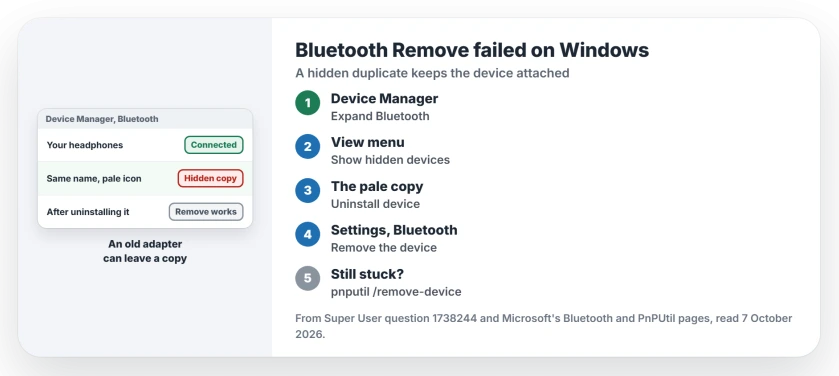
Status: checked 7 October 2026. A Bluetooth device that shows Remove failed on Windows 10 or 11 often has a hidden duplicate. Uninstalling it in Device Manager lets Settings remove the device.
Please skip the registry. The asker deleted the device's key and it changed nothing, except that they no longer had a backup of it.
1. Uninstall the hidden copy
In Device Manager, expand the Bluetooth group. From the View menu in Device Manager's menu bar, turn on Show hidden devices.
An owner explained what to look for: "you may be able to see an additional Bluetooth device with the same name as your device and a pale blue icon". Right click that pale copy, not the normal one, and choose Uninstall device.
Now go back to Settings, then Bluetooth & devices, and remove the device as normal. It should go now. Microsoft's Bluetooth fixes page gives the same last step: "Remove the Bluetooth device, then add it again".
A reader confirmed it: "This totally fixed it for me". They had changed Bluetooth adapters without unpairing from the first one. That old adapter's copy of the headphones was what blocked the removal in Settings.
On the Microsoft Q&A thread, another reader gave the same advice about an old USB adapter. The asker there said it did not fix theirs, so try step 2 if yours is the same.
2. Remove it with pnputil
Windows has a command for this. Microsoft's PnPUtil reference documents /enum-containers, which lists devices grouped by the physical device, and /remove-device, which removes one by its instance ID.
One owner on Windows 11 24H2 used both. Microsoft says the remove command works from Windows 10 version 2004, so any current PC has it. Run Terminal as administrator, then type:
pnputil /enum-containers /devices > list.txt
notepad list.txt
Find your device by its name in the Description lines of that text file. Under it you will see several Instance ID lines, each one starting with BTHENUM. Remove each one:
pnputil /remove-device "PASTE-THE-INSTANCE-ID-HERE"Ours: copy each ID from the file rather than typing it, since they are long and one wrong character removes nothing. Keep the quotation marks around each one, because the IDs contain ampersands that Terminal would misread.
3. The script from the thread
Keith Miller posted a PowerShell script on the same Super User thread. It calls Windows's own Bluetooth removal function and lists your paired devices by number.
Readers were still thanking him years later. One reader has come back to it for years. One wrote "Worked for me even though it said an error occurred!" Another found 66 old devices on one PC and removed them all at once with a small change.
Ours: read any script before you paste it. Copy it only from the original answer. I would try steps 1 and 2 first, since both use tools that ship with Windows.
When it pairs but still acts up
Once removed, put the headphones in pairing mode and add them again from Bluetooth & devices. Our Bluetooth pairing page has the order that works, starting with pairing mode on the device itself.
If the device keeps dropping after that, the driver is what you check next. Our Bluetooth driver page shows the uninstall and restart, and where your driver came from.
Old Bluetooth links can also leave serial ports behind that keep COM numbers taken. Freeing COM ports marked in use clears them from the same hidden list.
The Short Version
- Remove failed often means a hidden duplicate is still attached.
- In Device Manager, choose View, then Show hidden devices.
- Uninstall the pale copy under Bluetooth, then remove the device in Settings.
- Still stuck? Use pnputil /enum-containers and /remove-device as administrator.
- Leave the registry alone; deleting the key did not help the asker.
Where to Next
Turn on Show hidden devices today and count the copies of your device under Bluetooth. Two or more is your answer.
Which step finally removed yours? Leave a comment with the step that worked, and mention any adapter swap you made before it went wrong.

Isaac Smith is the founder and editor of PC Glance, a website that covers computers, laptops, and technology. He is a tech enthusiast and a computer geek who loves to share his insights and help his readers make smart choices when buying tech gadgets or laptops. He is always curious and updated about the latest tech trends.