To forget a Bluetooth accessory, remove it from your phone or computer's saved-device list. Open Bluetooth settings, select the accessory, then choose Remove device, Forget, or Forget This Device and confirm.
That stops the phone or computer from using the old pairing automatically. The button has a different name on Windows, Mac, iPhone and Android. Follow the section for the device paired with your headphones, speaker, mouse or keyboard.
In this guide
Choose the device you want to forget
Open the settings on the phone or computer paired with the accessory. For example, removing headphones from a laptop doesn't clear the copy remembered by an Android phone. An accessory can have more than one saved connection.
Check the accessory's name before confirming. For similar headsets, switch one off and see which entry changes from Connected to disconnected. Don't remove the Bluetooth adapter to clear one accessory.
Keep another way to control the computer ready before forgetting its only wireless mouse or keyboard. A laptop's built-in keyboard and trackpad are enough; a desktop may need a wired alternative.
Disconnect suits a short break. Choose Forget or Remove device when selling an accessory, clearing an old pairing, or setting it up again after connection trouble. Switching Bluetooth off keeps the saved pairing.
Clear the saved Windows pairing
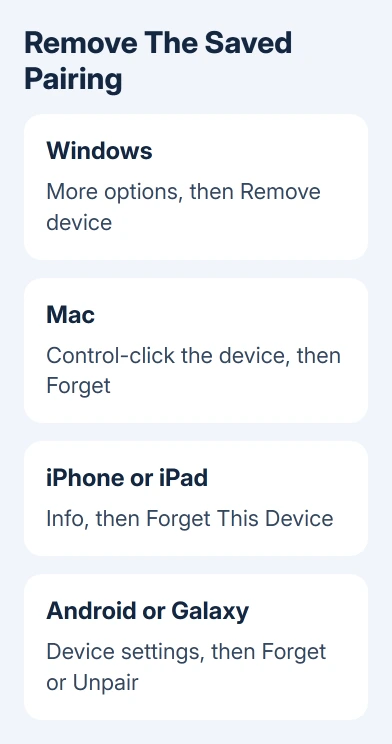
Windows 11 puts paired accessories in Settings > Bluetooth & devices. For the fuller list, open Devices. Find the accessory, open its More options menu, then choose Remove device and confirm Yes.
The entry should leave the paired-device list. That's what to check, rather than whether the headset's light stops flashing. A flashing light can mean it's searching for another phone it remembers.
On Windows 10, use Settings > Devices > Bluetooth & other devices. Select the accessory under its category, choose Remove device, and accept the confirmation. The settings look different, but Remove device still clears the saved pairing.
Microsoft says to use its remove-and-reconnect procedure before pairing a troublesome accessory again. Reconnecting is optional when your aim is simply to clear the list.
If the Bluetooth controls themselves are missing, the Windows Bluetooth switch guide explains where to look. A missing control is different from one named accessory refusing removal.
Forget an accessory on a Mac
On macOS Ventura and later, open Apple menu > System Settings > Bluetooth. Find the accessory, Control-click its name, then choose Forget. Confirm the request if a confirmation appears.
Choosing Disconnect from the device entry only ends the present connection. The Mac can still remember it afterward. Choose Forget to stop automatic reconnection through the Mac's saved pairing.
On older macOS versions that use System Preferences, open Apple menu > System Preferences > Bluetooth. Control-click the accessory and use Remove. Follow the confirmation for that version's Bluetooth panel.
The accessory should disappear from the Mac's saved devices. It can still appear as a nearby device if it's on and available for pairing. That doesn't mean deletion failed; pairing again would create a new saved connection.
Use Forget This Device on iPhone or iPad
Open Settings > Bluetooth, then open the accessory's information button. Choose Forget This Device, followed by Forget Device to confirm. Bluetooth needs to be on to see the device list.
Use Settings for this action. Control Center's Bluetooth control disconnects accessories temporarily; it doesn't erase a saved pairing.
For AirPods, forgetting also clears the pairing on the other devices sharing that Apple Account. Keep that in mind if the same pair serves both your iPhone and your Mac. You may need to reconnect them on those devices afterward.
The accessory can still appear as an available nearby device after you've unpaired it. Check that the saved connection has disappeared; forgetting it doesn't stop it broadcasting.
Forget it on Android or a Samsung Galaxy
On Pixel and similar Android phones, open Settings > Connected devices. Find the accessory in the connected or saved list; See all can reveal older entries. Tap its settings button, then choose Forget and confirm if asked.
Another route is to swipe downward to reveal Quick Settings, then hold the Bluetooth control. This opens the relevant device panel instead of simply switching Bluetooth off.
On a Samsung Galaxy, open Settings > Connections > Bluetooth. Tap the settings button beside the paired accessory, then choose Unpair. Samsung calls it Unpair rather than Forget, but it still removes the pairing from that phone.
The accessory should leave the paired list. Disconnect keeps it remembered. Before moving to another phone, remove the old phone's pairing, then follow the accessory's instructions to connect the new one.
When the name returns or removal fails
A discoverable accessory can reappear in a nearby-device scan after removal. That isn't the same as showing Connected or remaining in the paired list. Turn the accessory off briefly to see which entry belongs to it.
For a Windows Remove failed message, use the separate Bluetooth removal failure fixes. Those cover stale device copies that ordinary removal can't clear. I'd keep driver removal for that specific failure.
If removal works but the accessory connects to another device, check that device's saved pairings too. A car stereo also keeps a saved-phone list; deleting the phone's pairing doesn't necessarily clear the stereo's copy.
To reconnect later, follow the manual's pairing-mode instructions and add the accessory again. If it won't enter that mode, check its maker's pairing or reset procedure instead of repeatedly deleting it on the computer.
If the removal button stays unavailable after a restart, give support the system version, accessory model and exact message. Ask them to clear the saved pairing, especially if your workplace manages the computer.
The Short Version
Choose Remove device on Windows, Forget on Mac or Android, Forget This Device on iPhone, or Unpair on Samsung. Check that the paired entry disappears. Disconnecting or switching Bluetooth off doesn't clear the pairing.
Checked November 10, 2026.