

A forgotten Bluetooth device needs a new pairing; no undo button restores the old one. Start pairing mode on the accessory, then choose its name in the phone or computer's available Bluetooth devices.
Powering it on isn't always enough. An accessory may be looking for a device it already knows instead of accepting a new connection. Check its pairing instructions first, then use the phone or computer steps that apply to you.
In this guide
Make the forgotten accessory discoverable
Charge the accessory or connect it to power first. Keep the two devices near each other and follow the pairing steps in its manual. Depending on the model, that can mean holding a Bluetooth button or using a specific power-button sequence.
Look for the pairing light or spoken prompt described in the manual. There isn't one button-hold duration or light color that works for every brand. A steady power light can mean it's switched on without being ready for pairing.
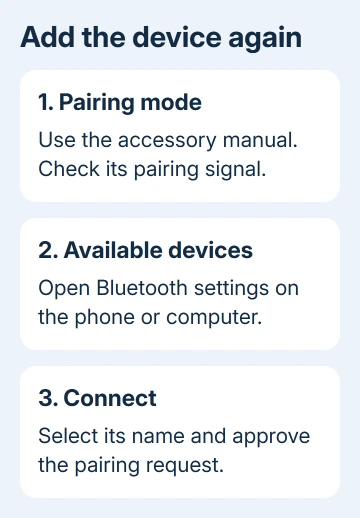
If it reconnects to another phone or tablet, disconnect that connection and restart pairing mode. Some models support several connections; others need to disconnect before accepting a new device. Check the manual for yours.
I'd wait for that light or prompt before resetting anything on the phone. A device that's waiting for an old connection can stay absent from every new-device scan even though Bluetooth is working normally.
When pairing a mouse or keyboard, have another set of controls ready. A laptop's built-in controls or a wired mouse or keyboard will let you confirm the new pairing while the wireless accessory isn't responding.
Pair it again on iPhone or iPad
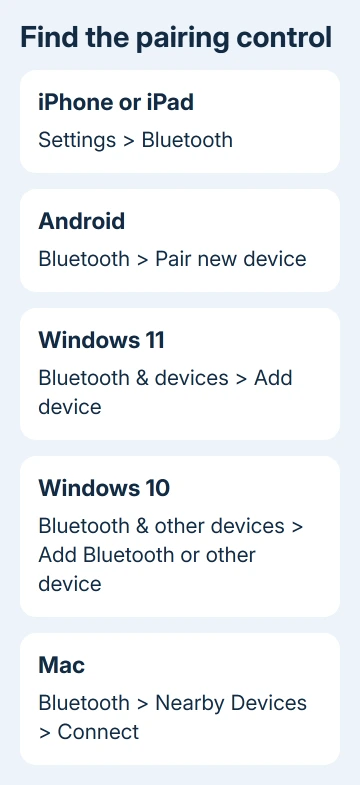
Open Settings > Bluetooth and turn Bluetooth on. Keep the settings screen visible during discovery. When its name appears in the available-device list, tap it and follow any pairing request.
A successful connection puts the accessory back in the list with Connected beside it. Test the function you need, such as typing a short line or playing audio. An entry in a list isn't the same as a working audio output.
Apple's Bluetooth pairing instructions say that a removed accessory can be added again through the pairing steps. Forget This Device clears the relationship; it doesn't permanently block that accessory.
Use the accessory's manual for any requested PIN or passcode. A keyboard may ask you to type a displayed code on that keyboard and confirm it. Follow the prompt rather than entering unrelated phone-unlock details.
If the name doesn't appear, power-cycle the accessory and restart its pairing sequence. For a continuing failure with an iPad, use the iPad Bluetooth checks after checking the accessory's charge and pairing state.
Add it back on Android
Open Bluetooth settings. On many Android phones, swipe down and hold the Bluetooth control, then tap Pair new device. Tap the accessory's name when it appears and approve the pairing request.
Once pairing succeeds, give that Bluetooth accessory a clearer name so similar speakers are easier to distinguish.
Some Android versions show Available devices instead of Pair new device. Others offer a refresh control through the menu. Keep the accessory discoverable while refreshing, and compare its displayed name with the name in its manual.
On Samsung Galaxy phones, start with Settings > Connections > Bluetooth. Enable Bluetooth, then choose the available accessory. Use Scan if that control is present and the list needs refreshing.
Check for Connected, then test the accessory. Headphones may have separate call and media controls in their settings. If music is silent after connecting, check media audio before removing the pairing again.
A Fast Pair notification can offer another way to reconnect supported accessories. It isn't required for ordinary Bluetooth pairing. If the notification doesn't appear, choose the accessory yourself in the available-device list.
Recreate the Windows pairing
On Windows 11, open Settings > Bluetooth & devices and turn Bluetooth on. Choose Add device > Bluetooth, then select the accessory once it appears. Complete any code confirmation and wait for the successful connection message.
On Windows 10, use Settings > Devices > Bluetooth & other devices. Select Add Bluetooth or other device > Bluetooth, choose the accessory and follow the prompts. Select Done when setup finishes.
If a supported device offers a Swift Pair notification, selecting Connect can complete the same pairing task. Use the Settings steps if no notification appears. The accessory still needs to be nearby and discoverable.
For a missing Bluetooth switch, use the Windows Bluetooth controls guide. Windows needs a working Bluetooth adapter with Bluetooth turned on before it can find the accessory again.
Once headphones connect, choose them for audio output if audio still comes from the laptop. The pairing can work even when Windows or an app keeps using your previous speakers.
Reconnect from a Mac's nearby-device list
On current macOS versions, open Apple menu > System Settings > Bluetooth. Enable Bluetooth and start the accessory's discovery sequence. Find it in Nearby Devices and select Connect. Accept any confirmation that appears.
For macOS Monterey and earlier, use Apple menu > System Preferences > Bluetooth. Select the discoverable accessory and click Connect. You'll be creating a new pairing in this older settings panel too.
For silent headphones, open System Settings > Sound and choose them under Output. Set the microphone under Input too if needed. Removing a working pairing won't change an app's choice of speaker.
When it still won't return to the list
Try a second compatible phone or computer. If discovery works there, check the original device's Bluetooth settings and software. If no device can find it in pairing mode, ask its maker for the pairing or reset steps for your model.
Save a full accessory reset for the maker's directions, since it can erase other saved connections. Resetting an entire phone isn't necessary just because one forgotten speaker hasn't appeared yet.
If every accessory fails on the same phone or computer, contact that device's support team with the models and failed steps. If only one accessory fails across working devices, take those results to the accessory maker instead.
The Short Version
Recreate the connection by making the accessory discoverable and adding it again. Use the available-device list on phones, Add device on Windows, or Nearby Devices on Mac. Check for Connected, then test audio or input.
Checked November 13, 2026.
 If you have any business, I can build it online






