
Before installing the Discord app for Windows 10, check whether Windows is 64-bit. Discord supports Windows 10 and newer, but support for its desktop client on 32-bit Windows ended on June 15, 2024.
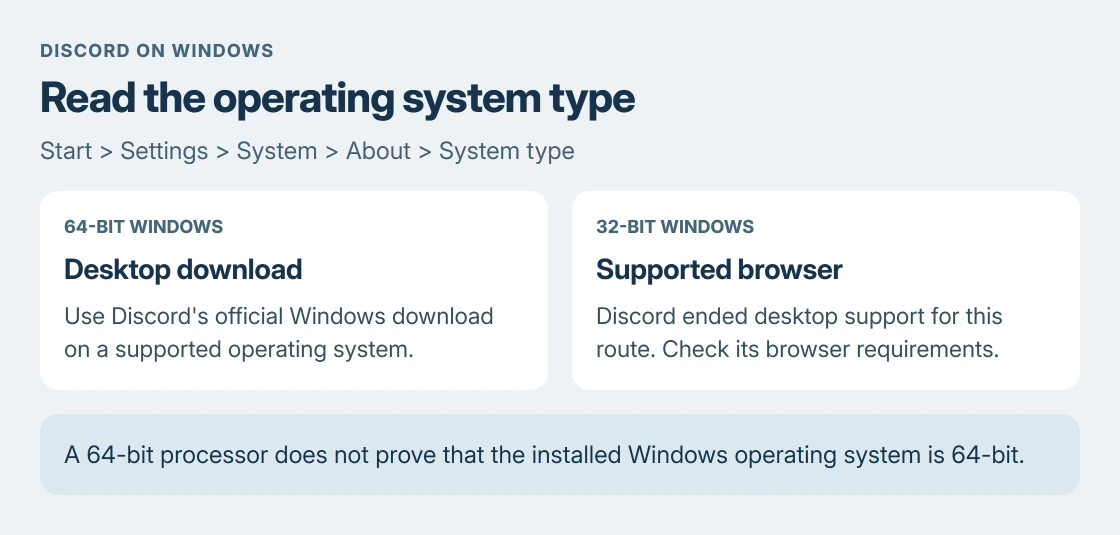
For a supported PC, download DiscordSetup.exe from discord.com/download, open it and complete installation. A 32-bit Windows installation needs the browser option or an appropriate operating-system upgrade instead.
Read the Windows system type before downloading
Open Start > Settings > System > About. Under Device specifications, read System type. Microsoft documents this as the place to check Windows architecture.
Look at the operating-system description, not just the processor description. A computer can have a processor capable of 64-bit Windows while the installed operating system is still 32-bit.
Status: Discord's desktop requirements, installation guide and 32-bit support notice reviewed 24 October 2026. No Discord package was downloaded or installed on this PC.
Microsoft states that Windows 11 has no 32-bit edition. On Windows 10, read the actual System type result rather than assuming a newer computer must have the right installation.
Download Discord from its official Windows page
Open https://discord.com/download and choose Download for Windows. Save the file, then open DiscordSetup.exe using the browser's download list or its saved location.
The Windows installation is documented by the vendor through its desktop installation guide. Follow the installer, then open Discord and sign in or register an account.
Installation and account access are separate stages. A login screen means the app has opened; repeating the download will not resolve a wrong password or a failed account-verification step.
Use the browser when the desktop client is unsupported
Discord's 32-bit support notice permits its browser version when the browser meets Discord's requirements. Open https://discord.com/app and sign in there.
Check Discord's current system-requirements page before relying on an old browser. Supporting the Windows version does not guarantee support for every browser running on it.
An existing 32-bit client might still open, but Discord no longer guarantees its stability or provides updates for that operating-system route. Do not treat an old installer as a supported replacement for the current download.
Microsoft's architecture explanation helps interpret the two entries on About. An operating-system change needs its own backup and compatibility planning; it is not an installer setting.
Check voice access after the account opens
Join the intended chat or server and check the app's selected microphone and speakers before a call. A working account does not confirm that the audio devices are configured correctly.
If Windows cannot hear the microphone either, use our Windows microphone checks. If joining a call reduces music or game volume, the Windows communications setting explains that separate behavior.
Keep those faults separate from installation. Reinstalling Discord is a poor first response when the actual failure is a muted input or an audio setting outside the installer.
Send an installation failure to Discord support
If the official installer fails on supported Windows, keep the exact error and the System type result. Submit them through Discord's support request link.
Name the stage that failed: downloading the installer, running the file or opening the installed app. This tells support which part needs attention.
A managed work or school PC may require its administrator to approve software. Ask that administrator about an installation block rather than changing device policies to force the package through.
The Short Version
Check System type, then install the official Windows download on supported 64-bit Windows. Use a compatible browser when the 32-bit desktop route is unsupported. Diagnose login and voice problems after the app opens.
Where to Next
Installer stopping with an error on 64-bit Windows 10? Post the exact message and the System type line from About in the comments, and I'll tell you which stage broke: the download, a blocked install or the account itself.

Isaac Smith is the founder and editor of PC Glance, a website that covers computers, laptops, and technology. He is a tech enthusiast and a computer geek who loves to share his insights and help his readers make smart choices when buying tech gadgets or laptops. He is always curious and updated about the latest tech trends.