
Your Bluetooth headphones are far too loud even with the Windows slider near the bottom. One more step down cuts the sound off. And the buttons on your headphones move the Windows slider as well.
I go straight to unlinking the two volumes, because Windows tied them together on purpose in 2018. A 2018 Super User post asking how to turn that off has 68,163 views. Readers kept thanking its accepted answer from 2019 into 2020.
One slider now drives both
Before 2018, your headphones kept their own volume and Windows had another, so you could balance the two.
The asker put it this way: "you could make the Windows volume very loud, but the device volume very quiet". Windows 10 version 1803 linked them.
A Windows Bluetooth developer explained the change that year, in a post the Super User asker quoted. The Windows slider now sets your headphones' own volume directly, on headphones that support it.
Microsoft calls it absolute volume, and its Bluetooth guidelines for audio accessory makers say headphones "Shall implement the Absolute Volume feature of AVRCP". On a headset with fine volume steps, you never notice the difference at all.
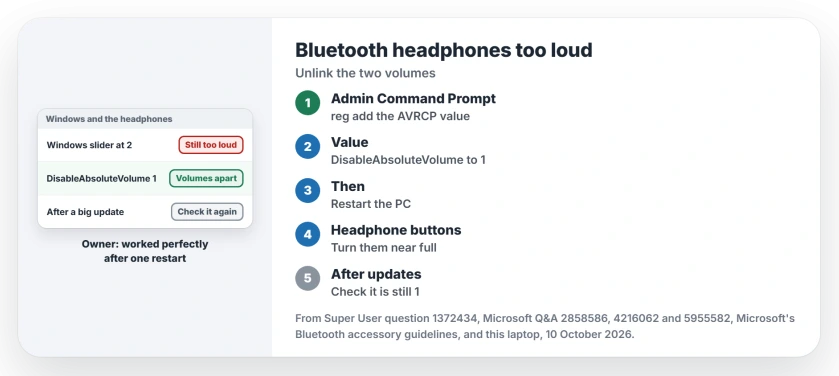
Status: Microsoft documents absolute volume for Bluetooth headphones. The registry switch is the owner fix, confirmed for years. This laptop's Bluetooth key read 10 October 2026.
On a headset with coarse steps you do. The Super User asker's pair jumped in big steps, "the granularity decreased to 6 points", and going lower often muted them until a restart.
Ours: the MediaTek Bluetooth adapter here already has the switch, DisableAbsoluteVolume, set to 0. So absolute volume is on, which has been the Windows default since version 1803.
1. Set DisableAbsoluteVolume to 1
Owners have confirmed this one for years. Open Start and type cmd, then right-click Command Prompt, start it as administrator and paste this one line.
reg add HKLM\SYSTEM\ControlSet001\Control\Bluetooth\Audio\AVRCP\CT /v DisableAbsoluteVolume /t REG_DWORD /d 1 /fRestart your PC, because nothing changes before that. Then test it with a quiet song. The asker agreed: "this change required a restart".
Then they wrote: "Solution worked perfectly and restored the old behavior with no fuss". Later readers confirmed it, one on Windows 10 version 2004 with Edifier speakers and another with Edifier headphones.
If you prefer clicking, start Registry Editor and go to HKEY_LOCAL_MACHINE, SYSTEM, ControlSet001, Control, Bluetooth, Audio, AVRCP, CT. Double-click DisableAbsoluteVolume, set it to 1, then restart.
The value is still there on Windows 11, where this laptop has it under the same path. On a July 2026 Q&A thread, a Microsoft support moderator pointed to it in reverse, for someone who wanted the linked volume back.
2. Check it again after big updates
Feature updates can undo the switch. The asker came back in 2019: "Stopped working after the Windows 10 June 2019 update, but just because the value was reset to 0".
Setting it to 1 again and restarting fixed it. One reader hit the same reset a year after first fixing it, following a later update. Their words: "the latest Windows update broke it again".
So if your headphones turn loud after an update, run the line again. I would save it in a text file you can find, for next time.
3. Set the headphones high, then use Windows
With the two volumes unlinked, the buttons on your headphones control only the headphones. Turn them up close to full. Then set your listening level with the Windows slider, which now only changes what Windows sends.
A 2018 Q&A asker with Skullcandy headphones wanted exactly that balance back. They used to set the headphones to full and "have the laptop volume at 10 or something". For more, they turned the laptop up.
A work laptop that blocks the registry
On a 60+ Q&A thread, the asker could not change the volume of AirPods at all. Their administrator also blocked the registry. The advice they got did not help.
If that is you, the change needs an administrator anyway, since the key sits under HKEY_LOCAL_MACHINE. Ask your IT team to set DisableAbsoluteVolume to 1 and restart the PC.
Until then, the Windows slider and the headphone buttons stay linked, whatever you set in the volume mixer.
When volume jumps to 100 on every connect
A different fault looks similar. An owner on Q&A had headphones that jumped to 100 percent every time they reconnected. Setting DisableAbsoluteVolume did not change it, and that thread ends without a working fix.
Try removing the headphones in Bluetooth and devices and pairing them again from scratch. Then try resetting the headphones themselves.
If your sound turns thin in calls instead, that is the headset profile: see why Bluetooth headphones sound bad on calls.
If music in other apps drops to a whisper the moment a call starts, Windows is ducking it. The Communications tab setting that stops it sits in mmsys.cpl.
Microsoft is still building on the linked volume. Microsoft says its September 2026 preview shows the volume flyout during calls when you press a headset's own volume controls.
The Short Version
- Windows links your Bluetooth volume to the headphones' own volume.
- Run the reg add line as administrator, setting DisableAbsoluteVolume to 1.
- Restart the PC, since nothing changes until you do.
- After a big update, check the value is still 1.
- Then set the headphones high and use the Windows slider.
Where to Next
Which headphones or speaker needed the switch? Leave the model in the comments, and I'll keep a list of the ones that do.

Isaac Smith is the founder and editor of PC Glance, a website that covers computers, laptops, and technology. He is a tech enthusiast and a computer geek who loves to share his insights and help his readers make smart choices when buying tech gadgets or laptops. He is always curious and updated about the latest tech trends.