
Turn off Live Caption under Chrome's Settings > Accessibility to stop its floating captions. Closing the text bubble can hide it for now, but changing the setting stops captions the next time you play something.
If you still see text with that switch off, check the video player's subtitles and your computer's caption controls. The website, Chrome and your operating system can each put words on the screen.
Switch off Chrome's caption generation
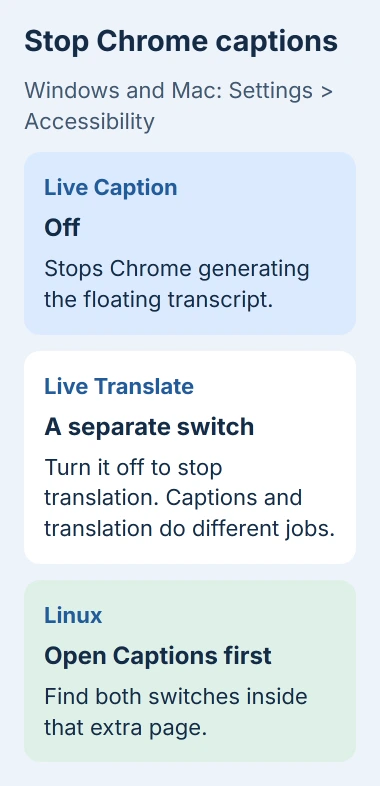
On Windows or Mac, open Chrome's three-dot More menu, choose Settings, then select Accessibility. Find Live Caption and turn its switch off.
Play the same audio or video again to check the result. Chrome's own floating transcript should stop appearing. Keep it playing until someone speaks, since a silent introduction won't tell you whether captions are off.
Google says to use these steps in its caption and translation instructions. If you can move the caption bubble around the browser, that's one sign Chrome is creating the text.
If your Settings page looks different, search for Live Caption inside Chrome Settings. Typing it into the address bar runs a web search instead of finding the setting.
Leave your other accessibility settings as they are while checking this one. Turning captions off doesn't call for a browser reset, especially if your text-size settings already work well.
The audio should keep playing after you turn captions off. If sound was already missing, follow the Chrome audio checks; the caption switch doesn't control volume.
Use the extra Captions page on Linux
Chrome on Linux has one extra settings page. Open More > Settings > Accessibility, select Captions, then turn Live Caption off.
That's why you might not see the switch beside the other accessibility controls. Follow the labels in your Linux browser, since its layout won't match the Windows instructions exactly.
Start playback again after changing it. If the floating bubble is gone but words remain inside the video, check the player's own subtitle button next.
On a shared computer, use the same Chrome profile for this change and for playback. A window opened with another profile may have different settings and extensions.
If work or school manages the browser and you can't use the switch, ask its administrator about the setting. Changing your computer's accessibility settings won't unlock a Chrome control they've disabled.
Check Live Translate when the words change language
Live Translate is a separate feature that translates captions. On Windows or Mac, its switch is also under Chrome Settings > Accessibility. On Linux, open the additional Captions page first.
Turn off Live Translate to keep captions in their original language. Turn off Live Caption to stop Chrome's generated text altogether. Choose the switch that matches what you want to change.
For example, English captions for Spanish speech can come from translation rather than the video's own subtitles. Turning translation off changes the language, but it doesn't necessarily stop the captions.
The translation controls explain that captions are sent for translation. To stop translation, use its switch instead of changing your preferred caption language.
I'd change one switch and replay the same passage before touching the next. That helps you tell whether the words are generated captions, translation or the video's own subtitles.
Turn off the Chromebook's matching control
On a Chromebook, open Settings > Accessibility > Audio and captions and turn off Live Caption. Chrome's accessibility route can also lead to Manage accessibility features > Audio and captions.
The Quick Settings panel can offer a Live Caption control too. Open it by clicking the clock, then check that control if you used it to enable captions during a video.
On Chromebook Plus, Live Translate can stay on after you turn off Live Caption. If you turn captions back on later and translation returns, check the Live Translate setting too.
Use the Chromebook's own settings. The Windows Accessibility page belongs to a different operating system, even though both devices run Chrome.
Identify text that belongs to the player or computer
If text remains, look for CC, Subtitles or a language menu inside the video player. Choose Off there to stop the player's subtitles. The exact label depends on the service.
The player can show its own subtitles without Chrome turning speech into text. Those subtitles can stay on even when Chrome's caption switch is off.
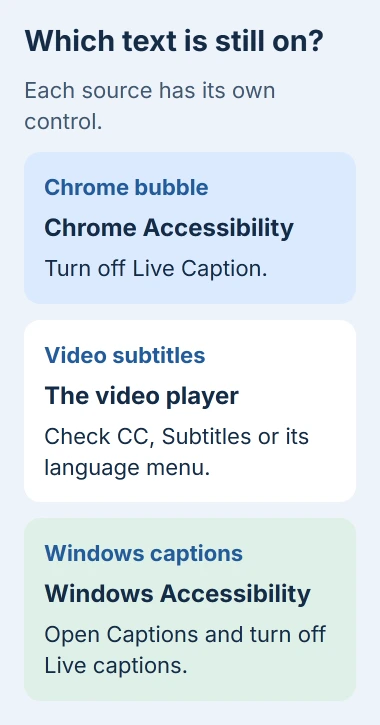
Windows 11 has its own Live captions feature. Open Settings > Accessibility > Captions and turn off Live captions if that is the source of the text. This is separate from Chrome's Settings window.
The Windows caption guide explains that it uses audio passing through your PC. Captions in other apps point to this system feature.
On supported Android phones, Live Caption is in the accessibility or sound controls. If the same floating text appears in other phone apps, use your phone's Live Caption setting rather than these desktop Chrome steps.
Text that's part of the video image has no separate switch to turn it off. Compare another video, or ask the publisher whether a version without the text is available.
Report a caption that keeps coming back
If captions return, reopen the settings page for the feature you turned off. Check whether Live Caption has turned on again or stayed off. That tells support whether the setting changed or the text comes from somewhere else.
If it happens on just one website while Chrome's switch stays off, check that site's player and any caption extension you installed. Text on one service needs a different check from text appearing across every app.
For a broader playback fault, the Chrome freezing guide covers updates, extensions and graphics settings. Keep those repairs for an actual playback or browser problem.
If captions return with the correct switch off, tell Chrome Help your browser version, operating system and where the text appears. Mention whether it happens in another app too, without sharing private conversations.
The Short Version
Disable Live Caption through Chrome's Accessibility settings, opening the additional Captions page on Linux. Check Live Translate separately. Remaining text may belong to the player, Windows, Android or the video itself.
Checked November 5, 2026.

Isaac Smith is the founder and editor of PC Glance, a website that covers computers, laptops, and technology. He is a tech enthusiast and a computer geek who loves to share his insights and help his readers make smart choices when buying tech gadgets or laptops. He is always curious and updated about the latest tech trends.