
Sound not working on a Chromebook can mean audio is muted or being sent to headphones, a monitor or another output. Open the clock panel, raise the volume, then check the selected output before resetting anything.
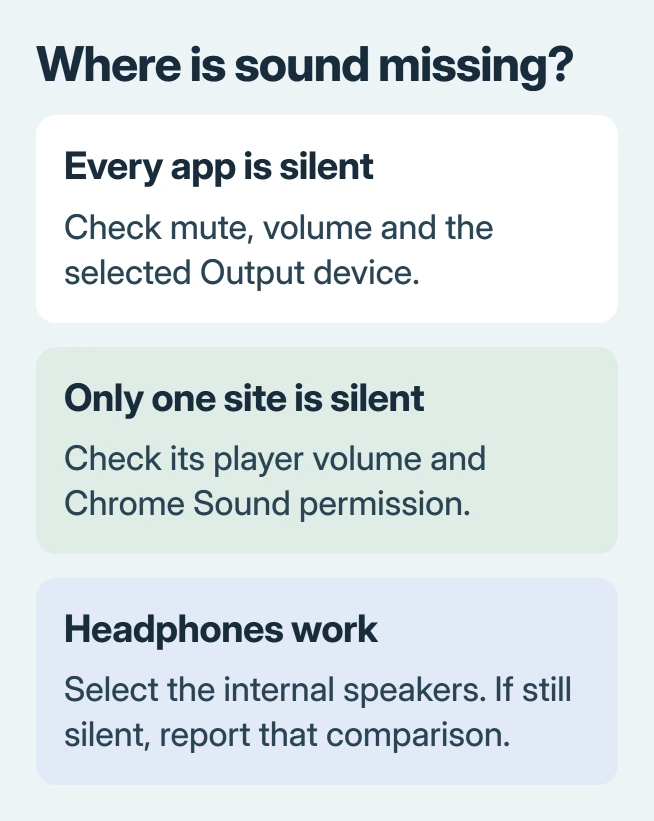
If only one website is silent, start with its player controls. Silence in every app needs the Chromebook's audio settings; a single silent site does not establish a speaker fault.
Select the speakers you actually want to hear
Click the clock and inspect the volume slider. Clear the speaker's mute state and raise the slider to a moderate level. Play a familiar clip that contains speech or music while checking the result.
Open Audio settings beside that slider. Under Output, choose the built-in speakers when testing the laptop itself. Google says the active output carries a green check in its Chromebook volume instructions.
Status: ChromeOS output controls and Google's sound troubleshooting reviewed November 2, 2026. A reported reset failure is included; no Chromebook audio was tested locally.
The same controls are available through Settings > Device > Audio. Inspect Output > Device, Volume and Mute. The Input section controls the microphone, so changing it will not restore sound from a video.
If the selected device changes when an accessory connects, select the intended output again and replay the clip. A working result after that change identifies routing as the immediate problem.
Disconnect accessories for a speaker comparison
Unplug wired headphones, external speakers and any display or dock carrying audio. Disconnect a Bluetooth headset for this comparison too, then check that the built-in speaker output is selected.
Google's steps for hardware sound problems include removing connected audio devices. This checks the laptop's own sound without an accessory taking the output.
Try the same clip through headphones afterward. Working headphones with silent, correctly selected internal speakers point toward a speaker problem. That comparison alone cannot identify a damaged component.
For a TV connection, distinguish HDMI audio from wireless casting. The Chromebook TV instructions explain why casting the whole screen can leave audio playing on the computer.
Do not force a plug or repeatedly probe an audio socket. Give the manufacturer the comparison results if internal speakers remain silent while another output works.
When one website or app is the only silent one
Check the video's own volume and mute control, then play a different known-audible clip. A loading error, paused player or video without an audio track cannot test the speakers.
For a website, open the control beside its address and choose Site settings. Inspect Sound and allow it for that trusted site if it was blocked. Reload the page and begin playback again.
The Chrome site-sound guide covers that permission and its browser default. Its Windows Volume mixer section applies to Windows computers, not ChromeOS.
If other apps produce sound, keep the repair focused on the failing app or website. Send that app's support team the affected clip or page and the fact that another app can play audio.
Restart once, then treat recurring gray controls separately
Save open work, shut the Chromebook down and start it again. Check the audio panel after sign-in. This is a useful comparison when the output list or volume control stopped responding, rather than a promised permanent repair.
One owner reported that repeated restarts sometimes restored sound temporarily, while the volume slider could stay gray at other times. They later confirmed that several factory resets had not solved the problem.
That outcome does not establish a cause for every gray slider. It does show why repeatedly erasing a device is a poor next step when the same failure keeps returning.
Record the Chromebook model, ChromeOS version and whether the output device is missing, muted or selected but silent. Check for an available system update using the ChromeOS update procedure.
Google states that persistent sound trouble can require a reset, recovery or manufacturer support. Before any erase, preserve local files and ask the school administrator or manufacturer which recovery step fits this device.
The Short Version
Check mute, volume and output first. Test speakers and headphones separately; check site permissions when only one site is silent. Give support the exact symptoms if outputs vanish or gray controls return after a reset.

Isaac Smith is the founder and editor of PC Glance, a website that covers computers, laptops, and technology. He is a tech enthusiast and a computer geek who loves to share his insights and help his readers make smart choices when buying tech gadgets or laptops. He is always curious and updated about the latest tech trends.