Soundcore Life Q20 headphones that won't stay connected to a Chromebook need a fresh pairing first. Disconnect nearby devices, forget the Q20 on the Chromebook, then pair again. Repeated drops may need a reset while charging.
Losing the connection isn't the same as losing sound. Check whether the headphones leave the connected-device list or remain connected while audio plays through the laptop speakers.
In this guide
1. Reconnect the Q20 without another device taking over
The Life Q20 reconnects to its last paired device when switched on. A phone or another laptop nearby can leave you trying to connect from the wrong place. I'd turn those devices' Bluetooth off before changing anything on the Chromebook.
Charge the headphones, unplug their charging cable, and bring them beside the Chromebook. They turn off while charging, so you can't use them for wireless audio with the charging cable connected.
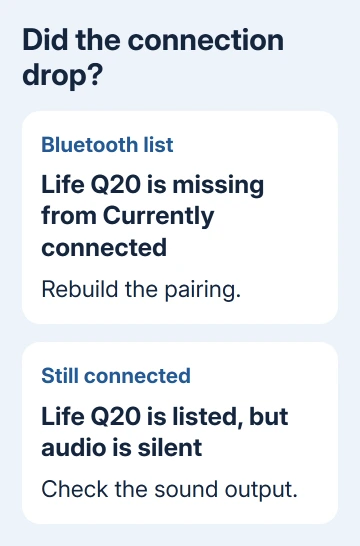
Open the Chromebook's time panel, select Settings, then Bluetooth. Select the Life Q20 entry and choose Forget. It can appear under Currently connected or Previously connected, depending on whether the link has already dropped.
Put the Q20 into pairing mode. The manufacturer's instructions for changing devices say to press the power button twice to enter pairing mode again. Then select Pair new device on the Chromebook and choose the Life Q20 entry.
The headphones should appear under Currently connected. Play familiar audio and leave it running through the point where the connection normally fails. A device listed only under Previously connected isn't connected now.
If that fixes it, turn Bluetooth back on for each nearby device, one at a time. If the same drop returns when a particular device reconnects, disconnect the headphones from that device before using them with the Chromebook.
2. Reset the original Life Q20 while it's charging
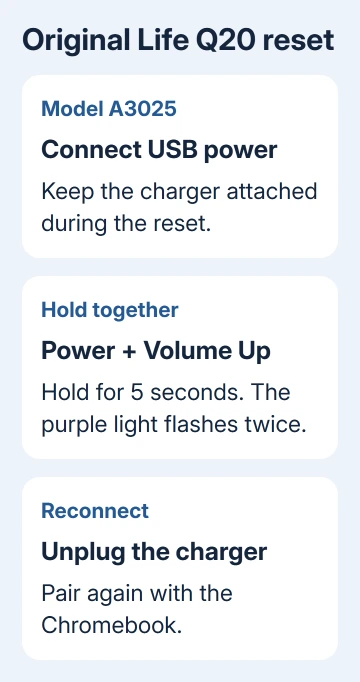
Anker's Life Q20 troubleshooting instructions explain how to reset the original model, A3025, while it's charging. Check the model before following it. Life Q20+, Q20i, and other similarly named headphones have their own instructions.
Connect the Life Q20 to a USB power supply. Hold the Power and Volume+ buttons together for five seconds. The model's FAQ describes a purple light flashing twice when the reset completes.
Unplug the charging cable afterward. Remove the old Life Q20 pairing from the Chromebook if it's still saved, then pair the headphones again. The reset clears the headphones' saved connection information, so the old pairing needs replacing.
Try the same audio again with the Chromebook as the only connected device. If the reset changes nothing, check the wireless connection and try another device next, rather than repeating the reset.
The Q20 can switch itself off after two minutes without a Bluetooth connection, unless noise cancellation is on. If the headphones then turn off, the lost connection can explain the shutdown, rather than the other way around.
3. Check distance, charge, and wireless interference
Google's Bluetooth dropout steps start with a supported, fully charged accessory. They also recommend moving it closer and away from other wireless devices and appliances.
Test beside the Chromebook, away from a crowded desk of wireless equipment. Disconnect other Bluetooth accessories temporarily and close unused apps and browser tabs. That gives the headphones less wireless activity to compete with.
Open the time panel and turn Bluetooth off. Wait at least ten seconds before enabling Bluetooth and reconnecting your Q20. That interval comes from the Q20 connection instructions; it doesn't require restarting the whole laptop.
Keep listening past the point when the connection usually drops. A stable connection at close range that drops farther away points toward range or interference. A drop beside the Chromebook needs the next check.
Try the Q20 with a phone, with the Chromebook's Bluetooth off. Next, connect a different headset to the Chromebook. Try each combination separately so one device doesn't reconnect in the middle of the other test.
If the Q20 drops on both devices, take that result to soundcore. If multiple headphones drop only on the Chromebook, concentrate on ChromeOS and the laptop's Bluetooth hardware.
4. Keep connected-but-silent audio out of the reset loop
When the Q20 remains under Currently connected, open the time panel and the sound controls next to the volume slider. Select Life Q20 for audio output, then check both the Chromebook's volume and the headphones' volume.
A second tab with audio is a useful comparison when one app is silent. If other audio plays, the Bluetooth connection is carrying sound and the failing app needs attention. Our Chromebook sound guide covers that branch.
The AirPods pairing guide also shows why pairing headphones and choosing them for sound are separate steps in ChromeOS. Its AirPods button instructions don't apply to the Q20.
5. Update ChromeOS, then consider a hardware reset
Open Settings > About ChromeOS > Check for updates. Install any offered update and restart when asked. If none is available, power the Chromebook off, then restart it before trying the connection.
For a recurring Chromebook-only failure, try a hardware reset next. Save important files from Downloads somewhere else first, because this reset might delete some of them.
On most Chromebook laptops, shut down, hold Refresh, and tap Power. Release Refresh once the Chromebook starts. On a Chromebook tablet, press Power together with Volume Up, hold both buttons for ten seconds or longer, then release both.
Some models use a different procedure. Find your model in the list on the hardware-reset page before using a method intended for another Chromebook. This isn't a Powerwash or a recovery installation.
When the connection still drops
Send service@soundcore.com the Q20 model, reset result, and whether it disconnects from a phone. For a Chromebook-only fault, give the laptop maker its model, ChromeOS version, and results with another headset.
Those details help support decide whether the headphones or the Chromebook's Bluetooth connection needs repair. I'd keep using a wired connection in the meantime if the Chromebook has a compatible headphone jack.
The Short Version
Rebuild the pairing with other devices disconnected. For further drops, reset the Q20 while charging, then compare another device and headset. Connected but silent needs an output check; Chromebook-only drops need ChromeOS attention.
Checked November 15, 2026.
 If you have any business, I can build it online