
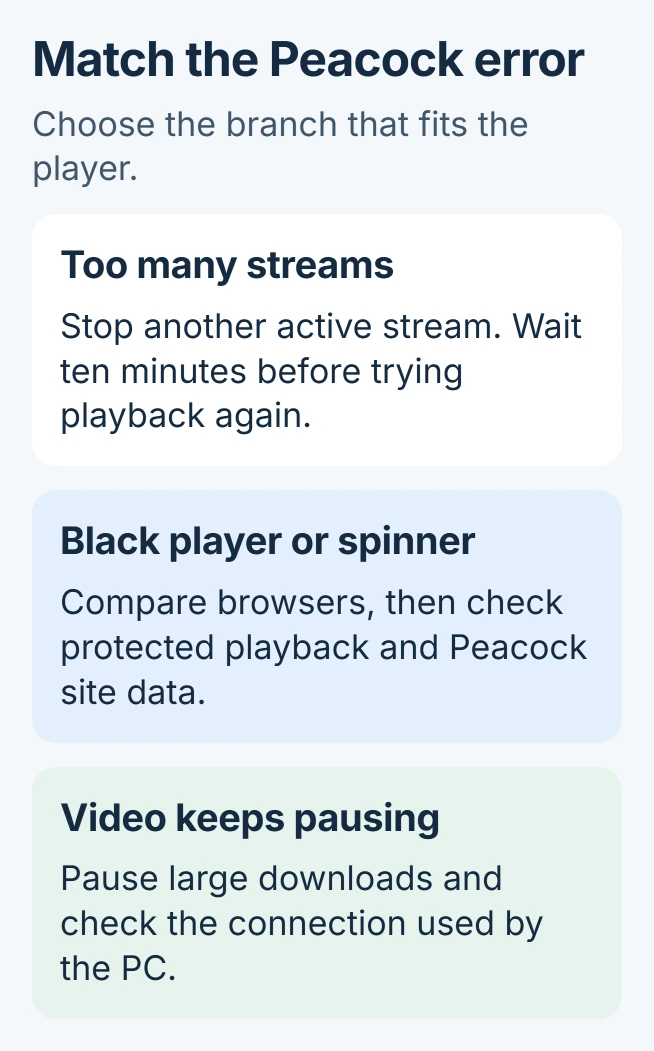
For a Peacock stream-limit message on a PC, close any other active streams and wait ten minutes. If the player stays black or keeps spinning instead, try the same title in another current browser first.
Keep the exact error visible long enough to record it. Repeatedly refreshing the page can hide the distinction between a rejected playback session and a video that starts but keeps buffering.
Start with the message and one comparison
Note whether Peacock rejects every title or only one. Close extra Peacock tabs, reopen the affected title and compare another title. A single failing program gives support a more specific case than a report that the site is broken.
Peacock's black-screen and spinner guidance recommends restarting playback, checking the connection and clearing stored data. On a PC browser, use the relevant browser controls for those tasks.
Status: Peacock playback instructions and Chrome content controls reviewed October 31, 2026. No Peacock account or video was tested, and no current service outage is asserted.
Our first comparison is the same title in a second, updated Windows browser: Chrome or Edge. Success there points toward the original browser's settings or stored data, without yet establishing the precise cause.
Does the message mention too many streams?
Peacock permits three concurrent streams per account. Stop playback on another device before retrying the PC when that limit has been reached. Closing an unrelated app will not release a Peacock session elsewhere.
The ten-minute delay documented by the vendor also applies after a browser or computer crash, which can leave the previous session counted temporarily.
Wait ten minutes before restarting playback after that warning, including after a crash. If the message remains when the account has no other active viewers, send the error and timing to Peacock support.
Allow protected playback in Chrome
Google says blocking protected content can cause a playback error. In Chrome Settings, select Privacy and security > Site settings, then expand Additional content settings and open Protected content IDs.
Allow sites to play protected content if that setting was blocked. Google's protected-content instructions also describe the device-identifier control available on Windows and ChromeOS.
Reload Peacock after the change. This corrects a blocked playback permission, so unrelated errors can remain. For controls locked by workplace or school policy, ask the administrator to check access.
An entire browser that stops responding needs the Chrome freeze checks. Treat that separately from a responsive browser showing an error inside the video player.
Clear Peacock's site data if one browser still fails
Be ready to sign in again before removing site data. Google states that removing cookies can end website sessions and erase saved preferences. Keep unrelated websites' data unless they have the same problem.
In Chrome, open Settings > Privacy and security > Third-party cookies > See all site data and permissions. Search for peacocktv.com, delete its stored entry and confirm. Open Peacock again and sign in.
Google's site-cookie controls document deleting data for one website. The cookie-clearing guide explains what stays and what needs another sign-in.
Try the same title once more. If another browser works but clearing the affected site's data changes nothing, give Peacock support both browser versions and the comparison result.
When playback starts but repeatedly pauses
Pause large downloads and compare streaming while fewer devices use the connection. Peacock's buffering advice identifies competing network traffic as one source of interrupted playback.
If several browsers fail on every title, retain the error, title name, time and connection details for Peacock support. Account restrictions and service failures confirmed by Peacock need attention from the provider.
The Short Version
Handle stream-limit warnings with fewer active streams and the stated wait. For a black player, compare browsers, allow protected playback and clear Peacock's stored site data. Repeated pauses need a separate connection check.

Isaac Smith is the founder and editor of PC Glance, a website that covers computers, laptops, and technology. He is a tech enthusiast and a computer geek who loves to share his insights and help his readers make smart choices when buying tech gadgets or laptops. He is always curious and updated about the latest tech trends.