
A Chromecast that cannot connect to Wi-Fi during phone setup needs a network check before a factory reset. Confirm the network name and password, move the Chromecast closer to the router, and try joining again in Google Home.
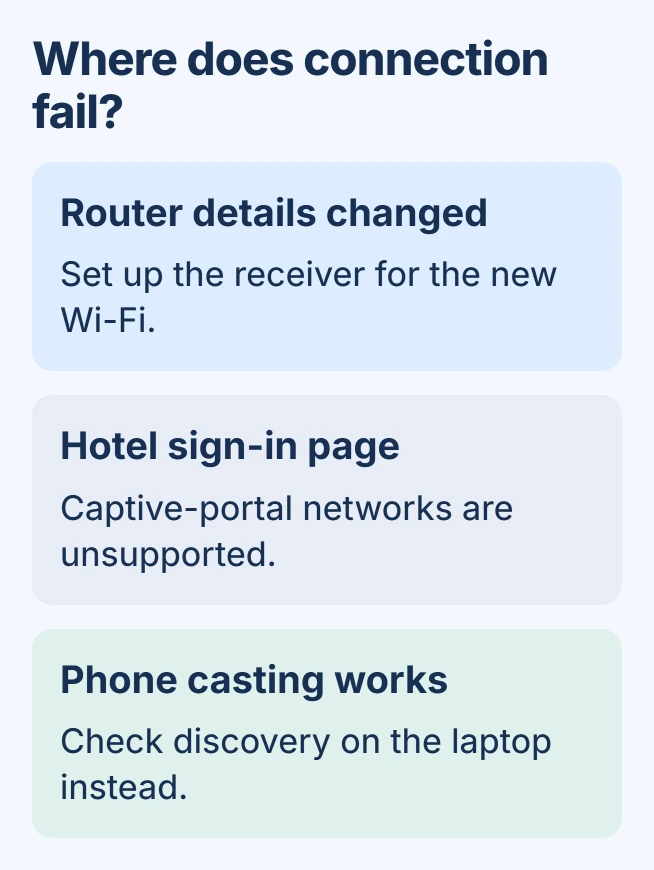
After a router or password change, the device may need setup repeated for the new network. A Chromecast that already streams from a phone but is missing only from a laptop's Cast list has a different problem.
Check whether the receiver can join the network
Connect the setup phone to the intended home Wi-Fi and check that it can load a webpage. Then retry the Chromecast's connection. If the phone also cannot connect, address the router or internet service first.
Google says the streaming device works best within 20 feet of the router in its Wi-Fi troubleshooting instructions. Walls and the TV's position can weaken reception.
Status: Chromecast phone-setup guidance checked November 1, 2026. Google documents these network checks; they are not a claim that every connection failure has the same cause.
Move it nearer for a comparison without stretching cables or leaving the TV unstable. If that changes the result, improve coverage at the intended location before repeating setup there.
If phone casting already works, use the Chrome receiver-discovery checks. Rebuilding a working Chromecast connection is unnecessary for a laptop-only failure.
Repeat setup after changing the router or password
Open Google Home, tap Add > Device at the top right and follow the setup prompts. An offered Set up or Next button can start the same process for the detected device.
Google's disconnected-device instructions specifically cover changed network names, passwords and providers. Select the correct device when more than one appears.
For an older Chromecast still reachable on Wi-Fi, open Google Home > Home > All devices and hold its tile. Choose Settings > Device information > Wi-Fi > Forget this network, then set it up again.
Chromecast with Google TV changes networks on the TV instead: Settings > Wi-Fi network > network name > Forget network. Google's network-change guide separates these model-specific routes.
Google adds that a device disconnected from its former network after a network change needs a factory reset, followed by fresh setup. Use the reset instructions for that model after reading the consequences in the final section.
Use a network the Chromecast supports
A hotel, dorm or business network may require a browser sign-in page after joining. Google states that streaming devices do not support these captive-portal networks. Ask the network administrator about a supported connection.
On a home guest network, AP isolation or Client isolation can prevent the phone and Chromecast from communicating. Use a trusted home network that permits communication between them, or ask the router maker about its relevant setting.
With separate Wi-Fi band names, try the suitable alternative during setup. The first-generation Chromecast supports 2.4 GHz only. Google no longer supplies that model with software, security or technical support.
For a hidden network, older Chromecasts offer Other during Wi-Fi selection. Chromecast with Google TV uses All settings > Network and Internet > Add a new network. Enter the network name and password carefully.
Restore communication with the setup phone
On an iPhone used for Google Home, enable Bluetooth in Settings > Bluetooth. Then open Settings > Privacy & Security > Local Network and permit Google Home. These permissions let the setup app communicate locally.
Close and reopen Google Home before retrying. If it still stalls, try another compatible phone or tablet. This comparison helps determine whether setup fails on one phone or follows the Chromecast.
Restart the Chromecast by removing its power cable for one minute, then reconnecting it. Pulling only the HDMI plug leaves it powered and does not perform that restart.
If the router needs restarting too, warn anyone using the connection and follow its maker's restart instructions. Retry after the Wi-Fi network returns; avoid resetting its saved configuration.
Reset only the correct model, then seek support
A factory reset discards the Chromecast's existing setup. Keep the device powered and connected to the TV, then use the instructions for its exact model:
- Chromecast with Google TV: hold the rear button until the light blinks yellow. Release it when the light becomes solid white.
- Second or third generation, or Ultra: hold the side button while its light blinks orange. Release at solid white.
For a first-generation model, follow its separate button instructions in Google's guide. Complete fresh setup after the reset. Wait for the setup screen before returning to Google Home.
If it still cannot join a supported home network from another setup phone, contact Google with the model, error and stage reached. A managed network's administrator should handle restrictions that the device cannot change.
Once connected, a Chromebook can send a browser tab or its desktop to the TV. That is the next task after the receiver has successfully joined Wi-Fi.
The Short Version
Check reception and phone permissions, then repeat setup after network changes. Captive portals and isolated guest Wi-Fi need a supported alternative. Follow the correct model's reset procedure when its saved setup must be discarded.

Isaac Smith is the founder and editor of PC Glance, a website that covers computers, laptops, and technology. He is a tech enthusiast and a computer geek who loves to share his insights and help his readers make smart choices when buying tech gadgets or laptops. He is always curious and updated about the latest tech trends.