
You open Cast in Chrome on your laptop, and the list says No devices found. Your phone casts to the same Chromecast or TV without trouble, so the device itself is fine.
I look at the network your computer thinks it is on, because Chrome only searches where Windows allows it. The question sits at 60,457 views on Super User, and over 100 people backed one Microsoft Q&A copy as their problem too.
Chrome only looks where it is allowed
Casting from a computer starts with Chrome finding the device on your local network. Google's No Cast destination found page lists what stops that search, and three of its points are about your computer's own network.
The device has to share your network: "Chrome can't find Google streaming devices on different networks." A VPN blocks it too, since "Google streaming devices can't communicate with a laptop over these networks."
The third is a Windows setting. Google says "communication with Google streaming devices is blocked on public networks."
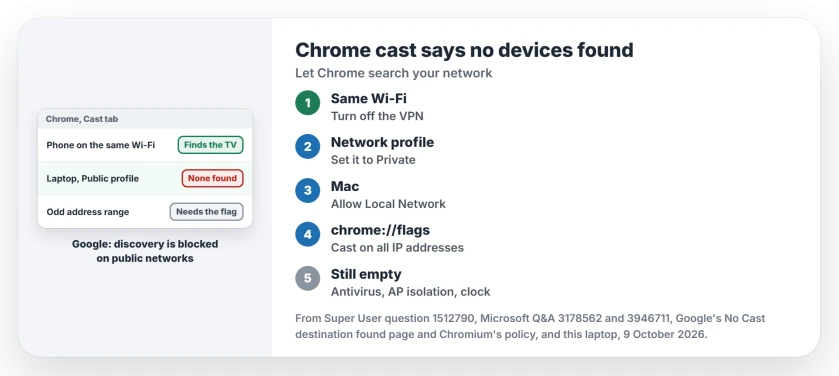
Status: Google documents the network checks and the all IP addresses policy. Owners fixed theirs with the flag. Chrome 154 and this laptop's network were checked 9 October 2026.
Ours: this laptop's Wi-Fi is set to Public right now. That is the exact setting Google warns about.
1. Same Wi-Fi, and no VPN
Compare the Wi-Fi name your laptop shows with the one in the Google Home app on your phone. A guest network counts as a different network.
Turn off any VPN or proxy, then open Cast again. The Super User asker named a VPN as one cause of the same error.
2. Set your network to Private
Open Settings, then Network and internet, then Wi-Fi. Select your network's properties and, under Network profile type, choose Private network. On Ethernet, the same choice sits under Ethernet.
Close every Chrome window and open it again before you test. Google's own steps end the same way. I would fix this before touching Chrome at all.
The 100+ Q&A asker could not find where to change it on Windows 10. The answer that helped over ten readers gave the route through network settings, plus network discovery in the Network and Sharing Center.
3. On a Mac, allow Local Network
macOS 15 and later ask before an app can search your network. With that switch off, Google says Chrome may fail to reach your streaming device.
Turning it on, in Google's words, "will allow permissions for your device to discover Cast-enabled devices."
Open System Settings, then Privacy and Security, then Local Network, and turn on Google Chrome. Quit Chrome fully and open it again.
Chrome listed over and over in that list, every switch on, and still blocked? The Local Network page for Mac apps explains the Recovery reset owners used.
4. Your network uses unusual addresses
Some home and office networks use addresses outside the usual private ranges. Chrome skips Cast devices on those unless you tell it otherwise.
Paste chrome://flags into your address bar, then look up Connect to Cast devices on all IP addresses. Set it to Enabled and relaunch. Chrome 154 describes it as connecting "on all IP addresses, not just RFC1918/RFC4193 private addresses."
Two Super User owners confirmed that flag. One had spent an hour with Wireshark first and wrote "This solved it." Another explained "my LAN is not numbered from the RFC-1918 range of IP addresses."
On a work PC, your IT team can set the same thing as the MediaRouterCastAllowAllIPs policy. Google's description: setting it to Enabled "connects Google Cast to Cast devices on all IP addresses".
Antivirus that scans encrypted traffic
Does your antivirus scan encrypted traffic? Google names antivirus apps as a cause. For Kaspersky it says to "disable Scan Encrypted Connections", and for others to look for options about SSL, TLS or encrypted connection scanning.
It also suggests disabling the Bonjour service, which some Apple apps install, when it is present. Ours: this laptop has no Bonjour service.
The router and the clock
Chrome can sometimes see the device and still fail to connect. Google's advice: "Make sure AP isolation is turned off on your router". A guest network can isolate devices the same way.
Google also lists a computer clock that is hours out as a cause. Fix it in Settings, Time and language, Date and time, where the automatic time switch lives.
One reader had an odd timing case. Chrome found nothing if they signed in too quickly after a restart, and about five minutes at the sign-in screen fixed it.
Wanted to show your screen on a TV without a Chromecast? That is Miracast, see connecting to a wireless display. Wi-Fi connected but nothing loads? Start with Wi-Fi vs internet.
The Short Version
- Same Wi-Fi name on both, and no VPN.
- Set the network profile type to Private, then restart Chrome.
- On a Mac, turn on Local Network for Chrome.
- Odd address range: enable Connect to Cast devices on all IP addresses.
- Then antivirus encrypted scanning, AP isolation and the clock.
Where to Next
Still empty after all four? Tell me your router and whether a guest network is involved in a comment, and I'll look at it.

Isaac Smith is the founder and editor of PC Glance, a website that covers computers, laptops, and technology. He is a tech enthusiast and a computer geek who loves to share his insights and help his readers make smart choices when buying tech gadgets or laptops. He is always curious and updated about the latest tech trends.