
Your printer, NAS or game server answers when you test it from Terminal, yet the app on your Mac fails with No route to host. Chrome may call the same address unreachable.
I would open one list in System Settings before touching the router. Since macOS Sequoia, every app needs permission to reach devices on your own network. That block looks like a dead network.
The Ask Different question about an app that never appears in that list, asked in September 2024, has 22,787 views. A Chrome version of it has 15,690 more.
Why Terminal connects and the app does not
Apple's developer note on the feature, TN3179, sets out the rule. "The first time a program accesses the local network, the system displays an alert asking the user to approve that access", Apple says.
Your answer is stored, and the app lives with it after that. If you refused once, or the alert never came, the app cannot reach a single device at home.
Some programs skip the check entirely. Apple's list includes "Command-line tools run from Terminal or over SSH, including any child processes they spawn". Anything running as root is exempt too.
That is why ping works in Terminal. It also explains why one owner's blocked telnet worked the moment they added sudo.
For a server hosted on this Mac, inspect its listening socket before treating an absent service as a privacy restriction.
Ours: I had no Mac to test with, so nothing here was run on one. Each step is Apple's or comes from an owner who reported the result.
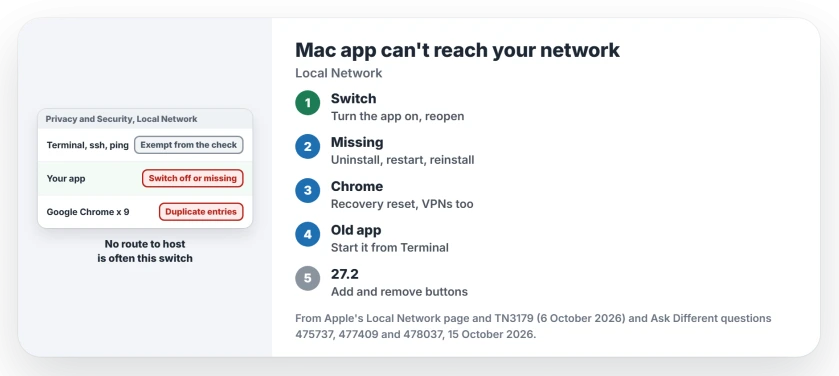
Status: TN3179 as revised on 6 October 2026, Apple's macOS 27 Local Network page and owner fixes from macOS 15 into 2026. I had no Mac for testing.
1. Switch the app on under Local Network
Apple's Local Network page keeps it simple. "You can decide which apps are allowed access to your local network", it says.
Choose Apple menu, then System Settings, and open Privacy and Security. Click Local Network and turn on the app that fails.
Then quit it fully and reopen it. Printer software needs the same switch, and the Tahoe printing page names the entries for HP, Canon, Brother and Epson.
2. Not in the list? Reinstall with a restart in between
An app that never got the alert has no switch to turn on, so owners got around it by making macOS forget the app and meet it again.
An owner's terminal app was already allowed and still failed. They uninstalled it, restarted and reinstalled it. They flagged the restart: "this is important". After that the prompt appeared, they allowed it, and it worked.
A second owner fixed a Kubernetes tool the same way. In their words, "it is essential that you reboot between uninstall and re-install". A third repeated it for three apps and said the procedure worked for them.
The Minecraft player who saw No route to host, the error you may be seeing, got the same advice from one reader. That reader's game had shown the fault too: "This was my issue as well".
3. Chrome listed nine times
Your Chrome can pile up entries. The asker of the Chrome question found it "listed there nine times". Every switch was on, and Chrome still could not open a page on the network.
TN3179 warns that your settings pane can misbehave when several versions of one app are installed. The asker's own research found that updating Chrome while it runs adds one more entry.
The accepted answer resets your whole list from Recovery. It takes several restarts. Start up in Recovery and turn off System Integrity Protection with csrutil disable. Restart, delete these two files, and restart again:
/Library/Preferences/com.apple.networkextension.plist
/Library/Preferences/com.apple.networkextension.uuidcache.plist
Then go back to Recovery and run csrutil enable. The asker confirmed it worked, with a warning that it "also deleted other config from my laptop, such as my wireguard tunnels". Every VPN must be set up again.
It is a reset, not a cure. Another reader found "the first duplicate has already appeared within a week" of doing it. I would keep this for last, after your reinstall has failed.
Chrome's casting page covers the Mac switch that Cast needs too.
4. An old app that never asks
Some apps never show the alert, because their developer has not updated them for the rule. The accepted answer on the 22,787-view question is blunt: "You can't do it yourself".
The developer must add a usage description, as TN3179 tells them to. Until then, start the app from Terminal. Apple's rule exempts it there.
One owner did that for Barrier. A reader reported the same trick for Sonos:
/Applications/Sonos.app/Contents/MacOS/Sonos &Swap in your own app's name. Leave that Terminal window open until you quit the app itself.
Can you open one network to every app?
Yes, since macOS 15.5. List a network in Apple's setting and, as the note says, "the system treats every address on that network as if it were not a local network address".
For a home network on 192.168.1.x:
sudo defaults write com.apple.network.local-network AllowedWiFiLocalNetworkAddresses -array "192.168.1.0/24"
sudo defaults write com.apple.network.local-network AllowedEthernetLocalNetworkAddresses -array "192.168.1.0/24"
Then restart, because the note warns "You must restart for this change to take effect". Use your own network's range.
Keep this to a network you control. The protection then stops for every app on it.
What changes in macOS 27.2
TN3179 now describes add and remove buttons under the Local Network list. Remove an app there and it asks again, but the note says "These buttons were introduced in macOS 27.2".
Apple's security releases page lists macOS 27.0.1, from 28 September, as the newest version; before 27.2, the note admits, an app's Local Network choice cannot be reset at all. That gap is why the reinstall trick exists.
The Short Version
- Since macOS Sequoia, apps need Local Network permission to reach your devices.
- Turn the app on in Privacy and Security, Local Network.
- Missing or stuck? Uninstall it, restart, reinstall it and allow the prompt.
- Chrome's duplicates reset from Recovery, which also wipes VPN settings.
- An app that never asks still runs from Terminal.
Where to Next
Printer helper, game, terminal or NAS app: name the one your Mac shut out in a comment, so it joins my tally of apps that never ask.

Isaac Smith is the founder and editor of PC Glance, a website that covers computers, laptops, and technology. He is a tech enthusiast and a computer geek who loves to share his insights and help his readers make smart choices when buying tech gadgets or laptops. He is always curious and updated about the latest tech trends.