
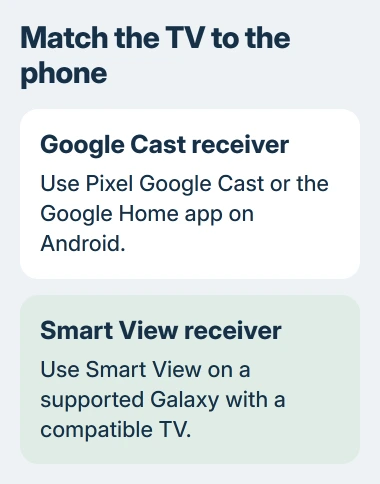
To mirror Android to a TV, both devices must support the same casting system. Google Cast works with compatible TVs and Google streaming devices. Samsung Galaxy phones also offer Smart View for compatible mirroring receivers.
A smart TV's casting system matters more than its smart label. Check that feature first, then use the matching phone control so the TV can appear in the device list.
Choose the connection your TV supports
For Google Cast, finish the receiver's setup and put it on the same Wi-Fi network as the phone. Google says this shared network is required for casting through Google Home.
For Samsung Smart View, confirm the TV supports screen mirroring or Miracast and join the same Wi-Fi on both devices. Open the TV's mirroring mode if its manual requires that before connecting.
Status: Google Pixel, Google Home and Samsung Smart View instructions checked November 3, 2026. Controls and receiver support vary by phone and TV. No screen was cast here.
Mirror a Pixel through Google Cast
Open Settings > Connected devices > Connection preferences > Google Cast on the Pixel. Choose whether to share one app or the entire screen, then select the receiving device.
Google documents these controls in its Pixel projection guide. Choose the entire screen when the TV needs to follow movement between apps.
Check the TV for the phone's display before starting the demonstration. Entire-screen sharing can expose other content on the phone, so close private material first. To end the connection, use Disconnect on the Cast notification.
Cast from the Google Home app
On another compatible Android phone, open Google Home, then Favorites or Devices and touch and hold the TV or receiver's tile. Choose Cast > Cast my screen > Cast screen, then follow the sharing prompt.
Google's current Home instructions describe Cast one app followed by an app selection. Select the app that contains the material to show; the Pixel settings route also explicitly supports an entire-screen choice.
If the Home procedure stops at a permission request, check Settings > Apps > Google Play services > Permissions > Microphone. Google's instructions require this permission for screen casting; app-menu labels can vary by phone.
To finish, return to the receiver tile in Home and select Stop mirroring. If the receiver never completed network setup, first fix its Wi-Fi connection.
Use Smart View on a Samsung Galaxy
Open the phone's Quick settings and select Smart View. Newer Galaxy layouts use a downward swipe starting at the upper-right edge; older layouts may need two downward swipes.
Select the TV and accept its connection request, including Allow on the TV if prompted. Samsung says Smart View needs a compatible receiver; some Galaxy models lack the feature entirely.
When the mirrored picture appears, open the intended phone app. End the session from Smart View's control and choose Disconnect. If the TV is absent, confirm its mirroring support before repeating the pairing attempt.
A black video can be a content restriction
Samsung states that DRM-protected content cannot be mirrored through Smart View. If menus and photos appear but a streaming film stays black, check the streaming app's own playback options.
Use the app's Cast button with a compatible Google Cast receiver, or the service's TV app. Google's video casting instructions describe selecting the receiver from inside the playback app.
If the phone casts successfully but a Windows computer cannot see that TV, use the Chrome device-discovery checks. The working phone connection helps narrow the remaining problem to the computer.
When the TV and phone do not match
A supported external receiver is one option for a TV without the phone's casting system. Pixel 8 and later also support a wired display connection, using a compatible USB-C to HDMI or DisplayPort connection and the phone's mirroring prompt.
Other Android phones need their own video-output check before buying a USB-C cable. Consult the exact model's specifications. If a compatible phone and TV still fail to connect, give the manufacturer both model numbers.
The Short Version
Match Google Cast or Smart View to the TV's receiver, then start sharing from the corresponding phone control. Use the streaming app's own playback route when protected video refuses mirroring, and disconnect when finished.

Isaac Smith is the founder and editor of PC Glance, a website that covers computers, laptops, and technology. He is a tech enthusiast and a computer geek who loves to share his insights and help his readers make smart choices when buying tech gadgets or laptops. He is always curious and updated about the latest tech trends.