
Yes, screen mirroring can work without home Wi-Fi. A video cable avoids Wi-Fi completely. Miracast and supported Apple TV connections work without a router, but still use the devices' Wi-Fi radios.
An internet outage isn't the same as having no wireless network. Devices can still communicate locally when broadband is down, but online movies need an internet connection. Choose your connection based on what's still available.
Choose between no internet and no wireless connection
For a presentation saved on your laptop, the connection only needs to send the picture to the display. A working internet connection isn't required to open that local file. A streaming service still needs access to its servers.
If the router is running but broadband has failed, leave the devices connected to the local network. Turning Wi-Fi off removes a connection they could still use. Check an ordinary saved photo before trying an online video.
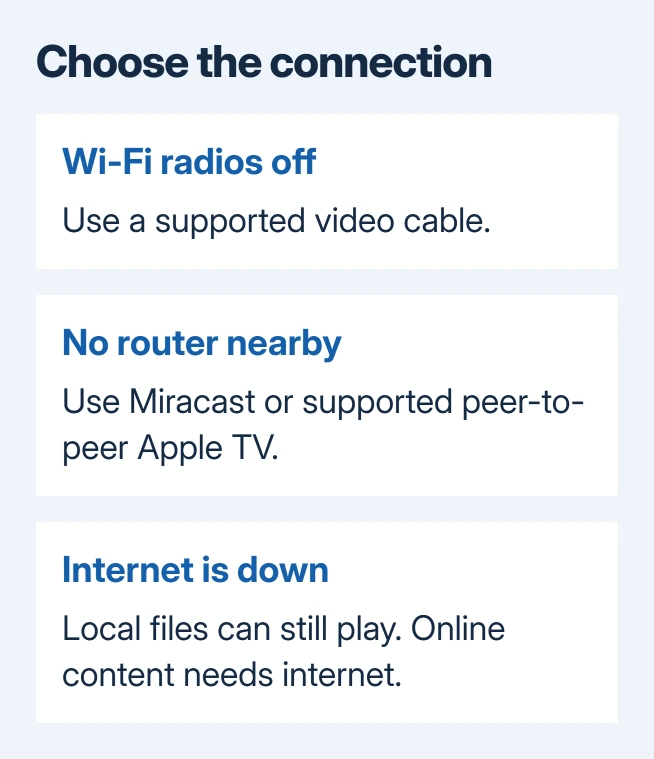
Without a router, look for HDMI, Miracast, or supported Apple TV hardware. Each connects differently. Google Cast support doesn't add Miracast, and an AirPlay logo doesn't promise every Apple TV feature.
I'd use a cable for an important offline presentation when the ports already match. A cable skips the wireless device list, so you can check everything before the audience arrives.
Use a cable when Wi-Fi must stay off
On a Windows laptop with HDMI, connect the laptop to the TV or monitor and choose that socket's input on the display. Press Windows+P and choose Duplicate for an identical desktop on the two displays.
Choose Extend when you want a separate workspace instead. A presentation might then appear on the laptop until you move it to the other display. The connection can be working even when the presentation is on the other screen.
For USB-C, check that the laptop's port carries video and that the cable or adapter supports it. A matching plug can still lack display output. Read the laptop's port specifications before spending money on the connection.
Match the iPhone adapter to its port and video support. Lightning models need an appropriate Lightning display adapter. For USB-C models, check video support before choosing a USB-C display cable or adapter.
The current iPhone USB-C display list excludes the iPhone 16e and 17e. Check the listed model rather than assuming a newer phone always supports the same wired features as another iPhone.
Attach the adapter at the phone's port, run its video cable to the TV, then select that input on the TV. Some adapters have a power connection too. Follow that adapter's connection instructions if the picture doesn't appear.
Android needs the same model check. A charging port marked USB-C can lack video output. The Android-to-TV connection guide explains the difference between Google Cast, Smart View, and supported wired output.
Connect a Windows PC directly with Miracast
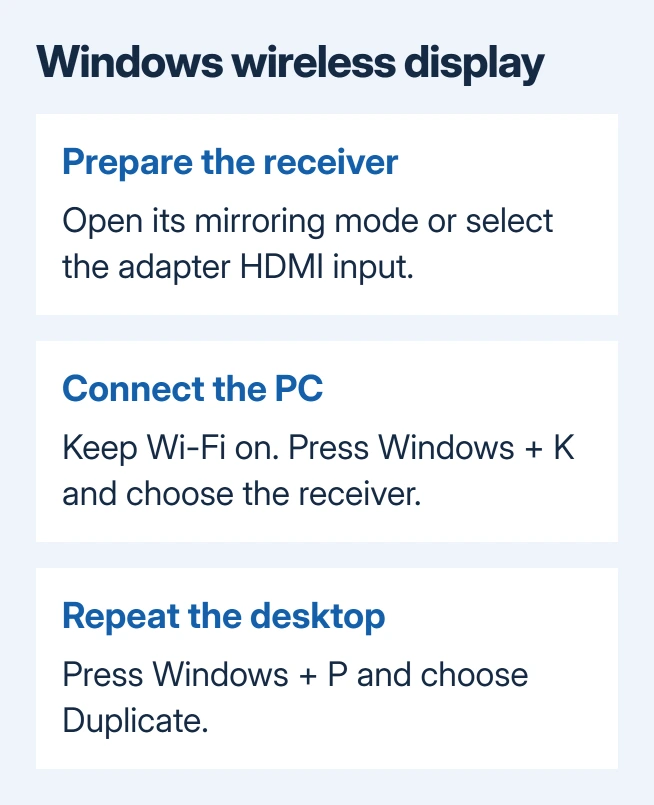
Miracast can create a direct wireless display connection, so a home router isn't required for that route. Both the Windows PC and the receiving TV or adapter must support it. Keep the PC's Wi-Fi switched on.
On a compatible TV, open its wireless display or screen mirroring mode. The name varies by manufacturer. With a separate display adapter, connect its HDMI plug to the TV and its USB power connection as its instructions require.
- Select the adapter's HDMI input, or the TV's built-in mirroring screen.
- Press Windows+K on either Windows 10 or 11.
- Select the receiver's name from the available devices.
- Accept a connection request on the TV if it asks.
- Press Windows+P > Duplicate if you want the laptop screen repeated.
The display adapter instructions use the same Windows+K connection control. The receiver's name should appear on the TV before you pick it on the PC.
If Windows reports that wireless display isn't supported, changing the router password won't make the PC support it. Use a supported cable connection or check the PC maker's wireless-display requirements for that exact model.
If the PC supports it but no receiver appears, check the receiver's mirroring mode, power, and input first. A Chromecast waiting for Google Cast won't appear as a Miracast display just because it's connected to HDMI.
Use supported Apple TV hardware without a router
Apple explains in its deployment guide that peer-to-peer AirPlay creates a temporary wireless connection. It still uses Wi-Fi and Bluetooth, even though neither device has to join an existing router's network.
The documented hardware starts with Apple TV HD using tvOS 9 or later, or Apple TV 4K using tvOS 11 or later, plus supported iPhone, iPad, or Mac hardware from late 2012 onward running current software.
Keep your iPhone, iPad, or Mac near Apple TV with Wi-Fi and Bluetooth enabled. Open Settings > AirPlay and Apple Home on Apple TV, turn AirPlay on, and set Allow Access to permit nearby devices outside the same network.
Open Control Center: swipe downward at the upper-right on Face ID iPhones, or upward from the screen's bottom on Home-button models. Tap Screen Mirroring, select Apple TV, and enter its onscreen code if requested.
On a Mac, open Control Center > Screen Mirroring and choose Apple TV. Check the display arrangement if the Mac extends the desktop instead of repeating it. Finish sharing from the same Screen Mirroring control.
After a temporary shared presentation, return Apple TV's access setting to your usual choice. For a receiver that stays missing on an ordinary network, the AirPlay discovery checks cover that separate connection problem.
Know when Google Cast still needs the network
Chrome needs a shared Wi-Fi network between your computer and a Chromecast or Google TV Streamer. Turning both Wi-Fi radios off won't create an offline connection. Bluetooth pairing won't replace that network.
A phone hotspot won't suit every setup. The receiver must be set up, your device needs to find it, and online video needs internet access. Follow the receiver's network instructions; cellular data alone doesn't handle all three.
If a saved photo mirrors but a movie stays black, check the app's display restrictions. If the photo fails too, tell the maker both device models and how they're connected. Ask which direct or wired method works with that pair.
The Short Version
A compatible video cable works with Wi-Fi off. Without a router, use compatible Miracast or peer-to-peer Apple TV hardware and keep the wireless radios on. Google Cast needs its shared network.
Checked November 9, 2026.

Isaac Smith is the founder and editor of PC Glance, a website that covers computers, laptops, and technology. He is a tech enthusiast and a computer geek who loves to share his insights and help his readers make smart choices when buying tech gadgets or laptops. He is always curious and updated about the latest tech trends.