

An Android TV box needs HDMI to your TV, power, and an internet connection before it can stream. Connect those first, select the matching HDMI input, then follow the on-screen remote pairing and account setup.
Install a streaming app after setup, then sign in to that service. Paid channels aren't automatically included. Android TV and Google TV have different menus, so follow the directions matching your box's Home screen.
In this guide
Connect the box before starting setup
Check that the package includes its power adapter, remote, and the HDMI equipment listed in its manual. Google's setup instructions call for an HDMI TV or monitor supporting HDCP, the copy-protection system used for protected video.
Turn the TV off, connect the box to an available HDMI port, then connect the box to power. Power the box with its supplied adapter and cable. Don't assume the TV's USB port can supply enough power.
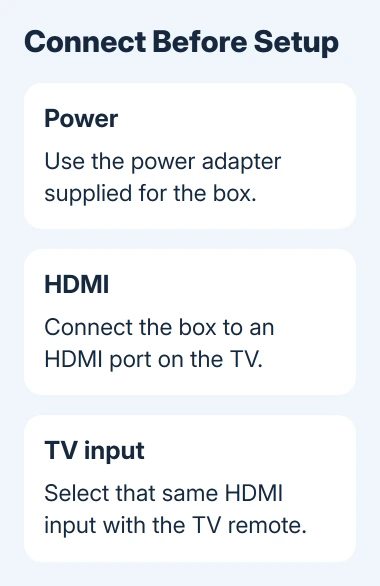
Turn the TV on and use its own remote's Input or Source button to choose that HDMI port. The box's remote won't necessarily change inputs before you've set it up.
A setup screen confirms the TV is receiving the box's picture. No signal means you should check the selected input, HDMI connection, and box power before working on Wi-Fi or a Google Account.
Keep the two remotes nearby during setup. The TV remote handles its input and existing TV controls; the box remote navigates Android TV. Some models can later control TV volume and power as well.
Pair the remote using the screen's instructions
Insert the remote batteries correctly and move close to the box. Follow the pairing combination shown on the TV. That button combination varies by manufacturer, so use the displayed instructions or the exact model's manual.
On the standard Android TV setup screen, a check mark appears after pairing succeeds. Press a direction button and confirm the highlighted choice moves before continuing.
Choose your language when prompted. Read each screen before pressing Select again, especially if the box is still pairing or installing an update. Repeated presses can accept the next choice once the device responds.
If the highlight never moves, check the batteries and repeat the model's pairing procedure. A remote that can turn the TV on might still need to pair over Bluetooth separately before it can control the box.
For a replacement remote, verify compatibility with the box model. Similar-looking buttons don't mean the remote uses the same pairing method or supports the same controls.
Finish Android TV setup with a phone or remote
Google says you can use a phone or the remote in its Android TV setup instructions. Choose the method your screen actually offers.
For Quickly set up your TV with your Android phone?, select Continue or Yes. Open the Google app on the phone, type or say set up my device, and follow its prompts.
When a code appears, follow the instructions to match it with the TV. Select the TV name on the phone when prompted, then complete the remaining setup screens on the TV.
Quick Start can connect the TV to your phone's Wi-Fi and sign it into the same Google Account. Check which account the phone is using before accepting, particularly on shared household devices.
To use the remote instead, choose Skip at the Android phone prompt. Select your Wi-Fi network, enter its password, and allow time for any system update. Choose Sign in > Use your remote when offered.
Follow the Google Account prompts and finish the remaining setup choices. The Android TV Home screen is the sign that initial setup has finished. A streaming service can still require its own separate sign-in.
Follow Google TV's setup when that interface appears
Some boxes use Google TV instead of the older Android TV Home screen. Follow that device's on-screen setup instead of looking for every Quick Start label from the earlier interface.
Google TV may offer setup through the Google Home app and a code on the TV. Use the app or remote route the screen provides, checking the account and home network as you go.
A box advertised as running Android can also use a manufacturer's own interface. If its screens don't resemble Android TV or Google TV, get the model's setup manual rather than trying to use menu paths it doesn't have.
I'd finish the basic setup and open one familiar app before changing the launcher, the app that controls your Home screen, or adding accessories. That gives you a working starting point and makes a later change easier to undo.
Install an app and start the first stream
On Android TV, move to Apps on Home and open Google Play Store. Search for the streaming app, select it, and follow the installation prompts. Open the installed app when it finishes.
On Google TV, select the Apps tab or use Search and type the app's name. Open the matching app page and select Install when it's available. The apps available can vary with your hardware and country.
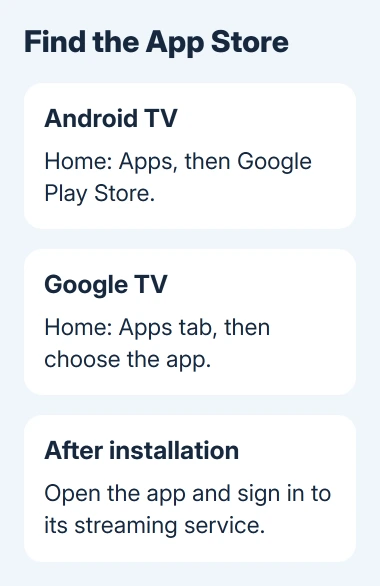
Sign in using the streaming service's own prompts. Some apps let you enter your sign-in details with the remote; others display an activation code. For activation, use another device to visit the exact address the app displays.
Installing a paid service's app doesn't buy a subscription or unlock every title. Check the account used inside that app if it asks you to subscribe despite an existing membership.
Phone mirroring is a separate task from running an app directly on the box. The Android-to-TV mirroring guide helps when the video or app you want is on your phone.
Use Home, Back, and app settings day to day
Press Home to return to the box's main screen. Use direction buttons to highlight an app and the center Select button to open it. Back returns through the app's screens, though individual apps handle that button differently.
For Android TV app updates, open Play Store and choose My Apps. Install available updates there. On Google TV, use the app's store page or the update controls available in your software version.
Remove unused apps through the box's app settings or their store pages. If you're using Kodi, its internal menu is separate: the Kodi settings guide explains the gear and settings levels inside that app.
If only one service fails, check its account, update its app, and contact that service with the error shown. If the whole box can't connect or the remote won't pair, ask the box manufacturer about that exact model and setup screen.
The Short Version
Attach power and HDMI, select the matching TV input, pair the remote, and complete network and Google Account setup. Install an app through Android TV's Play Store or Google TV's Apps tab, then sign in to the streaming service.
Checked November 15, 2026.
 If you have any business, I can build it online






