
Kodi's main settings open from the gear at the upper left of its default Home screen. Android's Settings > Apps > Kodi page handles permissions and storage, so you won't find playback or appearance options there.
If you're on the right Kodi page but an option is missing, change the settings level from Standard to Advanced or Expert. You'll see more controls without resetting your library.
Open the gear from Kodi's Home screen
Open Kodi and return to its Home screen. In Estuary, Kodi's default layout, select the settings gear at the upper left. If a movie is playing, stop it and leave the playback screen first.
Kodi's basic controls guide shows that the gear opens the main settings pages. The gear shown during a video opens playback controls instead, so the two screens can look quite different.
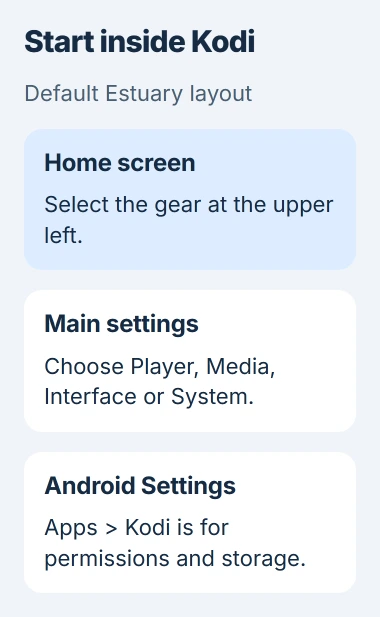
Look for categories such as Player, Media, Interface and System. If you see those, you're in Kodi's settings rather than Android's app information page.
On an Android phone or tablet, tap the control. With an Android TV remote, move the highlight to it and press select. How many presses you need to reach a category can differ between devices.
If the gear isn't where you expect, check whether Kodi uses a different skin. A skin changes its layout and menus, so the Android version alone won't tell you why the Home screen looks different.
Choose the category for the change you need
Open Player to change how media plays. It has separate groups for video, music and subtitles. Choose the group you need instead of changing the device's display or audio settings for one playback preference.
Open Media to change how Kodi handles and displays your library. Adding a folder to your collection is a separate task from changing how a movie plays.
Open Interface for appearance and language options. Under Interface > Skin, choose Skin to change the layout or Configure skin to adjust the layout you're already using.
Open System for settings that affect the device, such as audio output and display behavior. Read the selected option's description before changing it, particularly if the device sends sound through a receiver or TV.
The main settings page also has File manager and an Add-ons area. They're separate from Player: File manager handles source locations, while the add-on controls handle installed extensions.
I'd check which category you need before following a long guide. Setting up a subtitle provider can take you into an add-on's settings, while changing subtitle size belongs in Player.
If captions are enabled but don't appear, try the Kodi subtitle checks. Those check the subtitle track, file and download service once you've found the settings menu.
Reveal options hidden by the settings level
Enter a settings category and find the level selector near the lower left in Estuary. It starts at Standard. Select it to cycle through Basic, Standard, Advanced and Expert.
The settings-level explanation shows how higher levels reveal more options. The level also affects add-on settings, so changing it can reveal a missing control there too.
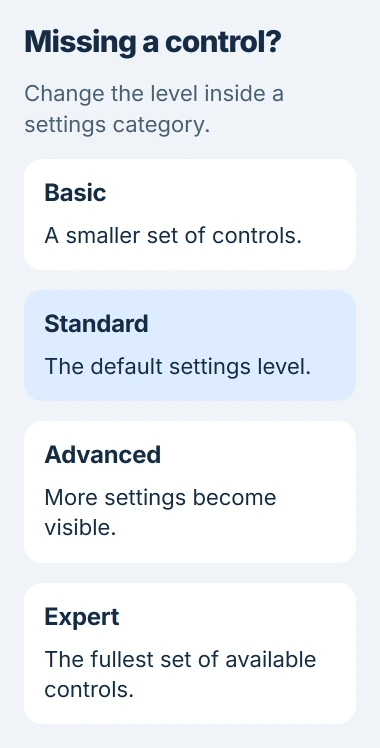
After changing the level, return to the group you were checking and look through the options again. Expert shows more controls, but it doesn't turn them on or apply a performance preset.
If the option is still missing, compare your Kodi version with the guide's. Raising the level won't bring back a removed setting or its old name. Include the category and option name when you ask for help.
The Advanced level is separate from advancedsettings.xml, an optional file for extra settings. You don't need to create that file or edit Android system folders to use the settings menu.
Find settings when Kodi has a different appearance
A custom skin can move Settings or use another menu design. Look for its Settings entry first. If the instructions you're following show the default layout, switching back can make the menus easier to match.
If you can reach it, open Settings > Interface > Skin, select Skin and choose Estuary. Confirm if asked, then check the new Home screen before continuing with what you were doing.
The skin controls let you change the skin or adjust the current one. Choosing Configure skin won't necessarily put the default gear back where you expect it.
If the device belongs to someone else, ask before changing its layout. Their custom skin may contain shortcuts they rely on, and switching it just to match a guide's picture can make it harder for them to use.
If you still can't reach Settings, note the skin name and ask its developer or Kodi support where to find it. Clearing app data makes a much bigger change than opening a hidden menu.
Use Android Settings for permissions and app storage
Leave Kodi and open the device's Settings > Apps. Select Kodi, using See all apps if needed. This is the right place for Android permissions, notification access and the app's storage controls.
Google's app-permission instructions explain how to change an app's access. Open Permissions to see the choices for your Android version and the access Kodi requests.
Use that page if Kodi can't read a folder it should have access to. If the folder opens but you want to change how media plays or how the library looks, return to Kodi's own settings.
Don't use Clear storage or Clear data as a way to reveal more settings. It removes app data. The Android app-repair guide explains what this removes and how it differs from clearing temporary cache files.
If a control is still missing, tell support your Kodi version, Android version, skin and full category path. Those details help them tell whether the option moved or your version doesn't have it.
The Short Version
Use Kodi's Home-screen gear for playback, library and appearance settings. Raise the settings level to reveal additional options. Android's Apps > Kodi page is for permissions and storage, while a custom skin can move Kodi's own menu.
Checked November 5, 2026.

Isaac Smith is the founder and editor of PC Glance, a website that covers computers, laptops, and technology. He is a tech enthusiast and a computer geek who loves to share his insights and help his readers make smart choices when buying tech gadgets or laptops. He is always curious and updated about the latest tech trends.