
For a regular Kodi install on Windows 11, open %APPDATA%\Kodi\cache. Artwork lives in %APPDATA%\Kodi\userdata\Thumbnails. The video buffer normally uses memory, so there isn't one folder for every kind of cache.
The Microsoft Store build and portable mode use different data locations. Check how you installed Kodi first, then choose the folder or setting for the problem you're trying to fix.
In this guide
Open the cache folder for a regular installation
Press Windows + R, enter %APPDATA%\Kodi, and press Enter. This opens Kodi's data folder for the current Windows account. Open cache to see its temporary files. These are separate from the folder where kodi.exe is installed.
The expanded path is normally C:\Users\your-name\AppData\Roaming\Kodi. The %APPDATA% shortcut opens this location for your account, so you don't need to type your Windows username into the path.
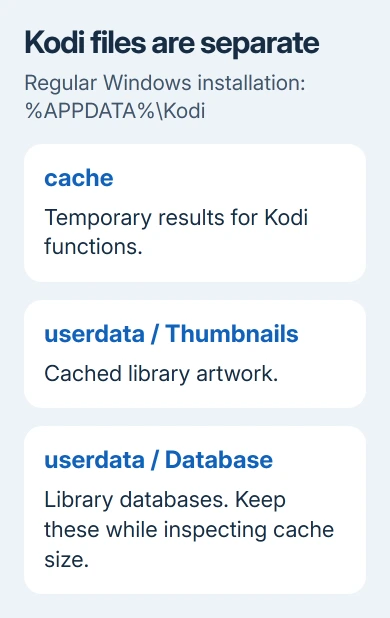
For direct access next time, enter %APPDATA%\Kodi\cache in File Explorer's address bar. A missing folder isn't a reason to create random directories; first check whether you installed Kodi from the Store or use portable mode.
If you browse through C:\Users instead, AppData may be hidden. In Windows 11 File Explorer, choose View > Show > Hidden items. The File Explorer instructions also explain how to reveal filename extensions.
Kodi explains that cache is self-cleaning temporary storage, including results from identifying media. Files in that directory don't by themselves mean Kodi has a fault or needs resetting.
Find the Microsoft Store or portable data folder
For the Microsoft Store build, press Windows + R, enter %LOCALAPPDATA%\Packages, and press Enter. Find XBMCFoundation.Kodi_4n2hpmxwrvr6p, then open LocalCache > Roaming > Kodi.
This is the Store app's Kodi data location. Open cache for temporary files or userdata for settings and library data. The word LocalCache in the package path doesn't mean everything inside it is disposable.
The Store location contains settings and library data as well as temporary files. Don't delete its entire LocalCache directory to try to fix buffering. That would remove more than the video buffer.
For portable mode, open the location where you installed that copy of Kodi and look for portable_data. This copy of Kodi keeps its data there, including the userdata folder.
A shortcut launching Kodi with -p enables portable mode. Inspect Properties > Target on your usual shortcut. Launching without the switch uses regular account data, so both data folders can exist.
I'd confirm the active shortcut before cleaning anything. An old portable folder can look convincing while the Kodi session you opened is using AppData. Changing the unused folder won't affect the current session.
Look in Thumbnails when artwork is taking space
For the regular installation, open %APPDATA%\Kodi\userdata\Thumbnails to inspect cached artwork. Use the corresponding userdata\Thumbnails location inside the Store or portable data folder for those installations.
This folder serves library pictures, such as posters and other cached images. It is separate from the buffer holding the next part of a playing video. A large artwork collection therefore doesn't tell you that a movie has buffered too much.
Right-click Thumbnails, choose Properties, and let Windows calculate its size. Do the same for cache if disk usage is the concern. Comparing their sizes tells you which type of data is using the space before you choose a cleanup method.
Database contains library-related databases; addon_data contains add-on settings and data. Keep both intact while measuring artwork size. These aren't temporary cache folders.
Kodi's userdata layout maps those folders. If you use additional Kodi profiles, their data can be stored under userdata\profiles. Check which profile you're using, since its settings may be in that separate folder.
Change video buffering in Kodi instead of hunting files
For Kodi 21 Omega and newer, open Settings > Services > Caching. These controls moved into the app in version 21. Set the settings level to Advanced if the caching options aren't visible in the default layout.
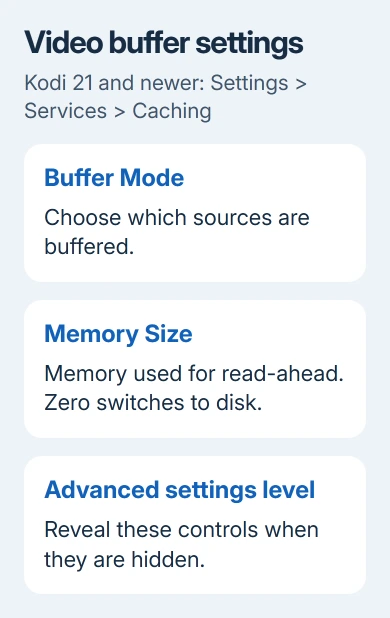
Memory Size controls the memory used to hold upcoming stream data. A value of 0 switches that cache to disk. Zero doesn't mean that buffering is disabled, and disk caching isn't the right choice for every Windows computer.
Buffer Mode selects the types of sources to buffer. Read Factor controls how quickly Kodi reads ahead. Note both current values before adjusting them; keep those notes if playback worsens and you want to undo the change.
Kodi 20 and older used advancedsettings.xml for these video-cache controls. In version 21 and newer, the old cache tags are ignored. That means editing those old XML settings in a current version can leave playback unchanged.
The Kodi settings guide explains settings levels in the default layout, which helps when Advanced controls are hidden. Use the Windows paths in this article to find your files; Android has different app-storage controls.
Choose cleanup that matches the actual problem
For buffering, compare a local video with the failing stream before removing data. Smooth local playback with one troublesome stream points toward that source or its connection. Clearing artwork won't make the source deliver video faster.
If an add-on is taking up too much space, look in its settings for cache or download controls. Add-ons may manage temporary files separately. Deleting the general cache folder might miss the files taking the space.
For temporary Windows files outside Kodi, use Disk Cleanup instead of deleting app folders. Its thumbnail category is separate from Kodi's artwork cache.
Exit Kodi before changing its data manually, and copy the data folder somewhere else first. Keep that backup outside the working folder. Use cleanup instructions for the particular cache instead of deleting all Kodi data.
If the problem persists, ask in Kodi's support forum with the version, installation type, affected add-on or stream, and a debug log. Say whether the goal is freeing disk space or stopping playback pauses; those need different advice.
The Short Version
Open %APPDATA%\Kodi\cache for regular installs, or userdata\Thumbnails for artwork. Store and portable builds keep their data in different folders. Kodi 21 and newer put video-buffer controls in Settings > Services > Caching.
Checked November 13, 2026.





