Chrome's Failed - File truncated message means a download couldn't resume because its saved partial file was missing or shorter than expected. Start a new download through the original source instead of repeatedly resuming that same entry.
This is different from a website saying its file is missing. Chrome is referring to the unfinished file on your computer. Check cleanup tools, storage and the download folder if a fresh attempt develops the same problem.
In this guide
1. Start again from the original download page
Open Chrome's menu and choose Downloads. On Windows or Linux, Ctrl + J opens the list; on a Mac, use Command + Shift + J. Find the entry with the truncated-file message and check its filename.
Cancel the failed attempt if that control is available. Return to the original website, sign in if required and request the file again. Use the website's current download button instead of an old temporary link.
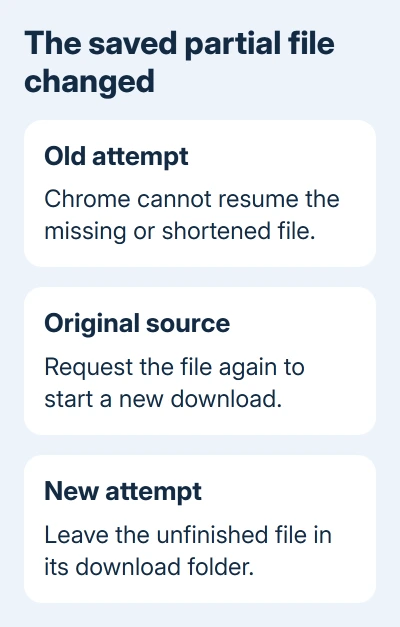
Google's download troubleshooting includes retrying downloads and contacting the website owner when the problem persists. A fresh attempt gives Chrome a new file to write instead of relying on the damaged partial one.
Watch the new entry until it finishes. Check that the finished file opens in the app it's meant for. A percentage reaching nearly 100% and then failing still leaves an unfinished download.
For a large file, this can mean downloading the data again from the start. I'd do that once before clearing browser data. Cookies and history aren't the partial download that this particular message describes.
2. Leave the unfinished file in its download folder
Chrome gives unfinished downloads a .crdownload extension. Keep that file where Chrome put it while the download runs. Moving, shortening or removing it can leave the browser unable to continue from its previous position.
Check whether you moved a partially downloaded file to another folder, removed it during a cleanup or emptied the destination. Chrome's error description points to a partial file shortened or removed after the earlier download attempt.
If you've found an old partial file, don't rename it to the finished extension and assume it's complete. The missing data won't appear because its name changed. Let the new attempt produce the final file normally.
Use the download entry's Show in folder control when available to locate the actual destination. Looking in a similarly named folder on another disk can make it seem that Chrome lost a file that was saved somewhere else.
Compare similar filenames before removing leftovers. Keep the completed copy until you've opened it successfully. Clear abandoned partial files only after canceling their download attempts.
3. Retry in a local folder with enough space
Open Chrome menu > Settings > Downloads and check Location. Select Change to choose a local folder that permits your account to save files, then start a new download there. A folder on a disconnected drive can't hold the file reliably.
This is especially useful if the earlier destination was a USB drive, network share or folder managed by a sync application. Using a local destination for one attempt checks whether the problem follows that storage location.
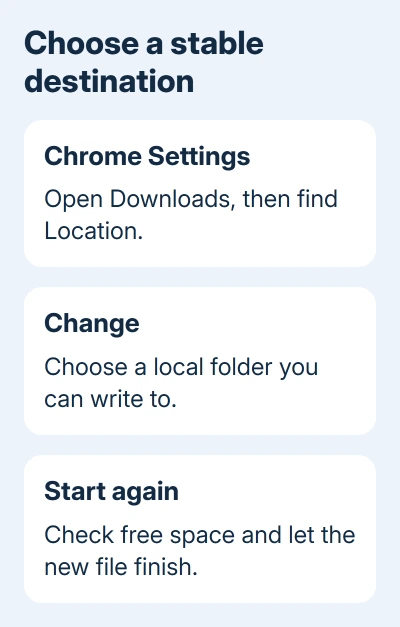
Check how much free space that disk has too. In Windows, open File Explorer > This PC to see available space. On macOS, select the disk in Finder and choose File > Get Info to review its available storage.
Free space by moving or deleting files you recognize, then empty the relevant trash if those deletions haven't released storage. Leave the active partial download alone while you're making room.
If the message changes to Disk full, you've hit a different problem. If that is what Chrome now shows, follow the Chrome download storage checks rather than treating every download failure as truncation.
If the local folder works but the previous destination fails, keep downloads local until the other drive or folder is repaired. Give its administrator the destination path and the time the incomplete file disappeared or changed.
4. Check cleanup and security activity at that time
Open the cleanup, antivirus or storage-management application used on the computer and check its recent activity. Look for the specific filename or download folder. A record of removal explains more than changing unrelated browser settings.
Pause a scheduled cleanup that removes temporary downloads while testing a new attempt. Keep the change limited to that cleanup task. Don't turn off antivirus protection simply because Chrome couldn't resume a file.
If a security tool quarantined the download, read its detection details and confirm the file's source. Ask the software publisher or your IT team about that detection before trying to download the same file again.
Chrome's virus-detected and scan-failed errors need their own security checks. A changed error message is useful: it tells you the current failure is no longer just an unusable partial download.
If no matching cleanup or security event appears, leave those settings alone. Next, compare the failed download with a different file. Don't add security exceptions when the logs show no matching event.
5. Compare one file with other downloads
Try a small trusted file in the same local folder. If it completes and opens, Chrome can save downloads there. Next, check whether the larger file, its download session or something happening during the longer transfer caused the failure.
If only one site's download fails, sign back into that site and generate a fresh link. For a work portal, ask the sender or administrator to provide a new download or another approved delivery method.
A completed download in another browser can also get you the file. Use the same trusted source and local folder. If both browsers fail, report that comparison to the site owner instead of reinstalling Chrome first.
For failures across unrelated sites, check the internet and whether the destination disk stays connected. Google recommends checking connection stability for failed downloads. An interrupted transfer can remain waiting to resume.
When asking Chrome support for help, provide the exact message, operating system, Chrome version and destination type. Include whether the partial file was moved or removed and whether a fresh local download succeeded.
The Short Version
Start again because the old partial file can't be reused. Keep the unfinished file in place and use local storage with enough space. For repeat failures, check cleanup/security records and compare another file or browser.
Checked November 13, 2026.