Chrome asking you to delete files before downloading points to a phone that's too full to save the new file. Remove an unwanted download or another large local file, then check that Android shows more free space before retrying.
A permission error needs a different fix. Match the message first: a storage warning calls for space on the device, while Insufficient permissions on a computer calls for a folder Chrome can write to.
In this guide
1. Check the storage the download needs
Open your Android phone's Settings and search for Storage. On a Pixel, open Settings > Storage. Other phones may place this under a device-care menu, so use Settings search if that label isn't on the main screen.
Read the available space on the phone itself. The storage allowance in Google Drive or Google Photos isn't the same thing. A download still needs room on your phone, even when your cloud account has space.

Compare the free space with the file size shown by the website or download entry, when available. A nearly full phone needs cleanup before another attempt; deleting only a tiny file won't help a much larger download fit.
There isn't one free-space number that suits every download. Go by the actual file size and your phone's storage reading, rather than a claim that Chrome always needs a set amount.
Google's Android storage guide explains removing files, clearing temporary data, and deleting app data. Those actions have different effects on what you'll keep.
2. Delete downloads you no longer need
In Chrome on Android, open the three-dot menu and tap Downloads. Find a finished file you recognize and no longer need, open its three-dot menu, then tap Delete.
For several files, touch and hold one, select the others, and tap Delete. Read the selection before confirming so a useful document doesn't disappear alongside old installers or duplicate downloads.
This control deletes downloaded files. Removing an entry from download history on a computer leaves the file in place. On Android, this Delete command removes the file itself.
If the needed file isn't in Chrome's list, open your phone's file manager and look in Downloads. The Android download locations guide explains how to find files saved by different apps.
Return to the Storage page afterward. If the available space rises, retry the failed download. If it doesn't, check the file manager's trash before removing more files.
I'd start with a large file whose purpose you know. One old video or duplicate download could free the space you need without risking useful folders.
3. Empty the trash that still holds deleted files
Files moved to the trash aren't necessarily gone from storage yet. In Files by Google, open the menu, choose Trash, select the unwanted files, and tap Delete. Confirm the deletion when asked.
Items in this trash normally remain there for 30 days before automatic deletion. Waiting for that cleanup won't help a download you need to save right now.
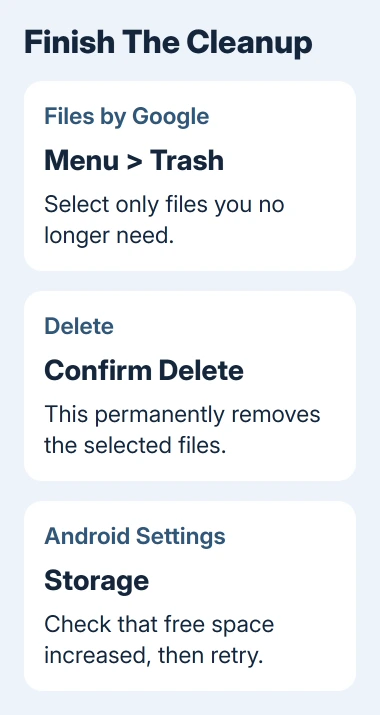
Permanent deletion removes the recovery option. Check the filenames first, especially if the trash includes recent photos, documents, or files another app placed there.
A different file manager or photo app may keep a separate trash or recycle bin. If the storage reading hasn't changed, check the app you used for deletion instead of assuming Files by Google holds everything.
Once the free-space total changes, return to Chrome and retry from the original download page. A completed entry and a file you can find in Downloads show that the new transfer reached storage.
4. Free larger files without wiping Chrome
When old downloads aren't enough, open the app that holds downloaded movies, music, or podcasts and remove offline items there. That way, you know which files you're removing.
Photos need a different choice. If they're safely backed up, use the photo app's option to free device space. Its ordinary Delete command isn't the same thing; that can remove photos from your library too.
Another option is a USB copy to a computer. Check that those copies open correctly, and only then remove the originals from the phone. Checking first lets you repeat a failed transfer while you still have the originals.
Before removing app data or resetting the phone, review what an Android backup includes. A phone backup doesn't mean every downloaded file has a separate copy.
For temporary app files, Android app settings may offer Clear cache. That removes temporary data. Clear storage or Clear data wipes saved app data, a much bigger change than this download problem calls for initially.
Clearing a cache may free some space. Check the Storage page to see how much room you've gained. If the phone still has too little free storage, repeat download attempts won't change that limit.
5. Follow a different error when space isn't the problem
On a computer, Disk full refers to the place Chrome is saving the file. Open Settings > Downloads and read Location. A full external drive can cause a failure even when the computer's main drive has room.
Choose Change to select another writable folder with enough free space. Then start the download again. Existing files stay in their original folder; the location setting applies to future downloads.
A File truncated download error means the saved partial file can't support resuming, so begin a new transfer instead of repeating storage cleanup.
For Insufficient permissions or System busy, cancel the failed attempt and try a folder you own, such as Documents. Deleting unrelated files won't give Chrome permission to write into a protected folder.
A Forbidden or authorization message points to access on the website. Sign in if required or ask the site's owner for access. Storage cleanup can't unlock a restricted download.
If a warning names a virus, dangerous file, or failed virus scan, follow that security message. Don't disable protection to make a storage error disappear; these are separate failures with separate causes.
6. Report a failure that survives the storage check
If Android now shows enough room but Chrome still refuses every small trusted download, restart the phone and try one again. Note the complete message instead of repeating the cleanup without a change in the storage reading.
Send a report through Chrome's Help & feedback. Include your phone model, Android version, Chrome version, available storage, and whether the same file downloads in another browser.
If the file manager also can't save, move, or delete ordinary files, ask your phone's manufacturer for a storage check. Tell support whether internal storage or an SD card is affected and what its own file app reports.
The Short Version
Check free space on the phone, delete unwanted local downloads, and empty the relevant trash. Retry once Storage shows more room. A computer folder-permission error or a website access error needs its own fix instead of more deletion.
Checked November 12, 2026.