Webpage not available on Android means the browser couldn't load that address. Check the link for a typing mistake and open another site.
When every site fails, fix the connection first; when only one fails, try its address in a new Chrome tab before clearing anything.
An error inside an app can also come from its built-in browser. Try the same address in Chrome to tell an app error apart from trouble with the website or connection.
In this guide
1. Retry the address outside the failing app
Tap the address bar and read the domain carefully. A copied link can be incomplete, and an old bookmark can lead to a page that has moved. Correct an obvious mistake, then use Chrome's menu and Refresh.
Try the website's main address instead of the long link. If its home page opens, use its navigation or search to find the article, order page or sign-in screen you wanted. Retrying the link won't bring back a removed page.
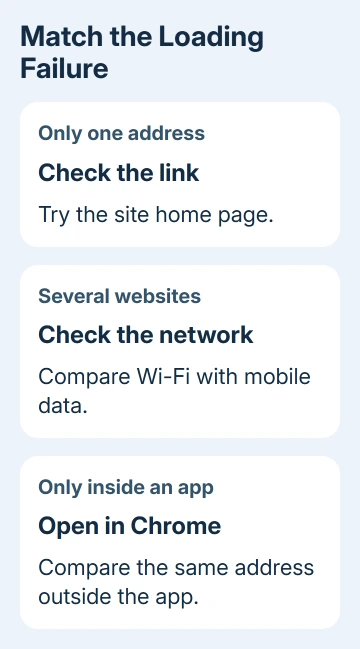
When the error appears inside a social, mail or shopping app, look for Open in Chrome or Open in browser in its menu. If offered, copy the address then paste it in a fresh Chrome tab.
If Chrome opens it normally, check Play Store for an update to the original app. Send the failed address to the app's support team if it continues. Clearing all Chrome data won't fix a problem that only happens in another app's browser.
For a missing or disabled Chrome app, follow the Android Chrome enabling steps. Restore access to the browser before troubleshooting a page it can't yet display.
2. Fix the connection when several sites fail
Try two other familiar websites with different domains. If both fail, turn Wi-Fi off briefly and try cellular data, provided your plan allows it. If browsing works on cellular data, focus on the Wi-Fi network.
On public Wi-Fi, check for a Sign in to Wi-Fi network notification. A hotel or cafe can let your phone join Wi-Fi but keep internet access blocked until you've completed its sign-in page.
Complete the network's normal sign-in, then retry Chrome. Use only the venue's expected sign-in page; an unrelated request for banking details or an account password isn't part of ordinary Wi-Fi access.
At home, connect a different device to your Wi-Fi and try browsing there. If that device also can't browse, restart the router using its maker's instructions and look for a reported outage from your provider.
If other devices work, try reconnecting the phone.
Our Android Wi-Fi connection guide covers a phone that won't join the network. Keep that separate from a phone connected to Wi-Fi whose provider has lost internet service.
If only cellular data fails, check that Airplane mode is off and cellular data is enabled. Ask your carrier to check service and the data allowance when the phone can't browse away from Wi-Fi either.
3. Update Chrome and reopen the page
Open Play Store, tap your profile picture, then choose Manage apps & device. Under available updates, look for Google Chrome and tap Update if offered. Wait for installation to finish.
If no update is offered, close Chrome from Android's recent-apps screen and reopen it. On gesture navigation, swipe up and hold to see recent apps, then swipe Chrome away. Phones with navigation buttons have a separate Recents button.
Type or paste the address into a fresh tab rather than restoring the failing page immediately. That gives the updated or restarted browser another chance to load it without returning to a stuck tab.
Google's Android loading-error steps recommend checking the connection, updating Chrome and comparing Incognito before deleting browser data.
Continue with that comparison if reopening hasn't helped.
4. Compare a fresh Incognito session
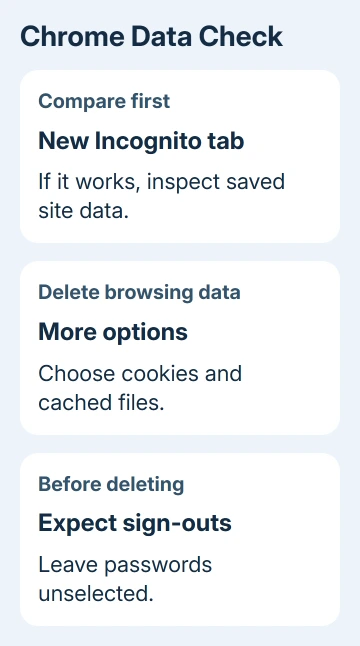
In Chrome, open the three-dot menu and choose New Incognito tab. Enter the same public page address. A private account page can ask for a fresh sign-in, so compare its sign-in screen first.
If the page works there but fails in an ordinary tab, check the saved browsing data next. Incognito uses a separate browsing session; it doesn't fix an unavailable server or a missing internet connection.
Open Chrome's menu and choose Delete browsing data. Use More options if needed to see the individual categories and time range. Select Cookies and site data and Cached images and files for this check.
Deleting cookies can make websites forget that you're signed in. Leave saved passwords and unrelated categories unselected, and choose the shortest time range covering when the trouble began. Use a wider range if the problem continues.
Return to a normal tab and load the page again. If it now works, sign back in as needed. If it still fails, don't repeat the deletion each time; compare the error on another browser or device.
5. Free memory when pages crash or stop loading
Close unused browser tabs and apps, leaving the failing page available to retry. A demanding page can fail when the phone doesn't have enough working memory, particularly with several other apps running.
Restart Android if pages keep crashing. Use your phone's usual power menu and choose Restart. This lets Chrome start again with fewer apps using memory. It doesn't erase app storage or reset the phone.
If a simple page opens but one heavy page still crashes, tell that website which Android and Chrome versions you're using.
Google's Chrome crash checks distinguish memory problems from connection failures.
I'd stop short of reinstalling the browser for a single broken site. Trying the same page on another device tells the website owner more than repeatedly resetting your phone.
6. Send the error to the team that can fix it
A page that fails on different devices and networks needs the website owner's help. Send the exact address and error text, plus when it failed. A deleted page or server outage can't be repaired by changing settings on your phone.
If every site fails only on one Wi-Fi network, give those results to its administrator or provider. If Chrome alone fails across networks while another browser works, use Chrome > More > Help & feedback > Send feedback.
Include whether Incognito works, whether cellular data works, and whether the link opened outside its original app. Keep account tokens, which can grant access to your account, and private addresses out of public forum posts.
The Short Version
Correct any address error, then try a different website. Switch connections when everything fails. For Chrome-only trouble, update and reopen it, compare Incognito, then clear selected site data if that comparison points there.
Checked November 13, 2026.