
Turn on subtitles for the video you're watching in Kodi. If they disappear only after restarting Kodi on Android, try Force stop and reopen the app; an owner confirmed this workaround on an older version.
Start with a video that previously displayed subtitles and keep using it through these checks. If Kodi can't find its subtitle file or download one, the file and service checks will help you narrow that down.
1. Enable subtitles and select the right track
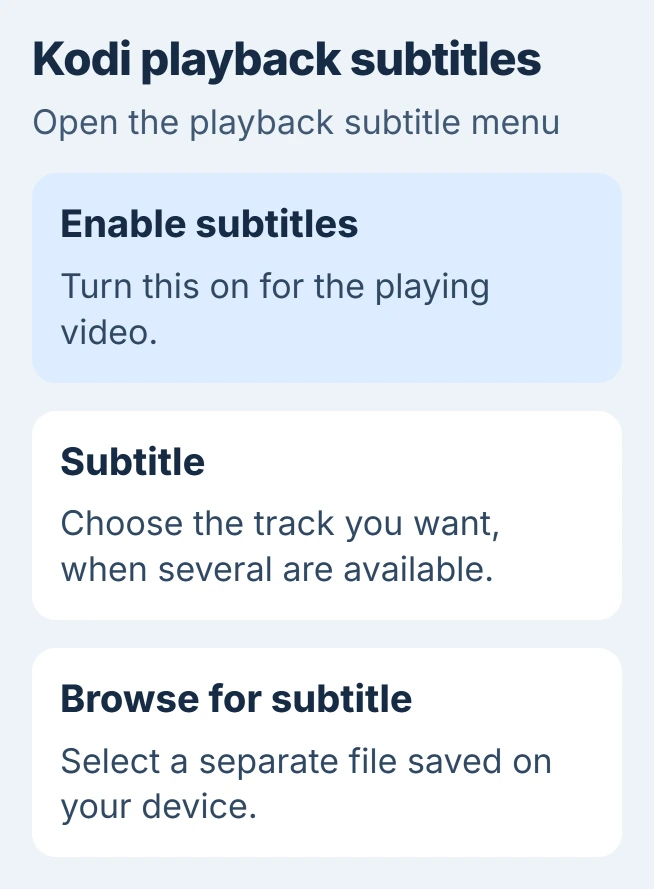
Play the affected video and open its playback controls. Look in the subtitle menu, or audio options if your Kodi skin (visual layout) puts them there. Turn Enable subtitles on and choose a track if several are available.
Kodi's subtitle instructions explain how to turn captions on and choose a track. A video can offer English, another language, and a forced-only track that shows just selected dialogue.
Status: checked November 3, 2026. Kodi documents the subtitle controls. The force-stop success report concerns a closed 2022 Android bug, not a newly confirmed update defect.
Play a scene where you expect captions. If one track stays empty but another works, check the file or track before resetting the app. A forced-only track may show no text during ordinary dialogue.
If the track selector isn't shown, Kodi may have only one available track. That alone isn't a fault. Use Browse for subtitle when you have a separate subtitle file to load instead.
The Set as default for all videos option applies your choices to future playback. I'd get this video working before saving a default, so the wrong setting doesn't carry over to your next movie.
2. Fully stop Kodi when subtitles vanish after reopening
Stop playback, leave Kodi, and open Android's Settings > Apps. Select Kodi, use Force stop, confirm if asked, and then open Kodi again from its icon. Some phones require See all apps before Kodi appears.
Google says you can normally stop apps through your phone's Settings in its app troubleshooting instructions. Going back to Home doesn't fully stop the app.
Replay the same scene with the same subtitles. If they return, check whether they disappear again when you leave and reopen Kodi normally. That pattern tells you more than getting captions back once.
An owner described this restart pattern in Kodi issue 21439 in May 2022. Force stopping brought their SRT and SMI subtitles back on screen; ASS, another subtitle format, had kept working throughout.
A developer got the same failure, and the issue was closed later that month. Try the user-reported force-stop method if your subtitles disappear the same way, but don't install the old nightly development builds discussed there.
If force stopping changes nothing, move to file access and selection. Repeating it before every video won't repair a file Kodi can't see or a service that can't download anything.
3. Check the subtitle file separately from the video
For a video saved on your device, put its separate subtitle file in the same folder with the same name before the extension: Holiday.mkv pairs with Holiday.srt. One file holds the video; the other holds text timed to it.
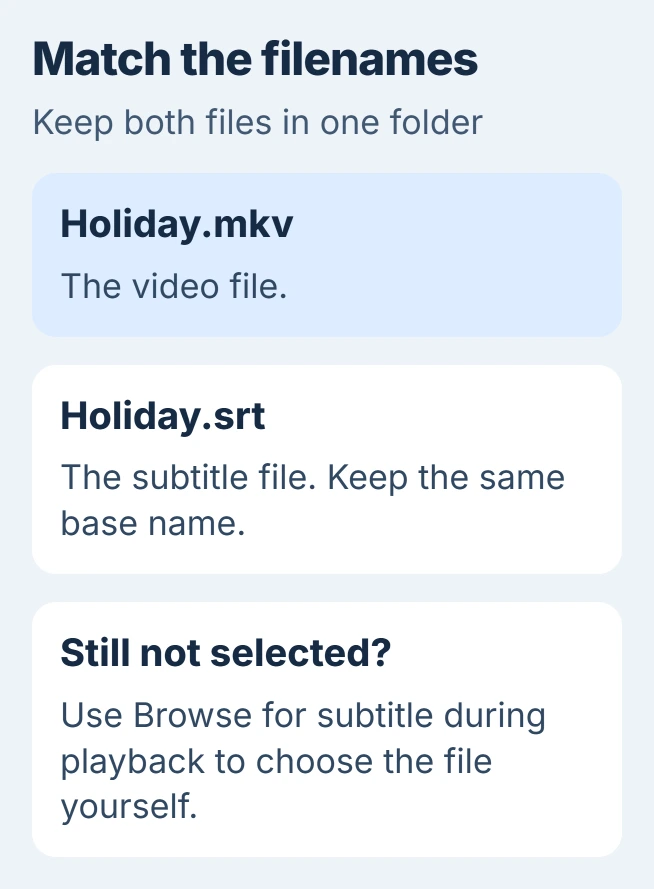
Use Browse for subtitle during playback to choose the file yourself. If that works, check its folder and filename, plus any custom subtitle folder you've set. These affect whether Kodi can find it automatically.
If the file doesn't appear in the browser, check Kodi's access to that storage. Team Kodi's Nexus release note explains the Android 11 and later permission change affecting locally attached drives.
For those Android versions, open Settings > Apps > Kodi > Permissions > Files and media and select Allow all the time. Newer versions may have different permission names and choices.
Give Kodi access to where your media is stored. A video in a shared network folder can play while subtitles stored on your phone stay unreadable. Kodi needs permission to read that subtitle file too.
Try an embedded subtitle track if the video has one. These captions live inside the media file. If they work, Kodi can display subtitles, so check whether it can read the separate SRT file.
4. Repair subtitle downloads without changing playback
If saved subtitle files work but Download subtitle fails, check the subtitle service add-on. You need to install and set up a provider to download captions; turning subtitles on doesn't do that.
In current Kodi layouts, open Settings > Player > Subtitles and find Download Services. Review Languages to download subtitles for, Default TV service, and Default movie service.
Choose your provider for the type of video you're watching. If none is installed, Get more… opens the available services. Older Kodi layouts place these options under Player settings > Language instead.
For a service that needs an account, open Add-ons > My add-ons > Subtitles, select the installed service, and choose Configure. Check its account details and any error it displays before searching again.
Kodi's service setup guide explains these settings. If the service rejects your login, check your provider account. No results for one title can mean it has no matching file.
Try another title through the same service. If both searches fail while local subtitle playback works, keep the report focused on that provider and its error message.
5. Correct text that's invisible, misplaced, or out of sync
For captions that are on but hard to see, open Settings > Player > Subtitles. Kodi starts on the Standard settings level, which hides Size and Opacity. Press the gear button at the bottom left until it reads Expert.
Then check text size, opacity (how see-through the text is), and screen position. Change one setting, then replay the same scene to compare.
Kodi's subtitle settings page says these controls work with text formats such as SRT and ASS. PGS and VobSub store captions as images, so these text settings won't change them.
ASS, SSA and WebVTT files can carry their own font, colors and placement, so your changes may not show.
To fix that, stop the video first. For text size, turn on Override subtitles fonts. For color and opacity, set Override subtitles styles to Styles, or to Styles and positions if you also moved the captions.
Then play the same scene again. If the captions look wrong after that, undo the change you made.
If captions appear before the dialogue, use Subtitle offset in the playback controls. Adjust it while watching a spoken line. When captions stay the same amount early or late, change their timing instead of reinstalling Kodi.
If captions drift further out of time as the video plays, check that the subtitle file matches your version of the video. An offset shifts all captions by the same amount; it can't add dialogue missing from a different edit.
6. Update Kodi and send a useful bug report
Google states that app updates can fix problems. Check wherever you installed Kodi from; the Android update steps cover Google Play. Choose a regular release rather than an old development build.
If Kodi closes entirely, follow the Android app-crash guide. That's a different problem from missing captions while the video keeps playing.
To report a subtitle problem you can repeat, use Kodi's debug-log procedure. Turn on logging to record what Kodi does, restart through its power menu, repeat the problem, then share the log with Kodi support.
Include your Kodi and Android versions, subtitle format, and whether Force stop brings captions back. Say whether they're inside the video, saved separately, or downloaded. This helps the developer repeat your playback steps.
The Short Version
Enable and select captions first. Try Force stop for restart-related loss, then check file access or the download provider as needed. Report a persistent failure with the subtitle format and a log showing what happens.

Isaac Smith is the founder and editor of PC Glance, a website that covers computers, laptops, and technology. He is a tech enthusiast and a computer geek who loves to share his insights and help his readers make smart choices when buying tech gadgets or laptops. He is always curious and updated about the latest tech trends.