
Unwanted screen taps on a Chromebook can sometimes be stopped with Shift + Search + T, after enabling Debugging keyboard shortcuts and restarting. Check that this experimental flag is available before relying on the shortcut.
The touchscreen and touchpad use different toggles. Keep a working keyboard and pointing device available, especially if random screen presses already interfere with navigation.
Enable the debugging flag before pressing the shortcut
Save open work, then enter chrome://flags/#ash-debug-shortcuts in Chrome's address bar. Look for Debugging keyboard shortcuts. If it is present and editable, change it to Enabled and use the restart control shown.
The procedure was confirmed by an owner with repeated phantom taps in a Chromebook community discussion. They said disabling touch resolved the unwanted input after a factory wipe had failed.
Status: Owner outcomes and Chromium's development-source flag checked October 26, 2026. The shortcut is experimental and build-dependent. No Chromebook input was changed for this article.
Chromium's current development source still contains that flag. That establishes its presence in development code, not availability on every installed ChromeOS release. An absent or locked flag means this procedure is unavailable there.
Toggle screen input with Shift, Search and T
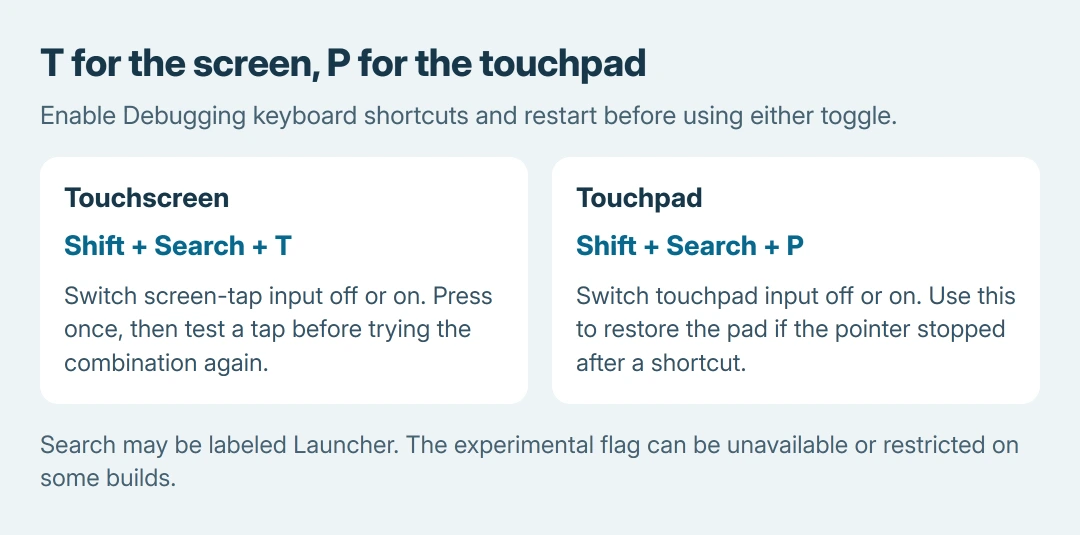
After restarting, hold Shift + Search and press T once. On keyboards that label the same key Launcher, use that key. Try an ordinary tap on the display to check whether screen input stopped.
To restore touchscreen input, repeat that key combination. Avoid repeated presses without checking: it is a toggle, so a second successful press reverses the first.
Shift + Search + P targets the touchpad instead. If the pointer stops responding to the touchpad after trying shortcuts, use that combination to restore it, or connect a mouse while correcting the setting.
For keys that fail in ordinary typing too, run the Chromebook keyboard checks. A broken modifier key can prevent the combination even when the flag is enabled.
Why does the touchscreen stay active after restarting?
A second Chromebook discussion records an owner whose flag returned to Disabled after restarting. Their touchscreen remained active. A recommended reply in that discussion is not a confirmed success.
Revisit the flag once and read its actual state. If it did not remain enabled, repeating the shortcut cannot establish that touchscreen input was disabled. Record the ChromeOS version and ask the manufacturer for a supported option.
For a Chromebook managed by work or school, ask its administrator about flag restrictions. Do not switch to Developer Mode or erase the computer to obtain a debugging shortcut.
The separate Developer Mode instructions explain its development purpose, local-data erasure and administrator restrictions.
Treat phantom touches separately from a distorted picture
Google says to remove dust or dirt when troubleshooting touch input in its touchscreen help. Shut down before cleaning and follow the manufacturer's screen-care instructions.
If the picture itself flickers or shows lines, the Chromebook display checks address that different symptom. Disabling touch input does not repair the display panel or its connection.
The owner who succeeded had also tried turning off automatic clicking in Accessibility, without resolving the phantom screen taps. That feature concerns pointer behavior, so changing it is not equivalent to switching off the digitizer.
Google states that unresolved touchscreen faults should go to the Chromebook manufacturer. Supply the model, ChromeOS version and whether cleaning, the flag and the shortcut changed anything.
Restore ordinary operation when the workaround is no longer needed
Use the touchscreen toggle to turn input back on and test a tap. Then return Debugging keyboard shortcuts to Default and restart if you no longer need debugging controls.
Keep this as a workaround while arranging service for persistent unwanted input. A quiet screen after touch is disabled does not prove that the underlying touch hardware has been repaired.
The Short Version
Enable the available debugging flag, restart, then toggle touch with Shift + Search + T. P controls the touchpad. If the experimental control is missing or ineffective, ask the administrator or manufacturer.

Isaac Smith is the founder and editor of PC Glance, a website that covers computers, laptops, and technology. He is a tech enthusiast and a computer geek who loves to share his insights and help his readers make smart choices when buying tech gadgets or laptops. He is always curious and updated about the latest tech trends.