A Chromebook cursor can vanish when an app hides it, the device is in tablet mode, or the touchpad stops responding. Press Esc, place the screen in laptop position, then test the pad.
A working touchscreen doesn't mean the touchpad works too. Start by getting a pointer you can use, then check the pad and try a hardware reset if it still won't respond.
In this guide
1. Leave the app and return to laptop mode
Press Esc a few times, then test pointer movement on the desktop or inside another window. If the pointer returns outside a video or game, that points to how the app displays it rather than a completely dead touchpad.
On a Chromebook that folds into a tablet, bring the screen back to its usual laptop position. Reattach a detachable keyboard if that's how your model works. Test the pad with the device resting on a desk.
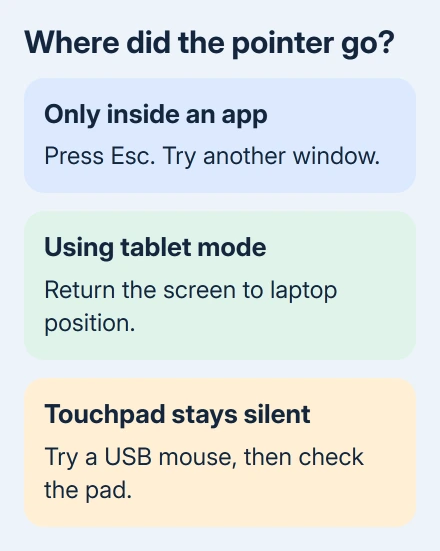
Tablet mode changes how you interact with ChromeOS. Connecting a mouse also switches a supported convertible back to laptop mode. Use that mouse to check whether the pointer appears without touching the built-in pad.
If only the touchscreen is disabled, that is a different control. The Chromebook input shortcut guide also covers the separate touchpad toggle if this started after experimenting with debugging shortcuts.
2. Connect a mouse and compare the two inputs
Plug in a known-working USB mouse. A wired mouse is useful here because it doesn't need Bluetooth pairing. Move it, click an ordinary button, then try the Chromebook's touchpad again.
If the mouse works while the pad doesn't, ChromeOS can still show and move a pointer. Keep using the mouse while you work through the pad checks. It also lets you save open documents and reach Settings.
If neither input works, check whether the keyboard still responds. Try switching windows with Alt + Tab. A frozen window and a missing pointer together need a restart before more touchpad settings are useful.
When typing fails too, check Chromebook key input before treating the missing pointer as a touchpad-only fault. The keyboard and pad can need separate checks.
3. Clean the pad and restart the Chromebook
Remove dust and dirt from the touchpad, keeping liquid out of its edges. Press Esc several times if you haven't already. Then use a gentle finger drumroll on the pad for ten seconds and test pointer movement again.
Google recommends those checks in its touchpad troubleshooting steps. They come before the hardware reset, so you don't need to jump straight to wiping the Chromebook.
Save your work, power the Chromebook off, then start it again. Closing and opening the lid can just put it to sleep; a shutdown gives the device a fresh start. Use the power controls available on your model.
Test the pad at the sign-in screen as well as after signing in. If it works before sign-in but stops in one account, that difference matters. If it never responds, continue with the hardware reset rather than changing pointer speed.
I'd keep the USB mouse connected until your files are safe. Having a second input makes the next checks much easier, especially on a Chromebook without a touchscreen.
4. Reset the hardware using your model's method
The hardware reset restarts input devices, including your keyboard and touchpad. Unlike Powerwash, it doesn't return ChromeOS to factory settings. Most laptops share one key sequence; tablets and some older models differ.
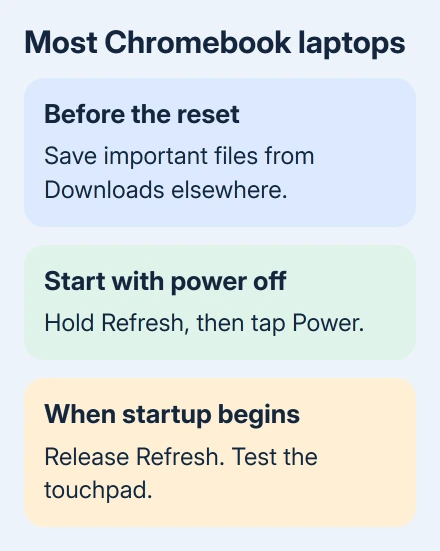
Save anything important in Downloads somewhere else first. Google's hardware-reset instructions warn that this procedure might delete some files from that folder.
For most Chromebook laptops:
- Turn the Chromebook off.
- Hold the Refresh key on the top row, then tap Power.
- Once startup begins, release Refresh.
- Try the touchpad before reopening your usual apps.
On a ChromeOS tablet, hold Volume Up + Power for at least ten seconds, then release both buttons. Don't substitute an Android phone's button sequence or assume the tablet has a Refresh key.
Some older Chromebooks use a reset button, a power disconnection, or a removable-battery procedure. Check the model list on the hardware reset page if the standard keys don't fit your machine.
If pointer movement returns, check clicking and scrolling too. A visible cursor with working movement but a failed physical click is a more specific fault than the original missing pointer.
5. Check whether only one account is affected
Compare another existing account on the Chromebook if one is available. Test the same touchpad movement there. If the pad works in the other account, check the affected account before arranging a repair.
The touchpad instructions also suggest removing and adding the affected account again when the Chromebook has multiple accounts. Do that only after protecting that account's local files and confirming you can sign back in.
For a managed Chromebook at school or work, give that result to the administrator instead of removing the managed account yourself. Tell them whether the pad worked before sign-in and whether a USB mouse worked in the affected session.
If the problem happens in every account, repeated account changes aren't a useful next step. Tell the manufacturer what happened when you tried the hardware reset.
6. Ask for a touchpad check when it still won't respond
Contact your Chromebook maker's support team and give them the complete model number. Request touchpad troubleshooting or a repair assessment, and describe the USB-mouse result, sign-in-screen behavior, and hardware reset you performed.
Mention any spill, impact, loose keyboard attachment, or change in how the pad clicks. Those details can change the repair advice. Check warranty coverage before arranging a repair or ordering replacement hardware.
A factory reset is a bigger step than the checks here. Discuss it with the manufacturer or school administrator if they need to rule out a software problem, with your local files backed up first.
The Short Version
Press Esc, return a convertible to laptop position, and compare a USB mouse with the touchpad. Clean the pad, restart, then use the hardware reset for your model. Account-only failures and failures in every account need different follow-up.
Checked November 10, 2026.