
A Chromebook's floating toggle menu often comes from Automatic clicks or Switch Access. Turn off that feature under Settings > Accessibility. To hide only the Quick Settings shortcut, change its separate visibility switch.
Those controls do different jobs. Before changing anything, check whether you're seeing a floating click toolbar, a menu that highlights items in turn, a keyboard, or the system-menu shortcut.
Which menu is actually on the screen?
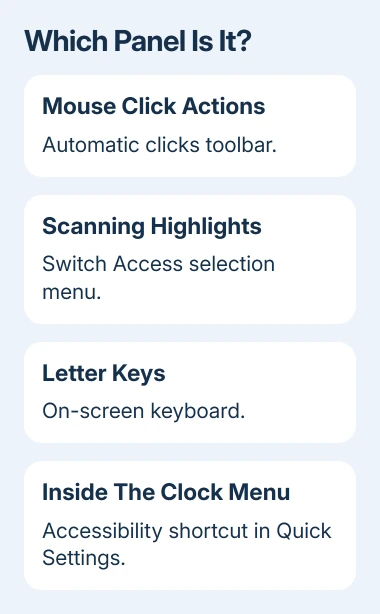
Move your pointer clear of the panel and look at what stays visible. A toolbar with different mouse-click actions points toward Automatic clicks. A menu that appears while items are highlighted one after another points toward Switch Access.
A large panel of letter keys is the On-screen keyboard. An Accessibility entry that appears only after selecting the clock is a system-menu shortcut. Hiding that entry won't switch off a floating toolbar or stop a feature already running.
Open the clock menu at the bottom right, then choose Settings > Accessibility. Alt+Shift+S also opens the status area. From there, change the particular feature that matches what you're seeing.
Google explains in its accessibility guide that the system-menu shortcut gives quick access to features. Cursor controls and keyboard input have their own switches.
I'd change one matching switch, then check the screen. Turning off several accessibility features at once can remove something you still use and makes it harder to know which setting removed the panel.
Turn off the Automatic clicks toolbar
Automatic clicks selects things after the pointer stays still. Its floating menu chooses the type of click, such as a left click, right click or drag. It can look like an extra mouse-control panel even when no app window is open.
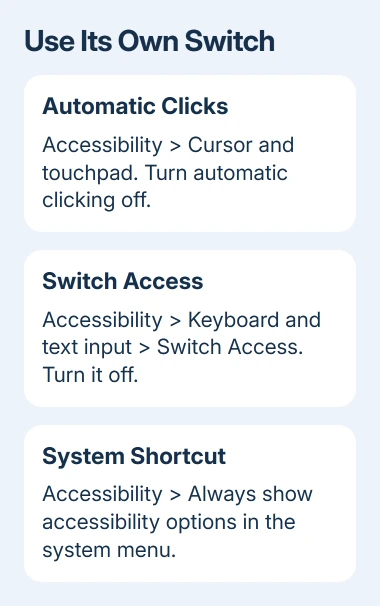
Open Settings > Accessibility > Cursor and touchpad. Find Automatically click when the mouse cursor stops and switch it off. Move the pointer away from Settings and check whether the floating click menu has disappeared.
With that feature off, leaving the pointer over an item should no longer click it automatically. Use the touchpad or mouse button to select things normally.
This change removes automatic clicking, so keep it enabled if you depend on dwell clicks to control the Chromebook.
If you want automatic clicking but the panel is in the way, use the menu's position control to move it instead. The Automatic clicks instructions describe the menu actions and moving the menu to another screen corner.
If the panel remains after the switch is off, compare it with the Switch Access menu next. A different feature's panel won't respond to the automatic-click setting.
Disable Switch Access when scanning menus appear
Switch Access lets a person control ChromeOS with one or more switches, which can be assigned to keyboard keys or an external device. It highlights items you can select and shows action menus, rather than a mouse toolbar.
Open Settings > Accessibility > Keyboard and text input > Switch Access. Turn Switch Access off. Check that its menu and scanning highlight disappear, then select an ordinary button with your usual mouse or touchpad.
Check that you can use your mouse, touchpad or other input method before turning Switch Access off. Keep the feature enabled if you need its switches to select controls.
For a school Chromebook with a locked switch or an organization notice, ask the school's administrator to check the accessibility setting for your device and account. Explain which panel appears and which control you can't change.
Hide the keyboard rather than changing mouse controls
An on-screen keyboard is a separate accessibility input tool. To stop the accessibility keyboard opening, go to Settings > Accessibility > Keyboard and text input and turn On-screen keyboard off.
Check the result by selecting a text field. In laptop mode with a working physical keyboard, turning this switch off should stop the accessibility keyboard from opening. Test by typing a few characters with the physical keys.
Tablet mode can still open a touch keyboard automatically when you select a text box. That's different from leaving the accessibility keyboard enabled.
If your convertible is folded into tablet mode, return it to laptop position and compare the behavior.
A touchscreen that doesn't respond needs its own checks. The Chromebook touchscreen controls explain the separate touch setting; disabling a screen isn't the normal way to dismiss an input panel.
Hide only the Accessibility system-menu shortcut
If the item appears inside the clock menu rather than floating over apps, open Settings > Accessibility. Turn off Always show accessibility options in the system menu. Reopen the clock menu and check the shortcut's appearance.
This switch controls quick access to the features. It doesn't turn off every accessibility feature. If Automatic clicks, Switch Access or another tool is still active, use that feature's own switch to change its behavior.
Some ChromeOS layouts describe the system menu as Quick Settings. Follow the accessibility option's wording rather than trying to remove unrelated buttons such as Wi-Fi or volume, which belong to the standard status panel.
If the text is in a language you can't read, change the Chromebook's display language before changing more switches. That is safer than guessing which accessibility tool a translated label controls.
Check synced preferences when the panel returns
Accessibility preferences can sync with your Google Account. If the same menu returns on another Chromebook or after setup, check the feature's saved preference rather than assuming the device has developed a hardware fault.
Open Settings > Privacy and security > Sync and Google services > Manage what you sync. Review Sync everything or Customize sync and the Settings category. Accessibility preferences are included with settings syncing.
Don't turn off syncing broadly just to remove one panel. First set the accessibility feature correctly, then compare the affected devices while you're signed into that account. Keep track of which device still has it enabled.
If the menu remains with its matching feature off, restart the Chromebook and check again. For a managed device, report it to the administrator.
For a personal Chromebook, use the Chromebook Help Community or Google's Disability Support team through the accessibility help page.
Include a description of the panel's buttons, your ChromeOS version, whether it appears before sign-in and which switch you changed. The button descriptions and settings tell support which panel you're seeing.
The Short Version
Identify the panel, then disable its own feature: Automatic clicks, Switch Access or On-screen keyboard. Hide the system-menu Accessibility shortcut separately.
Check account syncing or school management when a setting keeps returning or can't be changed.
Checked November 10, 2026.

Isaac Smith is the founder and editor of PC Glance, a website that covers computers, laptops, and technology. He is a tech enthusiast and a computer geek who loves to share his insights and help his readers make smart choices when buying tech gadgets or laptops. He is always curious and updated about the latest tech trends.