

To copy a worksheet in Windows Excel, right-click its tab, choose Move or Copy, and check Create a copy to keep the original. To duplicate every sheet together, save another workbook file.
The right method depends on whether you need one tab, a tab in another workbook, or every sheet in a new file. Excel on Mac and in a browser use different controls.
Decide whether the copy needs one sheet or the whole file
A workbook is the Excel file; a worksheet is one tab inside it. Copying a worksheet duplicates that tab's contents. Saving a second workbook keeps the collection of tabs together, which is useful when they refer to each other.
I'd copy the whole file first if you want a spare you can edit before changing several linked sheets. It avoids accidentally leaving a required sheet behind when the copied sheet contains formulas that use it.
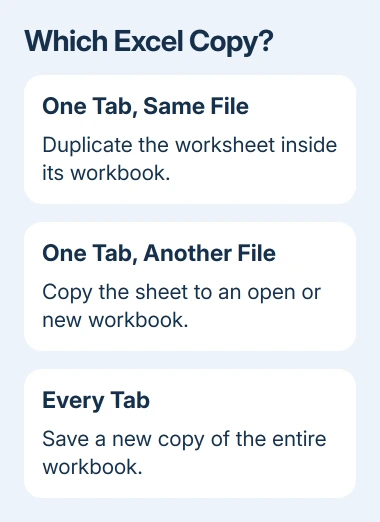
Save the source file before starting. Give the destination a clear name so the title bar makes clear which file you're editing. A name such as Budget Working Copy is more useful than two open files with nearly identical names.
For a data cleanup, make the copy before running a command that removes records. The Remove Duplicates explanation shows why choosing columns changes which records Excel considers duplicates.
Duplicate a worksheet in Excel for Windows
Find the worksheet's named tab beneath the grid instead of selecting its cells. Right-click that tab and choose Move or Copy. In To book, keep the current workbook selected if the copy should stay in the same file.
Under Before sheet, choose where the new tab should appear, or choose (move to end). Check Create a copy, then select OK. The new worksheet tab should appear while the original remains in its previous location.
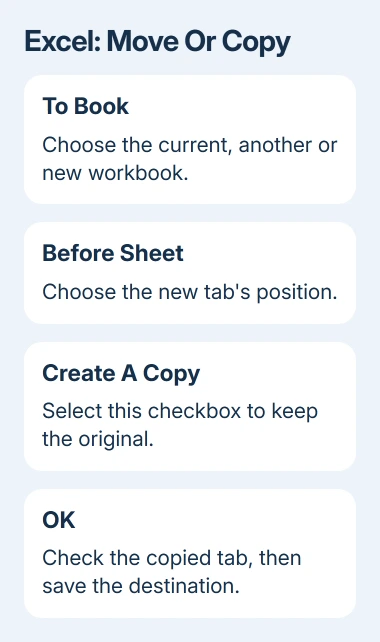
The dialog's name covers two operations. Leaving Create a copy unchecked moves the sheet instead of copying it. If the original tab disappears from its old position, check what the operation did before continuing to edit.
Double-click the new tab and give it a descriptive name. Select a few cells and compare formulas, formatting and the last row containing data with the original. Save the workbook when the new tab looks correct.
A shortcut for a copy within the same Windows workbook is to hold Ctrl, then drag the required worksheet tab into position. Use the dialog for your first attempt if you want to see the destination and copy choice together.
Copy a sheet into another workbook or a new file
Open both the source and destination workbooks in desktop Excel. Return to the source, right-click the required sheet tab and select Move or Copy. Choose the destination file from To book, then choose the tab position.
Select Create a copy before confirming. The copied sheet should appear in the destination, and the original should remain in the source. Save the destination workbook; saving only the source doesn't save the new copy in the other file.
To turn one worksheet into a separate file, choose (new book) in To book and check Create a copy. After Excel opens the new workbook, choose a distinct filename and save it in your intended destination folder.
If the destination doesn't appear, check that it is open in the same desktop Excel session. A browser tab showing another workbook isn't the same as opening that file in the desktop application.
Microsoft's worksheet copying instructions warn that moving sheets can affect formulas and charts. For a copy, also inspect any formulas that refer to other sheets or files before relying on the new workbook without the original.
Use the Mac sheet-copy controls
In Excel for Mac, open the source workbook and select the tab you want. For a copy in the same workbook, hold Option and drag the tab to its new position. Release the mouse before releasing Option so the operation remains a copy.
For another workbook, open the destination first. Return to the source through the Window menu if necessary, select the sheet, then choose Edit > Sheet > Move or Copy Sheet.
Choose the destination in To book and select the position in Before sheet. Check Create a copy and confirm with OK. Choose new book instead when the copied sheet should become its own workbook.
Look for the tab in the destination and verify that the source still has its original. These Mac steps use Excel's menu along the screen's top edge. The Windows right-click wording doesn't match every Mac layout.
Use Duplicate in the browser version
Inside the current browser workbook, right-click the worksheet tab and select Duplicate. That creates a copy in the same workbook. Check the new tab before renaming it and making changes.
A worksheet containing a chart, picture or shape may produce a duplication error. For that case, the vendor procedure offers a manual data copy. Select the data, copy it, add a blank worksheet with +, select its first cell and paste.
Copying to a different browser workbook also uses the data-copy method. Select the data in the source, press Ctrl+C, open the destination workbook, add a blank sheet, select the first cell and press Ctrl+V.
Copying the data this way doesn't duplicate every part of the sheet. The current instructions warn that conditional formatting is lost in this transfer. Use desktop Excel to keep that sheet's layout and features.
To use these browser controls, sign in and open a workbook you can edit. If a shared file opens read-only, request an editable copy or access from the owner instead of looking for a missing desktop Move or Copy command.
Save a copy of every sheet together
To duplicate the entire workbook, use File > Save As or Save a Copy, as available in your edition and storage location. Choose a new filename and location, then check the name shown in Excel before editing.
Keep the original file type when the workbook uses features that need it. For example, a macro-enabled workbook uses .xlsm; saving it as .xlsx won't retain its macros. Review any compatibility or feature-loss warning before confirming.
Open the saved copy and check the sheet list, formulas and important totals. If copied formulas point back to the original file, decide whether that link is intended.
Don't replace formula results with values unless you actually want a static record.
For a copy intended for record cleanup, the blank-row removal steps explain how to avoid deleting rows that still contain useful cells.
If copying fails with a specific error, report your Excel version and both file types to Microsoft Support, and whether copying inside one workbook works.
If someone else manages the file, ask its owner whether workbook protection or your permissions prevent copying.
The Short Version
On Windows, check Create a copy in the Move or Copy dialog. On Mac, use Option-drag or Edit > Sheet > Move or Copy Sheet. In a browser, choose Duplicate. Save a separate workbook when you need every tab together.
Check formulas and the destination file before editing.
Checked November 10, 2026.

Isaac Smith is the founder and editor of PC Glance, a website that covers computers, laptops, and technology. He is a tech enthusiast and a computer geek who loves to share his insights and help his readers make smart choices when buying tech gadgets or laptops. He is always curious and updated about the latest tech trends.