
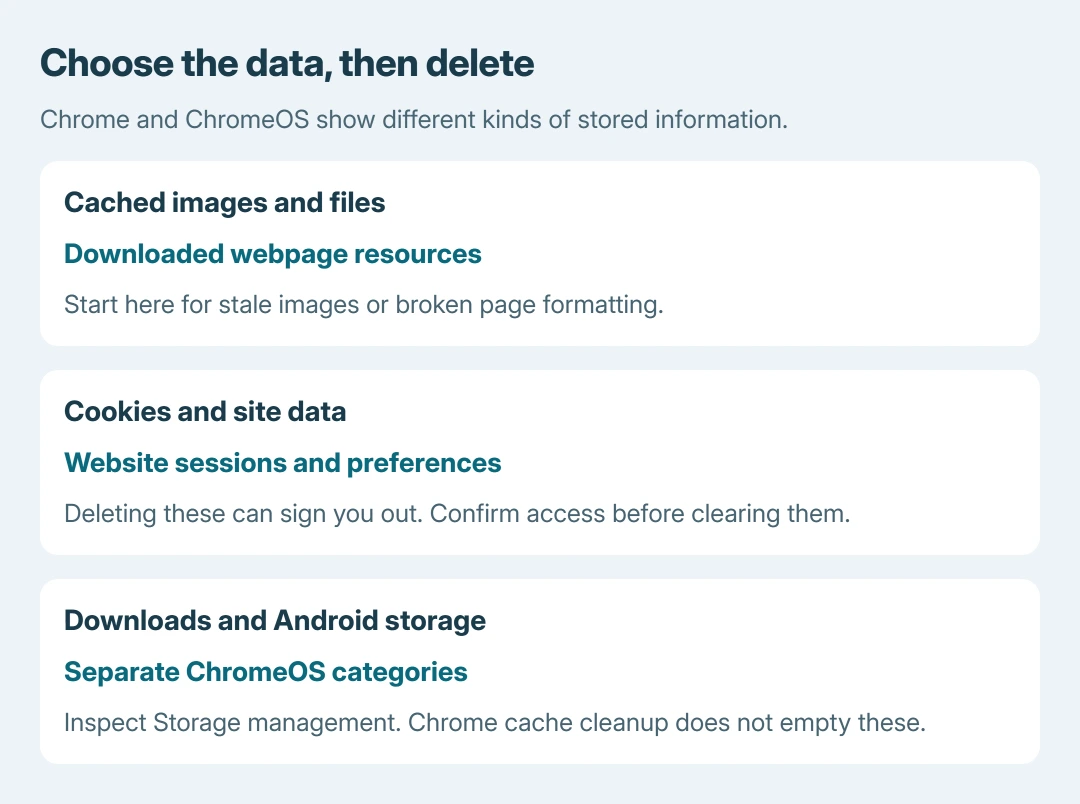
Clearing cache on a Chromebook starts in Chrome's Delete browsing data dialog. Select Cached images and files first for an outdated or badly drawn webpage; leave cookies and history unchecked unless those are also meant to go.
A browser cache, an Android app's storage and files in Downloads are separate things. Clearing one does not empty the others, and a factory reset is unnecessary for this task.
Delete Chrome's cached images and files
Open Chrome on the Chromebook. Select the three-dot More menu, then Delete browsing data. Choose All time if the aim is to remove the complete browser cache rather than only recent entries.
Review every selected category before confirming. Keep Cached images and files selected, clear the other selections for a cache-only deletion, then choose Delete data.
Status: Chrome deletion categories and ChromeOS storage controls checked October 26, 2026 against Google Help. No browsing data was deleted.
Google says clearing browser cache and cookies can address website loading and formatting problems. Cached resources are downloaded copies, so pages may load more slowly while Chrome fetches fresh ones.
Reopen the affected website and check the specific problem: an old image, missing formatting or a page that would not load. A correct page afterward is the useful result; a large amount of freed space is not required.
Decide separately whether cookies should go
Cookies can hold a site's login state and preferences. Removing them can end website sessions. Confirm the login still works before selecting Cookies and other site data.
For one broken sign-in, deleting that site's cookies can be more appropriate than clearing every site's sessions. Google's browsing-data reference links its separate individual-cookie controls.
Keep browsing history and autofill unchecked for a cache refresh, and leave credentials in Password Manager alone. Google states that deleting account-saved browsing information can also remove it from other signed-in devices.
The recommendation to begin with the narrowest category is ours. It keeps the first attempt focused on downloaded page resources while preserving information the reader still needs.
Check Storage management when space is the problem
Select the clock, open Settings, then choose System preferences > Storage management. Compare Browsing data, Downloads, Android storage, Offline files and Other users before deciding what to remove.
Google lists these separately in its Chromebook storage instructions. A large Android storage figure does not mean Chrome's browser cache is large.
Copy needed local work onto an external drive or into Google Drive. Verify those copies before removing originals. Do not delete Downloads just because the browser cache cleanup freed little space.
For Android apps that crash, the cache-versus-storage distinction matters: clearing app data has a different cost from removing temporary app files. Chrome's dialog does not perform either action for an Android app.
The webpage still fails after cleanup
Check whether other websites load. A single failing service may need its operator's help; a school or work Chromebook may have administrator-enforced browser settings.
Avoid jumping straight to Powerwash and its local-file erasure. A persistent problem deserves a diagnosis before the whole Chromebook profile is removed.
Give the site operator or Chromebook Help community the affected address, ChromeOS version and result of the cache refresh. For device-wide storage problems, contact the administrator or manufacturer.
The Short Version
Use Chrome's deletion dialog and select the cache category deliberately. Cookies, saved browsing information, Android app data and Downloads have different consequences. Check ChromeOS Storage management when the real goal is disk space.

Isaac Smith is the founder and editor of PC Glance, a website that covers computers, laptops, and technology. He is a tech enthusiast and a computer geek who loves to share his insights and help his readers make smart choices when buying tech gadgets or laptops. He is always curious and updated about the latest tech trends.