Chromebook error code SIGILL can appear when a tab crashes while the rest of ChromeOS keeps running. Clearing cached files helped an owner with this error; try that first, then check extensions and updates if crashes return.
SIGILL alone doesn't identify what's broken. A problem on just one website calls for different checks than crashes on unrelated sites or freezes outside the browser.
In this guide
1. Clear cached files without wiping saved passwords
Save unfinished tab work before continuing. In Chrome, press Ctrl + Shift + Backspace to open Delete browsing data. Choose All time for the time range and select Cached images and files.
Leave passwords, browsing history and other categories unchecked for this first attempt. Cached files are saved copies of website resources. Removing them makes Chrome download fresh copies when you visit again.
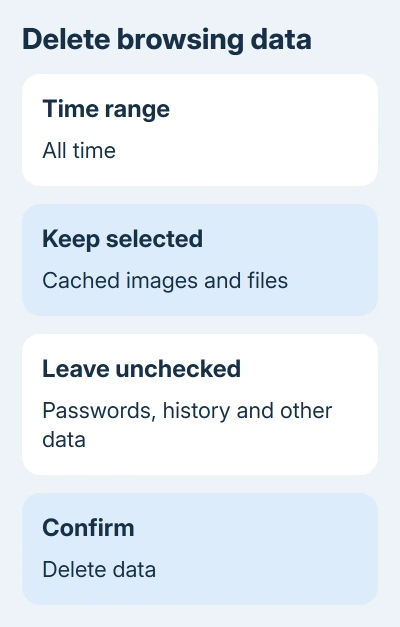
Select Delete data, close the affected tab and open that website again. It may load more slowly on the first visit because its files have to download again. Check the actual page that failed, rather than only the site's home page.
An owner on the Chromebook support thread about SIGILL reported that clearing caches fixed their crashes. Their later edit said the improvement took two to three days.
That delay matters: this was one person's result, not a promise that every SIGILL error clears after a set wait. If the same tab crashes immediately, continue with the next check instead of clearing everything repeatedly.
For the longer explanation of the data categories, use the Chromebook cache controls. Don't delete saved sign-ins just because the first attempt didn't work.
2. Compare one failing site with another site
Open a simple website that normally works, then try a second unrelated site. Keep the test small. With several video streams or lots of reopened tabs running, a problem on just one page is harder to spot.
If only one website crashes, open More > New Incognito window and try its address there. Incognito separates this visit from your regular session. Extensions normally stay off, except those you've permitted in Incognito.
A working Incognito window points toward something different in your regular browsing session, such as site data or an extension. It doesn't tell you which one. Test extensions next before removing more browsing data.
If the site needs a login, try to compare the same page in both windows. A public home page working in Incognito doesn't tell you whether the signed-in editor, meeting or document that crashes will work there.
When the same page fails in both windows but other sites work, tell that website's support team its address and the SIGILL code. Include whether the crash happens during sign-in, video playback or opening a particular document.
3. Turn off extensions, then add them back separately
Type chrome://extensions into Chrome's address bar and press Enter. Turn off the extensions you can control, close the failing tab and try it again. Disabling an extension keeps it installed while stopping it from running.
If the page now works, turn one extension back on and test again. Test the page after each extension until the crashes return. Keep that extension disabled and ask its developer whether an update addresses this crash.
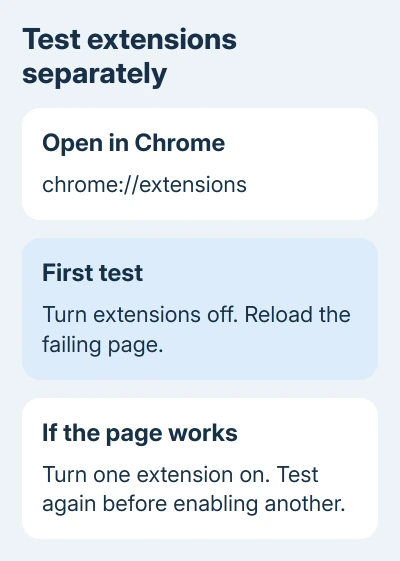
Don't turn every extension back on together after a successful test. That would put the same combination back without showing which change mattered. Your goal is a normal session that keeps loading the page successfully.
School and company administrators can require extensions that users can't disable. Give the administrator the failing URL, the error code and the result from Incognito and let them handle the managed settings.
4. Restart with fewer tabs and install ChromeOS updates
Close unused tabs and apps, then turn the Chromebook off and on. Reopen only the site that was crashing. I'd do this before a reset because it checks a fresh session without removing your local files or accounts.
If the tab works until you restore a large session, keep the tab count smaller and open Shift + Esc for Chrome's Task Manager. Save first: ending a browser task closes the work it contains.
The memory column shows which pages and extensions use the available memory. Heavy use can disrupt tabs. Check the actual usage rather than assuming every SIGILL crash means the Chromebook has run out of memory.
To check for updates, select the time, open Settings, then select About ChromeOS > Check for updates. Let an available update download and choose Restart when prompted. Then retry the same website.
Chrome updates arrive with ChromeOS on a Chromebook. Follow the ChromeOS update procedure rather than downloading a Windows Chrome installer or searching for a Chromebook driver tool.
5. Escalate a recurring crash with useful details
If SIGILL continues on several unrelated websites after these checks, write down the ChromeOS version from Settings > About ChromeOS, your Chromebook model and when the problem began. Mention whether an update came just before it.
Write down which changes stopped the crashes or made them return. For example, a page working with extensions off is more useful to support than a long list of settings changed together. Include any different error code that appears later.
For a managed Chromebook, send that record to school or company IT. For a personal Chromebook, use the Help app or the manufacturer's Chromebook support route and ask about recurring browser crashes on that model and OS version.
A machine that also freezes, restarts or fails to boot needs broader system checks. Tell support about those symptoms at the start. Those problems call for different repairs than a tab error that goes away when you disable one extension.
Don't start with Powerwash for a browser-only crash. It removes local user data, and a website or extension problem can return afterward. Discuss a reset with support after giving them the results of the simpler checks.
The Short Version
Remove cached files first, try the page in Incognito, then test with extensions off. Restart and update ChromeOS if several sites crash. Keep the exact code and test results for IT or the Chromebook maker if it continues.
Checked November 15, 2026.
 If you have any business, I can build it online