
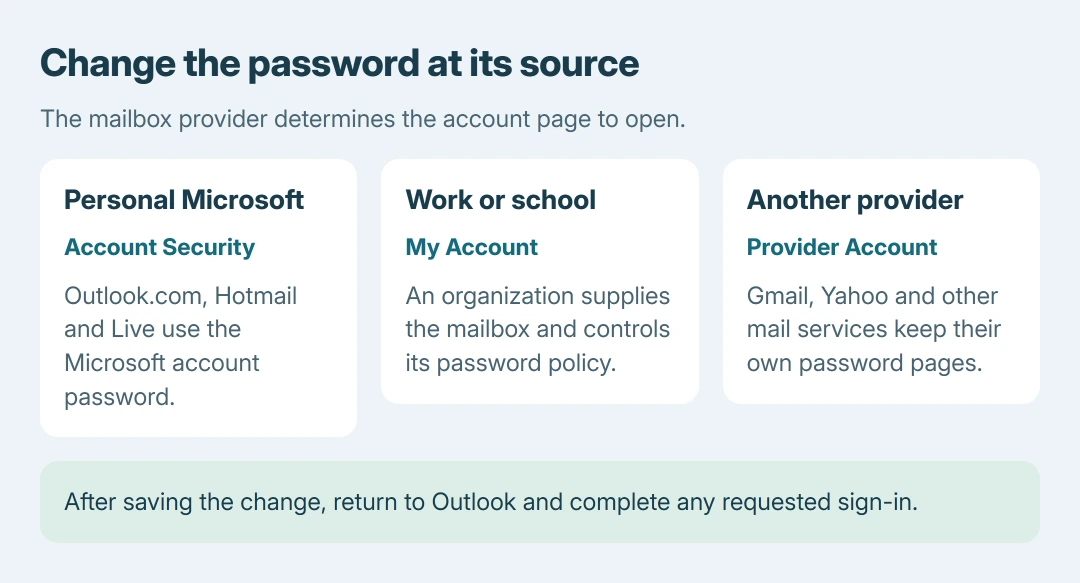
Changing an Outlook password starts with the mailbox provider. For Outlook.com, Hotmail or Live, change the Microsoft account password. For work email or Gmail added to Outlook, use that account's own password page.
After saving the change, return to Outlook and complete any new sign-in prompt. Editing a password stored by the app does not change the password at the email provider.
Choose the password page for this mailbox
Check the email address attached to the inbox. A personal Microsoft mailbox uses the Microsoft account portal; an employer's Microsoft 365 mailbox uses the work or school portal. Gmail and other providers keep their own account controls.
Microsoft documents this provider-first order in its Outlook password instructions, covering both new and classic Outlook for Windows.
Status: Outlook password routes verified October 26, 2026 against Microsoft's personal, work and app instructions. No account password was changed.
A Microsoft 365 Personal or Family subscription does not turn a personal mailbox into a work account. Choose by the account that owns the address, rather than the name of the subscription.
Change a personal Outlook.com, Hotmail or Live password
Visit Microsoft account with a browser. Sign in using the personal account that owns this mailbox. Choose Security, then Change password. Complete the requested identity checks and password fields, then select Save.
Microsoft says an Outlook.com password is the Microsoft account password. The change therefore applies to that account's other Microsoft services too.
Check the address shown in the account portal before saving, especially when the browser already has another account signed in. That check is ours: changing a second account will leave this mailbox's password untouched.
If the current password is forgotten, follow the reset link on Microsoft's support page instead. A known-password change and a recovery request have different verification steps.
Change an employer or school's Microsoft 365 password
Go to My Account and sign in with the work or school address. Select Change Password in the navigation. Enter the existing password, create and confirm its replacement, then select Submit.
Microsoft states that this work-account procedure requires a known password and an account that is not locked. The portal asks for another sign-in after the change.
For a forgotten password or a locked account, use the organization's recovery process. Contact its IT desk if the offered reset cannot verify the account or the organization directs password changes elsewhere.
Update Outlook after the provider accepts the change
For Gmail, Yahoo, iCloud or another provider, change the account password on that provider's official website first. Reopen Outlook afterward and respond to its authentication prompt for that address.
Microsoft's Windows instructions say Outlook asks for the updated password after the provider change. A provider sign-in page can include its own verification steps; use the account named in the prompt.
Send a message to another address you control and check for a reply. This is a practical mail check, rather than proof from the password page alone that Outlook has resumed sending and receiving.
If classic Outlook cannot keep its sign-in window open, follow the disappearing authentication-window checks. Changing the password again will not repair a window that closes before entry.
For Apple's Mail app repeatedly requesting a Microsoft password, the iPhone account-type checks cover its separate authentication problem. That app has different account settings from Outlook.
If the new password fails on the provider's own website, take the error to that provider or the work IT desk. If webmail works but Outlook still cannot sign in, report the app version and exact prompt to Microsoft Support.
The Short Version
Change the password with the mailbox provider, then complete Outlook's sign-in prompt. Personal Microsoft email uses Security; work Microsoft 365 uses My Account. Forgotten passwords need recovery instead.

Isaac Smith is the founder and editor of PC Glance, a website that covers computers, laptops, and technology. He is a tech enthusiast and a computer geek who loves to share his insights and help his readers make smart choices when buying tech gadgets or laptops. He is always curious and updated about the latest tech trends.