

A new email password can work in webmail while classic Outlook keeps using its saved login. For an account using POP or IMAP, close Outlook and update the password through Mail in Windows Control Panel, then run Test Account Settings.
That route fixed it for an owner whose new password already worked online. If your account opens a Microsoft, Google or other provider sign-in window, use that window to sign in instead of entering a password in the server settings.
In this guide
1. Match the failed login to the right mailbox
Open your provider's website directly and try the new password for the affected address. Check the full address if several mailboxes use that provider. A login to another mailbox doesn't tell you whether this one accepts the password.
If the website rejects it too, use the provider's password recovery. Outlook can't repair a password the server won't accept. Our Outlook password-change guide separates personal, work and third-party accounts.
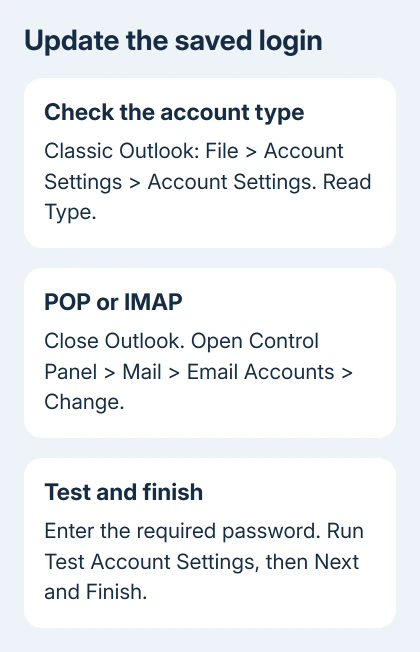
If webmail works, use classic Outlook to open File > Account Settings > Account Settings. On the Email tab, find the affected address and read its Type. POP/SMTP and IMAP/SMTP use a different setup from Microsoft Exchange.
Use these manual password steps when your POP or IMAP account has the traditional settings dialog. New Outlook has no classic File > Options window, and its accounts aren't managed through the Mail applet used here.
I'd check that account type before changing anything. A Microsoft 365 subscription gives you the Outlook app, but it doesn't mean every mailbox added to it is a Microsoft Exchange account.
2. Save the password through Control Panel Mail
Close Outlook, including any separate message windows. In either Windows version (10 or 11), search Start for Control Panel and open it. Search inside Control Panel for Mail, then open the Outlook Mail entry.
Its label can include an older product year or 32-bit. Select the entry for your installed classic Outlook. In Mail Setup - Outlook, choose Email Accounts, select the affected mailbox and choose Change.
Under Logon Information, check User Name and replace Password with the password your provider requires. Keep the current incoming and outgoing server addresses unless the provider has instructed you to change them.
Choose Test Account Settings. Green check marks mean the displayed connection tests succeeded. Close the results, then choose Next and Finish to complete the change. Reopen Outlook and check the affected account.
Microsoft's account-settings instructions describe this Control Panel route and its test results. Use it to reach the full dialog when Outlook's shorter account screen won't save your login.
The owner reported that saving the password there restored access immediately. They suspected a file-permission fault, but that cause wasn't confirmed. This fix doesn't require changing Windows file permissions.
If Change opens a different type of account window without a password field, don't force these steps onto it. Continue with the sign-in route for that account rather than deleting it to make a password box appear.
3. Read which connection test failed
If a test turns red, note its error text before resetting the password again. Note whether the failure is logging on to the incoming server or sending the test message. Those results tell your provider which connection to check.
For a rejected login, compare the username with the provider's instructions. Some services need the full email address. Check the selected account before typing, since one Outlook profile can hold several addresses.
For server, port or encryption errors, use the provider's published values. Open More Settings > Advanced to compare them. Random encryption changes can add another fault without fixing the password.
For missing controls or a simplified setup window, the full Outlook server-settings route shows how to reach those fields. Keep the test error beside you while checking them.
If incoming mail works but sending fails, ask the provider about outgoing SMTP authentication. Give them the exact test error. Sending and receiving have separate server settings within the same mailbox.
4. Use the provider's sign-in or app password
With two-step verification, a traditional mail connection may need an app password. Your provider generates this separately from your website password. Use one only when your provider requires it.
Don't paste a temporary text-message code into a saved password field and expect it to remain valid. Ask the provider whether this Outlook connection uses a generated app password or a modern sign-in window with its own verification prompt.
For accounts with a provider sign-in window, enter the new password there and complete verification. Check the displayed address. Signing in to another saved account won't reconnect the failing one.
Some classic Outlook builds offer File > Account Settings > Server Settings for traditional accounts. Select the address under Account Information first. Try Control Panel if this route won't keep the change.
If your work account signs in online but Outlook rejects it, send IT the error. Ask whether this Outlook connection is blocked or needs another sign-in method. A new password won't help if your organization blocks that connection.
5. Keep local data before rebuilding an account
Before removing an account, check for local-only contacts, calendars and mail. Rebuilding it is a bigger change than saving a password. An IMAP inbox syncing online doesn't mean every Outlook folder is stored there.
Folders marked This computer only need particular care. Export the folders you need into an Outlook data file before account removal, and check that the export contains the required folders. Ask IT to handle this on a managed computer.
POP accounts can hold messages missing from webmail. Back up their data files before rebuilding the account or profile. Keep your working profile while testing a new setup so you can still open its local data.
When the saved password still doesn't work
Send the provider the affected address, account type and full Test Account Settings error. Include that the same password works in webmail, if it does. Ask them to confirm the required username, authentication method and server settings.
For a Microsoft-hosted work mailbox, give IT the version from File > Office Account > About Outlook and the failed sign-in time. After access returns, email a second mailbox you own, then confirm its reply arrives.
The Short Version
For POP or IMAP, save the login in classic Outlook through Control Panel's Mail > Email Accounts > Change, then finish the connection tests. Other accounts may need a provider sign-in window or an app password.
Checked November 17, 2026.






