

App passwords won't restore a Microsoft 365 mailbox connection that requires modern authentication. Use an up-to-date Outlook client and sign in through the Microsoft account window with your normal password and verification method.
Generating another app password won't bring back retired password-only access.
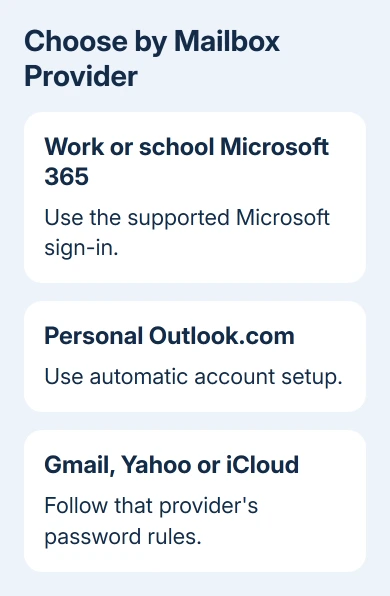
The account matters: an employer's Exchange Online mailbox, a personal Outlook.com address, and Gmail or iCloud added to Outlook can have different requirements. Match the fix to the mailbox provider before changing its security settings.
In this guide
1. Check which account is rejecting the password
Read the full address in Outlook's sign-in prompt. Outlook can hold accounts from several providers, and paying for Microsoft 365 doesn't make all of them Exchange Online accounts. Check which mailbox actually stopped syncing.
For work or school Exchange Online mail, stop creating app passwords and check how Outlook signs in.
Modern authentication uses a sign-in window where you can complete an extra verification step, instead of sending only a saved username and password.
Microsoft's Exchange Online authentication notice explains that retiring Basic authentication also prevents app passwords from working for the affected connections.
This includes Outlook mailbox access.
Personal Outlook.com, Hotmail, Live, and MSN mail also need a modern sign-in route. The instructions for an old manual POP or IMAP setup can lead you back to a password prompt that can't complete the required authentication.
For Gmail, Yahoo, iCloud, or another provider, use its own Outlook setup instructions. An app password from one provider won't sign you into another provider's mailbox.
Keep that distinction even when every account appears in the same Outlook sidebar.
2. Finish a normal Microsoft sign-in in current Outlook
For the classic Windows app, choose File > Office Account > Update Options > Update Now if available. Close and reopen Outlook after the update finishes. If updates are managed by your workplace, have IT confirm which build is installed.
When prompted, use the normal work or school sign-in and complete its verification request. Don't enter an app password in the normal account-password field or the authenticator approval screen during this sign-in.
For account setup in classic Outlook, choose File > Add Account, enter the mailbox address and choose Connect. Follow the account provider's sign-in window. Start with automatic setup for Microsoft-hosted mail.
For new Outlook on Windows, open View > View settings, then Accounts > Your accounts. Use Add Account, enter the address, and choose Continue.
Complete the provider sign-in rather than entering manual server details by habit.
If Outlook returns to the same password box without completing verification, record which account is shown and copy the error wording.
A rejected verification method, a blocked device, and a rejected mailbox password need different fixes from your administrator.
I'd keep multifactor authentication enabled while fixing this. Switching it off changes account protection and can hide the connection problem without giving Outlook the supported sign-in method it needs.
3. Compare a fresh classic Outlook profile
A profile holds Outlook's account settings. Trying another profile lets you test a clean connection while keeping the data and settings in the old one. Keep your existing profile while you make sure the new setup works.
Close classic Outlook. Hold Shift while starting it to open the profile picker. You can also press Win + R, type Outlook.exe /profiles, and press Enter. Use Options and New to create a separately named profile.
Add the affected account through automatic setup and complete its normal sign-in.
For personal Microsoft mail, the modern authentication instructions recommend a new profile with automatic configuration instead of the old POP/IMAP setup.
Wait for the mailbox to load, then send a harmless test email to a second mailbox of your own. Reply from that mailbox and check the reply arrives. Account setup alone doesn't confirm that sending and receiving work.
If the new profile works, bring across any local archives and additional accounts before making it your everyday profile.
If it fails in the same way, keep both error results for IT rather than creating more empty profiles.
The Outlook password-change guide covers changing the real account password when that is necessary. Changing a saved password in Outlook doesn't change the password at the mail provider.
4. Keep third-party app passwords with their provider
Some third-party account setups still request an app password. Follow the provider's instructions for that specific account and connection type.
Use the generated app password instead of your ordinary password only when that setup calls for it.
Check the account address before pasting the app password. A generated password for a second account can look perfectly valid while being wrong for the mailbox in Outlook. Avoid adding spaces at either end when copying it.
If the provider lets you revoke and replace an app password, update the affected app with the replacement. A revoked app password won't start working again after a restart.
Keep other apps' credentials separate so one change doesn't interrupt all your devices.
For an AOL account, the AOL password setup for Outlook explains that provider's manual connection. Don't apply AOL or iCloud instructions to a Microsoft 365 Exchange Online mailbox.
A provider can also block a connection for account-security reasons.
When its website sign-in works but the supported app setup fails, use that provider's support route with the connection type and exact error, without sharing the password itself.
Ask IT to check a remaining authentication failure
If work mail still rejects the supported sign-in, give your IT desk the Outlook build, account address, error text, and approximate failure time. Ask them to check the Microsoft Entra sign-in logs and the policy blocking that client.
When the concern is a skipped code prompt rather than rejected credentials, compare the actual Outlook MFA policy result with IT.
Ask whether the mailbox is in Exchange Online or on an on-premises Exchange server. An organization's hybrid setup can change which service is accepting the credentials.
General advice to enable app passwords won't tell you which service your account uses.
The old 2018 forum thread reported delayed recognition of newly created app passwords. Later replies said the original fault had gone away.
Waiting helped during that old incident. It won't bring back a sign-in method that has since been retired.
When a personal Microsoft account fails on the official sign-in page too, use Microsoft's account sign-in help.
If browser sign-in works but a fresh Outlook profile fails, report that difference through Outlook's Help support options.
The Short Version
Identify the mailbox provider first. Microsoft-hosted mail needs a supported modern sign-in, not another app password.
Update Outlook, compare automatic setup in a fresh classic profile, and have IT check any remaining work-account rejection.
Checked November 16, 2026.






