
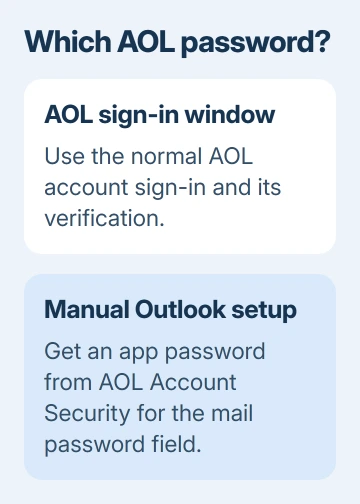
AOL Mail in Outlook can use an AOL sign-in window or a separate app password. Get an app password from AOL Account Security for a manual mail connection. An AOL-branded sign-in window uses your normal AOL account sign-in.
Outlook's account settings let you update the password for a manual mail connection. They aren't the place to change your AOL account password. Change it on AOL's website, even if you read your messages in Outlook.
Check which password Outlook is asking for
Look at the sign-in screen before resetting anything. An AOL-branded window can take you through the account's normal sign-in and verification. A manual IMAP or POP settings screen asks for mail-server details and a password instead.
IMAP and POP let mail software connect to your mailbox. They aren't separate AOL accounts. The address stays the same, but a manual connection can use an app password instead of the password you use in a browser.
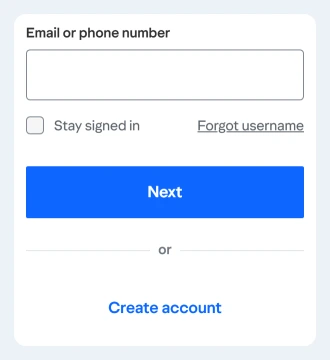
Open AOL's sign-in page in a browser and check that you can reach your mailbox. Enter your full address when asked. A successful browser sign-in confirms that you can access the AOL account, even if Outlook needs a different password.
If that sign-in fails, recover the main account password first. Creating an Outlook profile won't restore access to an AOL account that you can't sign into.
Generate an app password for a manual connection
Sign in to AOL Account Security at login.aol.com/myaccount/security. AOL's app-password instructions describe the code for apps that don't use its branded sign-in page.
- Select Generate app password or Generate and manage app passwords.
- Select Get Started if it appears.
- Enter an app name, such as Outlook on your laptop.
- Select Generate password.
- Copy the generated password into the password field for that AOL account in Outlook.
- Finish the sign-in, then select Done on the security page.
The name helps you recognize which app the password is for later. It doesn't create a new mailbox or change the address you send from. Keep using your full AOL email address as the account's username.
Treat the generated code as a password. Don't put it in an email to support or share a screenshot of it. Anyone helping with server settings doesn't need to see the code itself.
If an old code isn't available, generate a replacement for the connection rather than trying to recover the dots in Outlook's password box. After the replacement works, remove the old app-password entry if you've stopped using it.
Update the field in classic Outlook for Windows
In classic Outlook, select File, then choose the AOL address under Account Information. Open Account Settings > Server Settings when that option is available for the account.
Expand Incoming mail and update the login information, including the password. Check Outgoing mail too if the account uses separate sign-in details for sending. Select Next, then Done to finish.
Microsoft's account-settings instructions also give a Windows Control Panel route. Try it when Outlook's account settings don't show the field you need.
On Windows 11 or Windows 10, search the taskbar for Control Panel. Open it, search for Mail, then choose Email Accounts. Select the AOL account and Change. The manual account screen contains Logon Information.
Change only the password unless the server details are also wrong. For an ordinary @aol.com IMAP account, the published settings are imap.aol.com, port 993, SSL, and smtp.aol.com, port 465, SSL for sending.
Those server names don't apply to every older address managed through AOL. Use the provider's instructions for that exact address if it ends differently or uses a migrated service.
Follow the account prompt in new Outlook
New Outlook doesn't use the classic File and Server Settings dialog. Open View > View settings, or File > Account info, then Accounts > Your accounts. You'll see the available account controls beside each address.
For a new connection, select Add Account, enter the AOL address, and choose Continue. Follow the sign-in window that opens. Use the normal account sign-in on an AOL-branded page, or an app password when a manual setup requires one.
For an existing account that requests attention, complete its sign-in prompt. Don't search for the Windows Control Panel Mail dialog to edit new Outlook; those classic Outlook instructions apply to a different app.
If the mailbox connects, email a second mailbox that you control, then reply from there. Receiving a message only checks incoming mail. Sending one also checks for a separate problem with the sending password or server settings.
Recover the main AOL password when necessary
On the AOL sign-in screen, enter your address and select Next. On the password screen, choose I forgot my password. Follow the verification steps using the recovery phone or alternate address linked to your account.
If the current password still works and you simply want to change it, open Account Security > Change password, enter the replacement, and continue. This changes the main AOL sign-in, rather than creating an app password.
Changing the main password leaves existing AOL app passwords active. Delete the app-password entry in Account Security to stop that connection from using it. Changing your main password and removing an app password are separate actions.
For a Microsoft mailbox instead, use the Outlook password-change guide. An Outlook.com password reset won't change an AOL password just because you use that address in the Outlook app.
When password generation or mail still fails
Try app-password creation in a browser you've used to sign into AOL Mail for several days, outside private browsing. AOL can limit which accounts can create app passwords, and customer care can't override that check.
Use webmail or the official AOL app while you can't generate an app password. I'd keep that working access in place while checking Outlook, rather than repeatedly changing a main password that already opens the mailbox.
If browser mail works but Outlook still doesn't receive messages, the Outlook receiving checks cover other reasons mail might not arrive. Tell Outlook support the app version, account type and exact error, with all passwords removed.
The Short Version
Use your normal AOL sign-in in an AOL-branded window. Generate an app password in AOL Account Security for a manual connection, then enter it in Outlook's account settings. Recover a forgotten main password through AOL, not Microsoft.
Checked November 8, 2026.

Isaac Smith is the founder and editor of PC Glance, a website that covers computers, laptops, and technology. He is a tech enthusiast and a computer geek who loves to share his insights and help his readers make smart choices when buying tech gadgets or laptops. He is always curious and updated about the latest tech trends.