
Change your password with your email provider first, then sign in again on your iPhone if Mail asks. Open Settings > Apps > Mail > Mail Accounts, select your address, and follow the password or sign-in prompt.
Some accounts have a password box; others open the provider's sign-in page. If you've already changed the password on another device, enter that new password. You don't need to change it again.
Decide whether you're changing it or signing in again
Changing your password creates a new one for the email account. Entering that password in Mail reconnects the app. They're separate steps, even when you do both on your iPhone.
To change a Gmail, Outlook.com, Yahoo, or work email password, start with that provider's account settings or recovery process. Entering a different password in Mail won't change the one your provider accepts.
Apple's Mail sign-in checks recommend checking your address and password on the provider's website. Open the official site yourself and try signing into the same account that's failing in Mail.
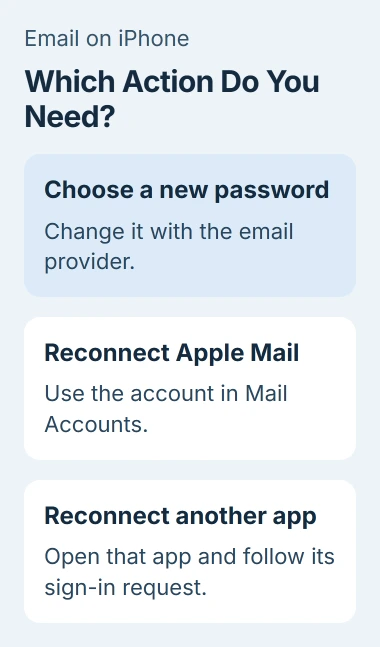
If a work or school account won't let you change its password, your organization may control that setting. Ask IT how to change or reset it instead of trying your personal Microsoft or Apple Account password.
I'd try signing in on the website before removing the account from Mail. If your provider rejects the password, adding the same mailbox to your phone again won't fix it.
Open the account inside Apple Mail settings
On current iOS versions, open Settings, choose Apps, then Mail > Mail Accounts. Select the email address that needs updating. On older versions, Mail may appear directly in Settings, with an Accounts option inside it.
Check the full email address, especially if both accounts have names like Gmail or Work. Changing the password for one mailbox won't fix another just because they use the same provider.
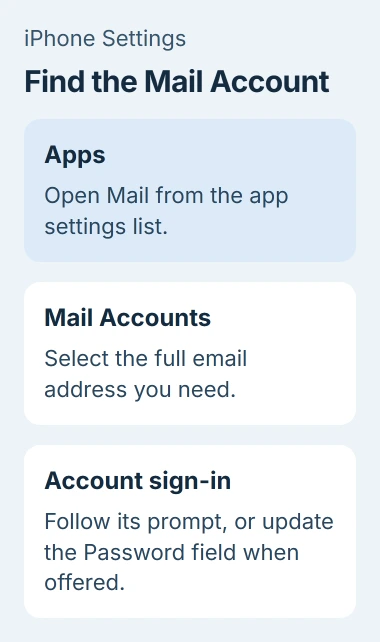
Follow any message asking you to sign in again or enter a password. Complete the provider's verification steps, then save your changes or finish the account screen.
If Account Settings shows an editable Password field, enter your new password there and tap Done. What you see depends on how you added the account and how your provider handles sign-in.
Leave the server names and connection settings as they are unless your provider asks you to change them. Changing a password doesn't mean you need new incoming or outgoing server addresses.
Match the method to the account
Changing your Google password changes it for services including Gmail and YouTube. Use the Google Account password controls, then return to Mail if it asks you to sign in.
For Outlook.com or Hotmail, the mailbox uses your Microsoft account. The Microsoft password-change guide covers changing that password before you reconnect an email app.
Microsoft's iPhone Mail account guidance explains how to reopen the affected account and enter its current password. Then check that you can both send and receive messages in Mail.
If Outlook accepts the correct password but keeps asking for it, try the Outlook sign-in loop checks. That problem can depend on the account type and the way it signs in.
An account you set up manually may have separate sections for Incoming Mail Server, which receives mail, and Outgoing Mail Server, which sends it. If only sending or receiving fails, ask your provider which password boxes to update.
IMAP and POP are ways an app connects to your mailbox; SMTP handles sending. These names don't mean you should guess different passwords. Use the login details and settings your provider gives you.
Use your Apple Account for iCloud Mail
To change your iCloud email password, open Settings > your name > Sign-In & Security > Change Password. Complete the identity checks on your trusted iPhone.
This changes your Apple Account password, which affects more than email. Sign in again wherever you're asked afterward. There isn't a separate iCloud-only password to change in the Mail account list.
Use the trusted-device steps in the Apple Account password instructions. Stolen Device Protection can require a security delay, so read the message if you can't make the change straight away.
An app-specific password lets a separate app access your account. Some third-party apps use one for iCloud Mail instead of your main Apple Account password.
Changing your main Apple Account password cancels its existing app-specific passwords. If an app used one, replace it using the app-specific password instructions, or use the supported option to authorize access through your Apple Account.
Check the email app you actually use
Mail Accounts controls Apple's Mail setup. If you use the Gmail, Outlook, or Yahoo app, open that app and follow its own request to sign in.
Updating Apple Mail won't automatically update another app's saved sign-in. Open the app showing the error and check the email address it names before entering your password.
After signing in, email another address you can check, then reply from that address. Check that the reply reaches your iPhone. This tests sending and receiving, not just whether you can open an old inbox.
If your message sends but the reply never arrives, tell the provider exactly that. It gives them a specific mail problem to check instead of assuming the password is wrong.
Remove and add the account only if needed
If your password works on the website but Mail still won't connect, try adding the account again with the account setup instructions. First check that your messages are on the provider's website or saved somewhere else.
Removing the account from your phone can delete mail downloaded only to that phone. An iPhone backup keeps mail settings, not copies of all your messages, so don't use it as your only backup for those emails.
Once you've checked your messages are saved, open Mail Accounts > the account > Delete Account. Go back to Mail Accounts, tap Add Account, and sign in through your provider with the current password.
For a work-managed mailbox or an error that won't clear, give your provider or IT the error text and the results of your sending and receiving test. They can check account restrictions and sign-in without changing the password again.
The Short Version
Set your new password at the provider, then reconnect the app asking for it. In Apple Mail, open Settings > Apps > Mail > Mail Accounts. Test both sending and receiving, and save local messages before removing an account.
Checked November 4, 2026.

Isaac Smith is the founder and editor of PC Glance, a website that covers computers, laptops, and technology. He is a tech enthusiast and a computer geek who loves to share his insights and help his readers make smart choices when buying tech gadgets or laptops. He is always curious and updated about the latest tech trends.