
Blocking websites on Safari uses Apple's parental controls, with different routes for the upgraded family controls and older Screen Time. Start by checking whether Settings > Family shows Apps & Websites for the child.
An approved site can be blocked there on iOS 27. With the earlier controls, add its address to Never Allow under Web Content. Safari's pop-up setting does a different job and does not block visits to a website.
With upgraded family controls, block an approved site
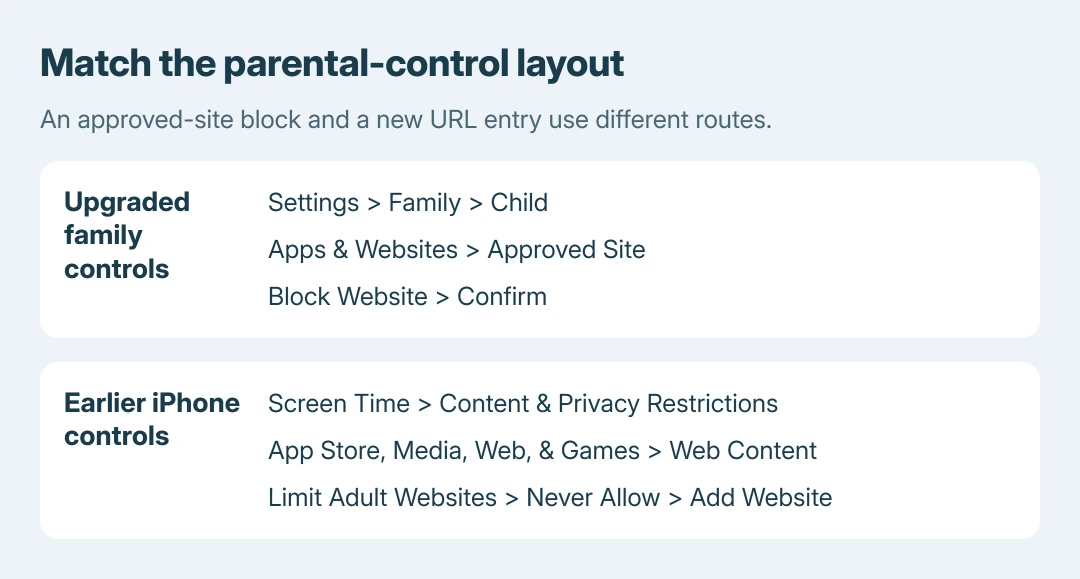
On a parent's iPhone or iPad, open Settings > Family > the child's name > Apps & Websites. Select the website already listed under Allowed, tap Block Website, then confirm Block Website again.
Supply the requested Screen Time passcode. Apple documents this specific-site block for Safari and supported browser apps after the family upgrades its parental controls.
Status: Safari restrictions checked October 26, 2026 using Apple's iOS 27 family guide and versioned iOS/macOS 26 instructions. No restriction was applied.
On a parent's Mac, choose Apple menu > System Settings > Family, select the child, then Apps & Websites. Select the site, choose Block, confirm Block Website and select Done.
These steps revoke an existing approval. To restrict new browsing too, choose the filtering policy described in the next section instead of expecting every unlisted site to be blocked automatically.
Choose which new websites the child can open
On the parent's iPhone or iPad, go to Settings > Family > the child's name > Apps & Websites > Restrictions. In the Websites section, select Filtering.
Apple states that Approved Websites Only or Limit Adult Websites enables Ask to Browse on these devices. The Mac route is System Settings > Family > the child > Apps & Websites > Restrictions > Websites > Filtering > Approved Websites Only.
Approved Websites Only suits a small permitted list. Apple's family-control overview explains that the child requests new sites and a parent/guardian decides whether to approve them.
The newer workflow requires the family devices and parental controls to be updated. If it is missing, the family-control upgrade checks explain the prerequisite; use the existing controls meanwhile.
With earlier iPhone controls, add a Never Allow address
For the earlier Screen Time layout, including Apple's iOS 26 instructions, open Settings > Screen Time. Select the child if managing their settings, then open Content & Privacy Restrictions and turn those restrictions on.
Choose App Store, Media, Web, & Games > Web Content > Limit Adult Websites. Under Never Allow, select Add Website and enter the address to block.
Apple's versioned iPhone guide explicitly documents adding particular URLs this way. The adult-content filter and the manually entered block are related controls with different purposes.
Reopen the intended address in Safari. The address check is ours: also try the mobile or regional address when relevant to the person's browsing. One entry does not prove complete coverage.
With the macOS 26 Screen Time layout
Choose Apple menu > System Settings > Screen Time. Select the family member where applicable, open Content & Privacy, then App Store, Media, Web, & Games.
In the Safari section, choose Limit Adult Websites > Customize. Add the site's URL to the Restricted list with its add button and confirm Done.
Apple's macOS 26 settings reference also provides an Allowed Websites Only choice for restricting access to a permitted list.
Use the route matching the controls currently displayed. Repeatedly searching Safari's own preferences will not reveal the Screen Time restriction list.
The restriction does not behave as expected
Confirm the selected child or Mac account, filtering choice and actual URL. Ask the family organizer to resolve a passcode or approval problem; an organization-managed device needs its administrator.
For a different browser, Chrome's blocking controls have their own account and device limits. Apple's wording is Safari and supported apps, so do not assume every browsing route has identical coverage.
If a saved rule still fails in the intended Safari session, contact Apple Support with the device versions and which parental-control layout is active. Report whether the rule vanished or remained saved while the site opened.
The Short Version
Use Apps & Websites to revoke an approved site's access in the upgraded controls. Earlier iPhone controls use Never Allow; macOS 26 uses Safari's Restricted list in Screen Time. Test the intended account and address.

Isaac Smith is the founder and editor of PC Glance, a website that covers computers, laptops, and technology. He is a tech enthusiast and a computer geek who loves to share his insights and help his readers make smart choices when buying tech gadgets or laptops. He is always curious and updated about the latest tech trends.