
Blocking an app on a child's iPhone doesn't require deleting it. In the upgraded iOS 27 family controls, open Settings > Family > your child's name > Apps & Websites, select the app, and choose Block App.
To finish the setup, choose content ratings, purchase permissions, allowed contacts and a schedule too. Each does a different job, so start with what you want to prevent. There isn't one switch that blocks everything.
Prepare the child's account and the family controls
Add the child's own Apple Account to Family Sharing so you can manage their permissions from your phone. Sharing your adult account with them mixes your account information together.
Make sure a parent or guardian is in the child's contacts so the child can send requests. Keep both devices nearby during setup, so you can compare what appears on each phone.
Apple says in its parental-control setup guide that the redesigned controls need the family's devices on version 27 or later. An organizer or parent must also upgrade the family controls.
If your family still sees the earlier menus, use the controls available there. The missing iOS 27 controls guide explains the upgrade requirements and problems with older devices.
Some protections are already on because of your child's age and region. Use the choices available for their account; a setting you can't turn off may be working as intended.
Complete the first-time setup and protect its settings
When asked to set up the new controls, tap Get Started. The setup walks you through content access, communication, permitted hours, school hours and time allowances before asking for a passcode.
Choose which websites and content ratings to allow first. Then choose who your child can communicate with and whether to screen sensitive images. Match these choices to your child's age and needs.
Set the hours when apps and websites should be available. The setup has separate weekday and weekend choices, then school hours and daily time allowances for categories such as games and entertainment.
Create the four-digit Screen Time passcode when prompted. Choose one the child can't easily guess and keep it separate from the child's everyday device-unlock code. You'll need it to change these protections later.
To start the guided setup sequence, open Family Sharing settings and select your child's name. You don't need to erase a working iPhone first.
Block an app or prevent new installations
For an installed app, open Settings > Family > your child's name > Apps & Websites. Select the app, tap Block App, then confirm. The app remains installed but becomes dimmed on the Home Screen.
Your child can't open the app, but it stays installed with its saved information. To allow it again later, return to the app's entry and use the unblock control.
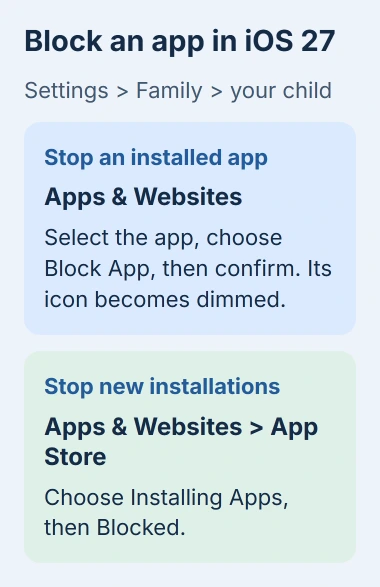
To prevent installations, return to Apps & Websites > App Store. Select Installing Apps and choose Blocked. Check the other App Store controls separately, since that choice doesn't change them all.
To review downloads instead of blocking all installations, use Apps & Websites > Restrictions > Ask to Buy and turn on Require Purchase Approval, if the account lets you change it.
I'd choose purchase approval if you want to discuss each new app with your child. Use the installation block if you want to stop new apps altogether. These controls serve different purposes.
Choose ratings and protect account changes
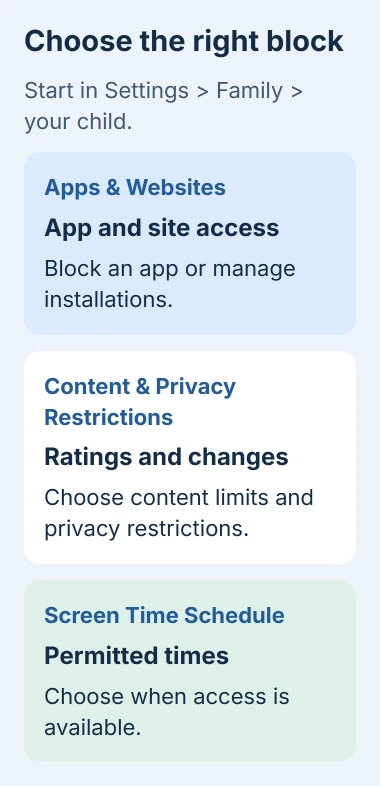
Open Settings > Family > your child's name > Content & Privacy Restrictions. Under Content Restrictions, choose the content type, then select a suitable rating or one of the restrictions offered.
Check the categories your child uses, such as apps, movies, music and books. Choosing an app rating doesn't set the movie ratings or explicit music controls too. Check each category separately.
To stop the child from changing account settings, open Privacy Restrictions on the same screen. Choose Accounts, then Don't Allow.
Check what each category controls before restricting it. Stopping your child from changing a setting is different from choosing what information an app can access.
If the screen keeps returning to an unexpected state, use the restriction-switch checks. Account age and family management can matter more than repeatedly restarting the phone.
Choose website access and who can contact the child
To filter websites in the upgraded controls, open Apps & Websites > Restrictions > Filtering, under Websites. Choose Limit Adult Websites or Approved Websites Only based on which sites you want your child to open.
Approved Websites Only uses Ask to Browse so a child can request a new site. A previously approved site stays available until you block it. The Safari restriction guide covers managing individual addresses.
For calls and messages, return to the child's family settings and choose Allowed Contacts > During Screen Time. Restrict access to Contacts Only, or allow Contacts & Groups with at Least One Contact.
To review your child's address book, use Allowed Contacts > Manage Contacts. Leave Allow Contact Editing off if you want them to need approval before adding a new contact through these controls.
These choices apply to supported Phone, Messages and FaceTime features. Check other messaging apps separately, since the approved contact list doesn't automatically control every chat service.
Add time boundaries, then check the child's phone
Open Screen Time Schedule in your child's family settings, turn on Schedule, and choose Add Schedule. Select the days and hours that fit the routine you want.
Use Time Allowances and its add control to set daily limits for categories. A schedule sets when your child has access; an allowance sets how much time they get. Neither replaces an app's Block App setting.
After saving, check the result with your child. Try opening the blocked app and starting an installation to see whether your chosen restrictions work. Then check that school tools and family communication still work.
If you chose purchase approval, send one ordinary test request and check that the parent receives it. If something fails, tell support whether it's the block, a changed setting or the request not arriving.
Keep the earlier Screen Time settings until the family upgrade is complete. If restrictions still fail on the correct account, give Apple Support both phones' software versions and the name of the control involved.
The Short Version
Use the child's family settings to block apps, restrict installations and select ratings. Add communication and time rules for the limits you want, protect changes with the Screen Time passcode, and verify the result on the child's iPhone.
Checked November 5, 2026.

Isaac Smith is the founder and editor of PC Glance, a website that covers computers, laptops, and technology. He is a tech enthusiast and a computer geek who loves to share his insights and help his readers make smart choices when buying tech gadgets or laptops. He is always curious and updated about the latest tech trends.