
Google can be Edge's default search engine while Edge remains your browser. Change the search engine used in the address bar to Google; installing Chrome isn't required.
If you meant opening links in Chrome instead, that's a separate default-browser setting in Windows.
In this guide
Teach Edge the Google search address
Open Microsoft Edge and visit google.com. Search for a simple phrase there before changing settings. This gives Edge a chance to recognize the search provider and include it among the available choices.
Stay in the same Edge profile while you complete the setup. A personal profile and a work profile can have different settings, and an organization's policy can control what the work profile allows.
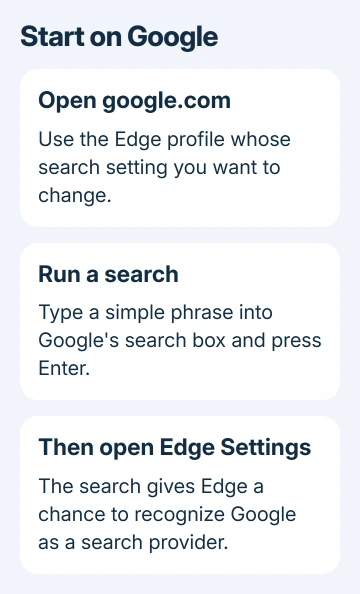
Edge's address-bar searches can use a different provider from the search field inside a webpage. Start by changing the address bar, so the result directly checks the setting you changed.
The Chrome search-engine instructions apply if Chrome is actually the browser you opened. Look at the app's name before following its menus; Edge and Chrome use different settings layouts.
Select Google in Address bar and search
Open Settings and more, the three-dot menu near the top of Edge, then select Settings. Choose Privacy, search, and services from the settings navigation.
Open Search and connected services, then Address bar and search. Find Search engine used in the address bar, open its menu, and choose Google. This changes searches you type in Edge's address bar.
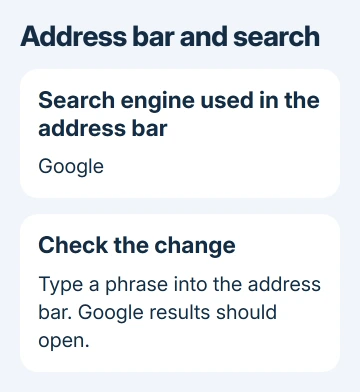
Microsoft's default search-engine instructions use this current route. Some layouts show Address bar and search directly inside the privacy section instead of inside another group.
If scrolling through the page doesn't reveal the control, use the search field in Edge Settings and search for search engine. Choose the result for the address bar rather than an unrelated search-suggestions setting.
Leave the settings tab open until you've checked the result. If Google isn't in the list, return to its website, run a search, and open this menu again. A visit to the homepage alone may not register the provider.
Check a new search from the address bar
Open a fresh tab. Select the address bar with Ctrl + L on Windows or Command + L on Mac, type a short phrase rather than a complete website address, and press Enter.
The results should open on Google. Entering google.com alone only proves that Edge can visit the website. Try a device model followed by the word manual to check which search engine Edge uses.
If the results still open elsewhere, reopen the provider menu in settings. Is Google still the selected entry? Also check that you haven't moved to a different Edge profile for the test.
I'd test through the address bar, even when the new-tab search field is your usual starting point. That checks the provider you selected without involving a new-tab page that can handle searches differently.
A Home button is different again. It opens a chosen page rather than replacing the search provider. Changing the homepage to Google won't automatically change searches you type into the address bar.
Keep the new-tab box and startup page separate
If the address bar now uses Google but the new-tab page still shows Bing branding, check where you typed. A page can keep its own content and search box even when the browser's address-bar setting has changed.
Some Edge versions offer a setting for whether new-tab searches use the search box or the address bar. If that control is present in Address bar and search, choose the address-bar option to route those searches through the chosen provider.
If your version doesn't show it, use the address bar directly. Google searches through that bar work without installing an extension. An extension that replaces a new-tab page is a larger change than selecting a search engine.
To open Google when Edge starts, go to Settings > Start, home, and new tabs and check the startup-page choices. Add https://www.google.com/ as a startup page if that's the behavior you want.
Quit Edge fully, then launch it again to check your startup page. Opening a new tab and starting the browser are separate actions, so test each setting with the action it controls. Keep only the startup pages you intend to reopen.
Deal with a missing or locked search choice
For a missing Google entry, first repeat the search on Google in the same profile. Edge can add a search provider when it recognizes the format that provider uses. Reopen the provider list after the search has finished.
If the setting carries an organization-management message, ask the administrator whether a policy requires that search provider. That can explain a locked menu or a selection that changes back on a managed device.
On a personal computer, check Extensions > Manage extensions for an unfamiliar add-on that changes search. Turn off a suspect extension, restore Google in settings, and repeat the address-bar check before removing anything else.
Microsoft's extension help notes that extensions can change the default search engine. If the selection repeatedly changes, note which extension or browser restart makes it change.
Don't install a search-fixing extension offered by a popup. The provider setting is already built into Edge. If it remains locked on an unmanaged personal PC, send Edge support the exact message through Help and feedback > Send feedback.
Switch browsers only if that's the actual goal
A search engine supplies the results. A browser is the app that opens websites. Choosing Google in Edge changes the first of those without replacing the second, so your existing Edge bookmarks and tabs remain in the same app.
To make web links open in Chrome on Windows, install Chrome and select it in Windows default apps instead. The Windows default-browser guide covers that separate choice and file associations.
If a Windows search still opens somewhere else, report where you started that search. Edge's provider setting controls its address bar, so changing it again won't necessarily affect searches started elsewhere.
The Short Version
Search once on Google, then select Google in Edge's Address bar and search settings. Check with a phrase typed into the address bar. Treat the new-tab page, startup page, and Windows default browser as separate choices.
Checked November 16, 2026.





