
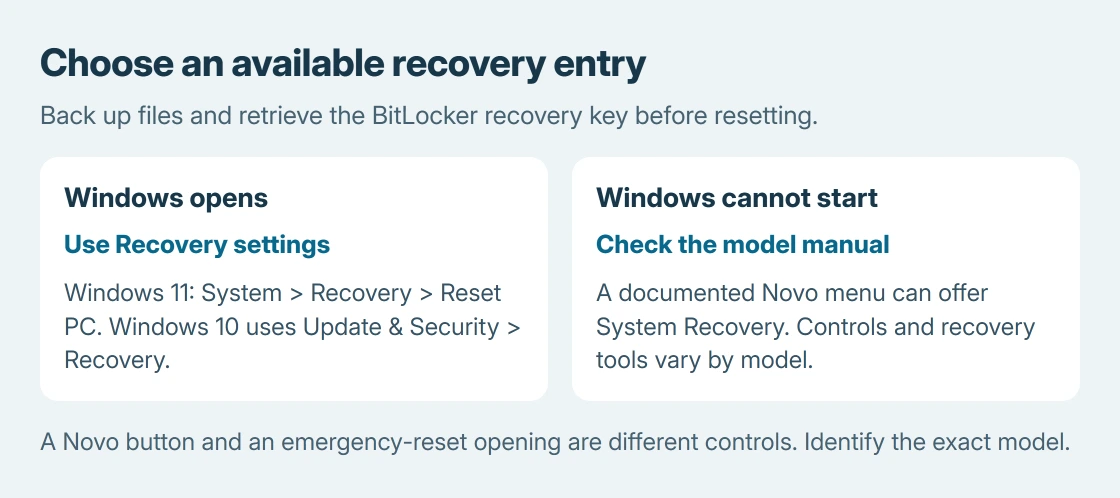
Lenovo laptop resets reinstall Windows, with a choice about keeping personal files. Start with Settings > System > Recovery > Reset PC when Windows opens.
On supported Lenovo models, the Novo menu provides a recovery entry before Windows starts.
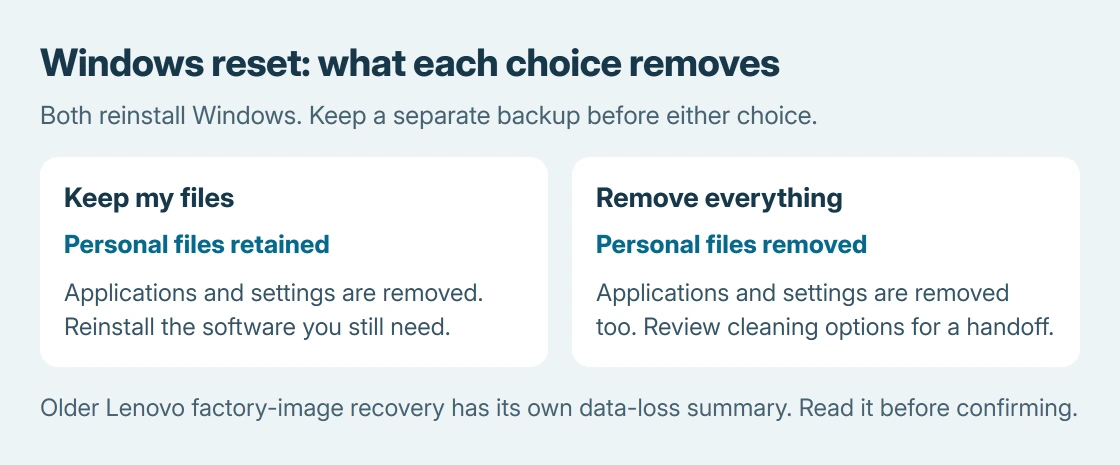
Back up important files and locate the BitLocker recovery key first. Keep my files still removes applications and settings. A Lenovo factory-image recovery may have different, more destructive consequences than that Windows option.
Save a backup and locate the recovery key
Connect the charger and save anything that must survive. Do not treat a keep-files option as the only copy of your work. Record application licenses and anything needed to reinstall essential software.
For an encrypted drive, retrieve the BitLocker recovery key before starting. Microsoft says PC recovery can require that key.
Status: Lenovo model manuals and Microsoft's reset options checked October 26, 2026. Novo availability and recovery screens vary by model. No laptop was reset or erased.
If the actual problem is a damaged or dark display, check the Lenovo screen guide first. Reinstalling Windows cannot correct physical damage to the panel.
Reset through Windows when it still opens
In Windows 11, open Settings > System > Recovery. Under Recovery options, select Reset PC. Lenovo's Yoga 7 series manual documents that path and the two data choices.
On Windows 10, open Settings > Update & Security > Recovery, then select Get started under Reset this PC. That older layout leads to the Windows reset choices too.
Choose the data option deliberately, then follow the installation and confirmation prompts. Read the final summary before starting; do not assume the first available choice preserves your documents.
Choose what Windows should keep
Microsoft documents Keep my files as retaining personal files while reinstalling Windows and removing apps and settings.
Remove everything also removes personal files. The latter is the appropriate direction when the intention is to erase the laptop for a handoff.
Microsoft offers Clean data with the erase route to make deleted consumer files harder to recover. Its page explicitly says this does not meet government or industry erasure standards.
Choose where the installation files come from
Cloud download downloads a Windows copy and can help when the local installation files are damaged. Local reinstall reuses the laptop's installation files. Choose with the internet connection and the condition of those files in mind.
If the summary offers manufacturer customization controls, review them too. A Windows reinstall and restoration of an older Lenovo factory image should not be assumed to produce identical software.
Use the model's Novo entry when Windows cannot start
Find the exact laptop's Lenovo user guide before looking for the button. The ThinkBook 14s Yoga manual lists System Recovery among the Novo menu options.
A recessed Novo button is fitted to some models. For example, Lenovo's V14/V15 Gen 3 right-side diagram labels it explicitly. Other models use a different control or have no Novo button.
On the ThinkBook 14s Yoga, Lenovo says to shut down, open the lid and press Novo. Its Novo opening instructions also allow Fn + power while off.
Select System Recovery. A model that enters Windows Recovery can then offer Troubleshoot > Reset this PC and its data choices. Use the actual model's entry method rather than generalizing the ThinkBook shortcut.
If Lenovo OneKey Recovery opens instead, read its restoration summary carefully. Older factory-image recovery can replace the system partition with its earlier state.
Do not interpret that operation as an automatic promise to preserve current files.
An emergency-reset hole is not interchangeable with a Novo button hole. The model check is ours: identify the labeled control before using a tool near any opening.
For a machine that gives no power response, follow its model-specific startup checks before considering a reinstall.
Let the reset finish, then check the original problem
Keep the laptop powered during the operation. Microsoft warns that a reset can include a long black screen and automatic restarts; forcing a manual restart can make it fail.
When Windows reaches setup or sign-in, follow the intended account setup, then restore the needed apps and files. Check whether the original software problem remains before assuming the reset solved it.
If recovery cannot start, the reset reports an error, or the required image is unavailable, contact Lenovo with the model and exact message.
Ask about supported recovery media and data preservation before approving an erase or another reinstall.
The Short Version
Back up and retrieve the recovery key. Use Windows Recovery settings when possible. Use Novo only where the model's manual documents it.
Keep my files and a Lenovo factory-image restoration have different consequences, so read the summary before confirming.

Isaac Smith is the founder and editor of PC Glance, a website that covers computers, laptops, and technology. He is a tech enthusiast and a computer geek who loves to share his insights and help his readers make smart choices when buying tech gadgets or laptops. He is always curious and updated about the latest tech trends.