

A Lenovo laptop can reject a Windows PIN while its password still works. Select Sign-in options and try password sign-in first. Forgotten credentials and Windows failing to load your profile need different recovery steps.
These steps apply to Lenovo Windows 10 and Windows 11 laptops. A password request before Windows appears belongs to the laptop's startup security, so use the final section for that screen.
In this guide
1. Check which sign-in method Windows expects
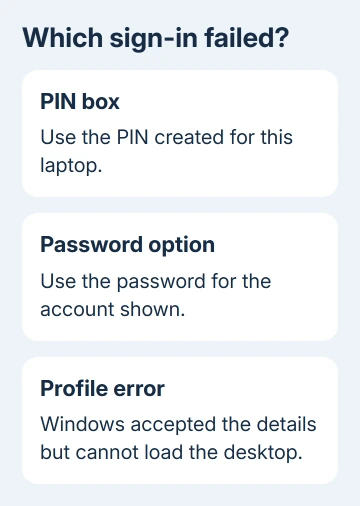
Check which account is selected and whether the box asks for a PIN or password. Your PIN unlocks this laptop; your Microsoft account password goes with your account. Entering one in the other's box won't work.
Select Sign-in options beneath the box. Choose the password option if it's available, then enter the password for the account shown. Don't use the password for a different email address just because both addresses are yours.
At the lower right, confirm the keyboard language. Check Caps Lock too. Punctuation can move to other keys when the layout changes. Open Accessibility > On-Screen Keyboard if the physical keyboard isn't entering what you expect.
If password sign-in reaches the desktop, the account itself works. Continue with the PIN section rather than resetting Windows. If the password is rejected too, connect the laptop to the internet and use the password recovery section.
On a shared laptop, choose your own account from the sign-in screen before trying again. If the account name looks unfamiliar, check which user is selected, especially after someone else used the computer.
2. Restart and reconnect before account recovery
Select Network on the sign-in screen and connect to your usual Wi-Fi. Recovering your Microsoft account or using a recently changed online password may need an internet connection. Check another device if the network itself isn't working.
Choose Power > Restart from the sign-in screen. Use Update and restart if that's the option offered. Restarting lets Windows start the sign-in process again and finish pending updates.
After it returns, choose the same account and sign-in method you checked earlier. If the laptop now accepts the password, continue into Windows and set up the PIN there. If the error returns, follow the section for that exact message.
I'd try this before recovery tools. It keeps your current Windows installation and avoids turning an ordinary sign-in failure into a reinstall.
3. Reset a forgotten or unavailable PIN
Select I forgot my PIN when that link appears on the sign-in screen. Follow the identity checks and create a replacement PIN. This sign-in-screen option is for Microsoft accounts, not local accounts.
For a local account, or when that link isn't available, select Sign-in options and use the account password. Once the desktop opens, go to Settings > Accounts > Sign-in options.
In Windows 11, expand PIN (Windows Hello). In Windows 10, look for Windows Hello PIN. Use I forgot my PIN if you can't remember it. The change option is for when you still know your current PIN.
Microsoft recommends separate PIN recovery routes for these account types. Creating another PIN doesn't change the password for Outlook, OneDrive, or the rest of your Microsoft account.
Check the replacement by locking the laptop with Windows + L and signing in again. A working password with a repeatedly failing PIN points to Windows Hello trouble rather than a forgotten account password.
4. Choose recovery for a Microsoft or local account
For a Microsoft account, use I forgot my password if Windows offers it. Complete the recovery prompts using the account shown on the laptop. Keep your recovery email or phone handy for the identity checks.
An unrecognized address, an incorrect password, and a verification code that never arrives aren't the same problem. The Microsoft account sign-in guide explains those recovery branches when Windows sends you into account verification.
For a local account, enter a wrong password once to reveal Reset password, when available. Answer your security questions and choose a new password. If you created a password reset disk earlier, you can use that instead.
An account managed by work or school needs that organization's help desk. Give the help desk your account name and the full error message. IT can check restrictions and recovery options that a personal Microsoft account reset won't change.
After changing an online password, keep the laptop connected and select the password sign-in option again. If Windows accepts it but then reports a profile error, move to the next section instead of repeating password recovery.
5. Handle a profile error after the password is accepted
Messages about a temporary profile or the User Profile Service mean Windows is struggling to load your desktop. That's different from rejecting your PIN. Write down the exact message before changing the account.
Try another account already set up on the laptop that you can access. If the second account opens normally, that suggests Windows is having trouble with just the original account's session.
For the specific User Profile Service message, follow the profile sign-in repair steps. Keep files created in a temporary session somewhere safe before signing out, since that session isn't your usual profile.
Safe Mode is a later check when ordinary sign-in still fails. Hold Shift while selecting Power > Restart. Choose Troubleshoot > Advanced options > Startup Settings > Restart, then press 5 or F5 for Safe Mode with Networking.
Recovery may ask for your BitLocker key, so find it before this step. Safe Mode accepts passwords rather than PINs or biometrics. If you can sign in there, something outside the basic Windows startup setup may be causing the problem.
When Lenovo or the account administrator needs to help
A prompt before Windows starts can be a BIOS or drive password. Windows account recovery won't remove it. Tell Lenovo support the model and prompt, and have proof of ownership ready.
If Windows still won't let you in, give Microsoft support the full error. Tell them whether password sign-in works and whether you can open another account or Safe Mode. For a managed laptop, give those results to IT instead.
The Short Version
Match the entry box to PIN or password, check the account and keyboard layout, then restart while connected. Recover the failed sign-in method. Use the separate profile-error or startup-password route when that matches the screen.
Checked November 16, 2026.






