
The printer troubleshooter in Windows 11 now runs through Get Help. Open it from Start, enter printer troubleshooter, and follow the scan. Older MSDT commands can lead to a retired diagnostic.
A troubleshooter checks the Windows printing setup. A completed scan still needs a real print test, and a printer with a jam or its own hardware error needs that error addressed separately.
Open the current printer diagnostic
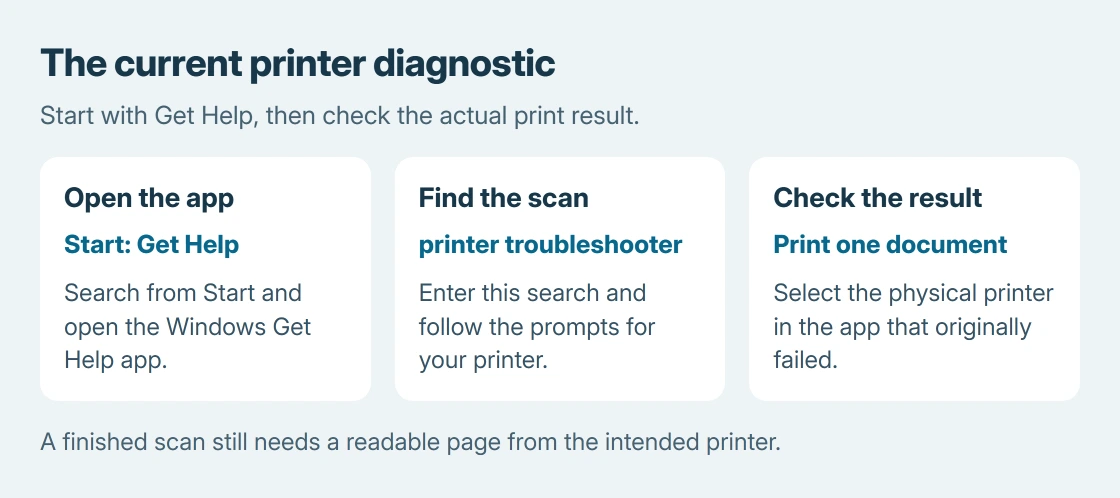
Select Start, search for Get Help, and open the app. Enter printer troubleshooter in its search field. Microsoft documents this exact search in its list of Windows troubleshooters.
Follow the prompts to scan for printers and check their configuration. Keep the affected printer powered on and connected. If a device list appears, select the printer that failed rather than a PDF destination or an old installation.
Status: Windows 11 Get Help instructions and Microsoft's printer diagnostic guidance verified October 25, 2026. No printer scan or repair was performed on this PC.
Microsoft says its printing troubleshooter can diagnose and attempt repairs automatically. Follow its suggested changes and restart prompts. Confirm the outcome with a printed page.
Why an older troubleshooter command behaves differently
Microsoft's MSDT retirement notice lists Printer among the redirected diagnostics. MSDT means Microsoft Support Diagnostic Tool. Its replacement route depends on the Windows release.
Searching for Get Help avoids depending on an old Control Panel entry or an MSDT command copied from earlier instructions. Another entry point is Settings: choose System, then Troubleshoot and Other troubleshooters.
If a Printer entry is offered there, use its Run button. If the list differs, return to the Get Help search. A missing legacy entry alone does not mean the printer driver has disappeared.
Check what the result actually fixed
After the diagnostic finishes, try the document in the app that originally failed. Choose the intended physical printer in that app's print dialog and send one copy.
This verification order is ours: check both the selected destination and the resulting paper page. A document leaving the queue establishes less than a readable page coming out of the correct printer.
If Windows still labels the device unavailable, use the offline printer checks. A status problem needs a connection check rather than repeated attempts to run the same diagnostic.
If the queue accepts the job but paper never appears, the printer's own test page separates a printer-side failure from a Windows printing problem. Follow that result before replacing a driver.
When Get Help cannot complete the job
An app that will not open is different from a scan that finishes without fixing printing. Microsoft's Get Help overview explains its Start search and the personal or work account support routes.
For a work PC with unavailable diagnostics or restricted printer settings, contact the administrator. Give them the printer model, its USB or network connection, the affected app and the result shown by Get Help.
For an unmanaged PC, use the specific symptom sections on Microsoft's printing page if the scan cannot resolve it. A printer displaying its own error also needs the manufacturer's instructions for that message.
The Short Version
Search Get Help for printer troubleshooter, complete its prompts, and print from the app that failed. Use the resulting symptom to choose the next repair. Current Windows 11 uses Get Help in place of the retired MSDT route.

Isaac Smith is the founder and editor of PC Glance, a website that covers computers, laptops, and technology. He is a tech enthusiast and a computer geek who loves to share his insights and help his readers make smart choices when buying tech gadgets or laptops. He is always curious and updated about the latest tech trends.