

Error 0x00000709 while adding a shared printer can follow Windows 11's print-connection changes. Check printing on the host, then the connection rules. Choosing a default printer won't fix a failed connection.
For Windows 11 22H2 and later, the recommended route uses RPC over TCP. A named-pipes compatibility setting exists, but you'll need different settings on the connecting PC and the computer sharing the printer.
In this guide
1. Confirm which computer shares the printer
Go to the computer with the printer installed and try printing a document from it. This is the host. The other computer, where adding the share produces 0x00000709, is the client.
If the host itself can't print, fix that printer or its local connection first. A client-side communication change won't repair a host whose own print job fails.
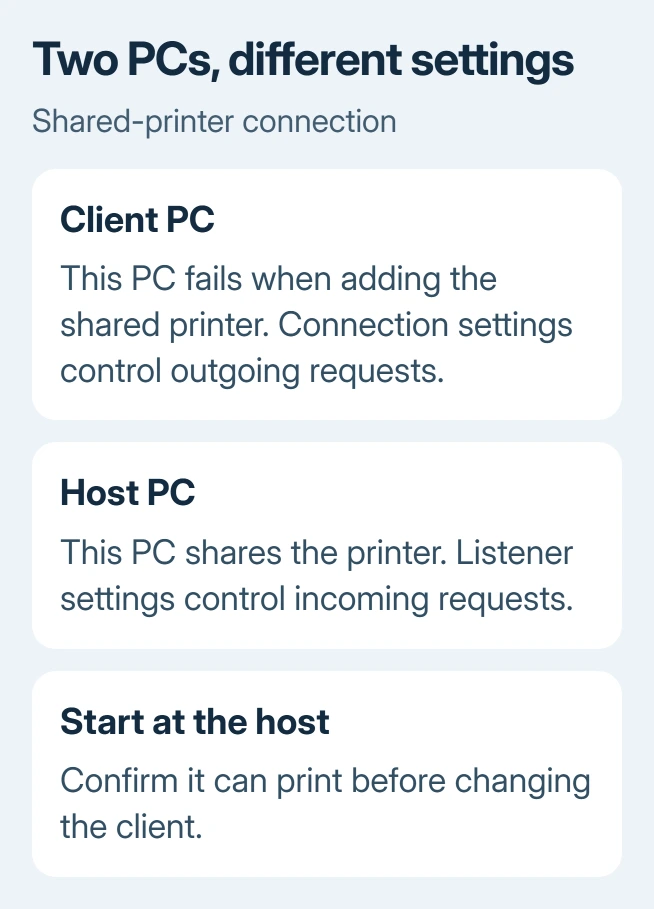
Write down the host's computer name and the printer's share name. On the client, press Windows + R and enter the host's network path, such as \\PRINTPC. Substitute the real computer name, not the printer model.
If the host opens but the printer won't connect, record that distinction. If Windows can't reach the host at all, check its network connection and whether it's awake before changing the print protocol.
For the separate case where a printer connects but jobs stall, use the Windows 11 printer troubleshooter. The steps here address the error while adding the shared printer.
2. Check the recommended RPC connection first
Press Windows + R, enter winver, and record the Windows version on both computers. Windows changed how these print connections work in Windows 11 22H2. Knowing both versions helps you choose the right settings.
RPC carries Windows print requests between these computers. Windows now sends those requests over a TCP network connection. A firewall blocking that traffic can stop the connection even though the printer's name is correct.
Microsoft's print RPC guidance recommends allowing that communication. It identifies TCP port 135 and the server's dynamic RPC port range, 49152 through 65535.
On a managed network, ask IT to check the firewall between client and host using those port details. The same guidance supports setting a specific RPC TCP port when the network needs to use a fixed port.
Don't disable the firewall or expose those ports to the internet. This check concerns permitted traffic between trusted computers on the local network, with rules limited to those computers by the person managing the network.
Retry adding the share after the network rule is corrected. If it connects, print a small document from the client. Seeing the printer in the list and getting a page out are two separate parts of confirming the repair.
3. Use named pipes only as a compatibility choice
The older named-pipes method is still available, but it isn't the recommended default. Use it when RPC over TCP can't be used in your environment, with the network owner's approval on a work PC.
On the client running Windows 11 Pro, Enterprise or Education, press Windows + R, enter gpedit.msc, and open Computer Configuration > Administrative Templates > Printers.
Open Configure RPC connection settings. Set it to Enabled, then set Protocol to use for outgoing RPC connections to RPC over named pipes. Save that policy, restart the client, then attempt the connection again.
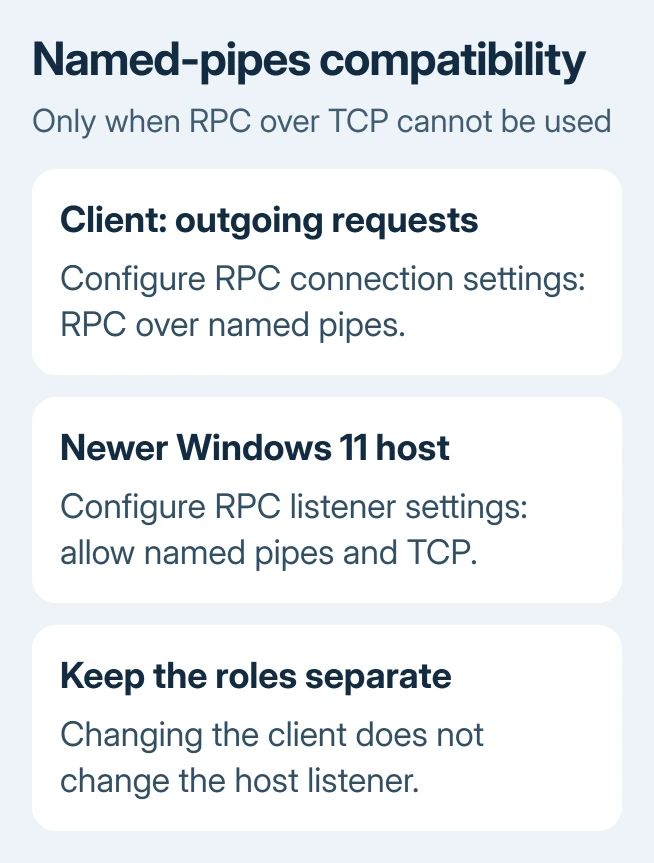
This changes outgoing requests from that PC. It doesn't configure the host to accept them. If the host is a newer Windows 11 computer too, check the listener in section 5.
If the connection works, keep a record of the policy you changed. If it doesn't, restore the previous policy before trying unrelated printer registry edits.
4. Apply the client setting on Windows 11 Home
Home doesn't include the Local Group Policy Editor. It can use the equivalent registry value. Back up the affected registry branch and record whether this value already exists before changing it.
Open Command Prompt as administrator, then run this on the client:
reg add "HKEY_LOCAL_MACHINE\SOFTWARE\Policies\Microsoft\Windows NT\Printers\RPC" /v RpcUseNamedPipeProtocol /t REG_DWORD /d 1 /fThe command creates any missing keys in that registry path. A missing Printers\RPC branch isn't itself a failure and doesn't mean Home can't use the setting. Several replies in the original discussion stopped at that missing path.
Restart, then retry connecting. A data value of 1 selects named pipes; 0 selects RPC over TCP. Restore the value's previous state if the compatibility change doesn't help, including removing only the new value if it didn't exist before.
Avoid importing a downloaded collection of printer changes just because it mentions the same error. This value has a specific job, and a single change gives you a clearer result to judge.
5. Check the Windows 11 host listener separately
When a Windows 11 22H2-or-later PC shares the printer, its default listener accepts RPC over TCP. A client switched to named pipes can still fail if the host hasn't been configured to accept that method.
On a host with Group Policy Editor, open Computer Configuration > Administrative Templates > Printers > Configure RPC listener settings. Enable it and select the protocol choice that permits RPC over named pipes and TCP.
The documented registry equivalent on the host is RpcProtocols, a DWORD under the same Printers\RPC policy key, with data 0x7. This controls which connections the host accepts. It doesn't replace the client's RpcUseNamedPipeProtocol value.
For a Home host, launch an administrator Command Prompt and use the equivalent command:
reg add "HKEY_LOCAL_MACHINE\SOFTWARE\Policies\Microsoft\Windows NT\Printers\RPC" /v RpcProtocols /t REG_DWORD /d 0x7 /fRestart the host after changing its listener, then reconnect from the client and print a document. If it still fails, record the result before making further changes.
Have IT handle an office print host. Some networks also need authentication changes, so changing how the PCs send print requests may not finish the repair. Don't relax guest-access or print sign-in checks just to clear the error.
Give support both builds, the share path and the changes made on each PC. Owners also reported failures in the original thread. Don't assume the setting in its accepted answer will work on every network.
Once connection and printing work, choose the intended default printer if Windows sends later jobs somewhere else. That's a separate setting you can adjust after the shared queue exists.
The Short Version
Confirm printing on the host and access from the client. Prefer RPC over TCP repairs. Named pipes need separate client and newer-host settings; the documented registry command can create its missing branch.
Checked November 16, 2026.






