
An HP Color LaserJet 4700 that won't print until you press a button may be waiting for you to confirm the paper or manual feed. Read the display first, then match the job's paper size, type and tray to the paper you've loaded.
Pressing the button gets this job moving, but the next document can ask for the wrong paper again. Correct that request to stop the repeated trips to the printer. These controls apply to the Color LaserJet 4700 series.
1. Read the message that appears before printing
Send one short document and wait for the display message to stop changing. Write down the whole message, including the tray number and requested paper. MANUALLY FEED, LOAD TRAY and a supply warning need different responses.
HP's 4700 user guide describes jobs that wait because the requested tray has the wrong paper size or type. Pressing Select can offer another tray; that doesn't correct what the computer requested.
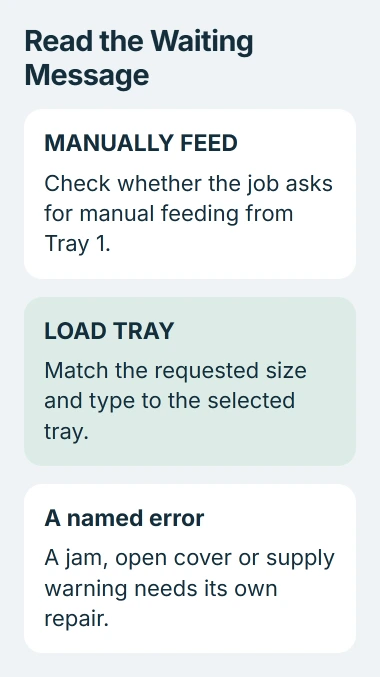
Use the directional keys to move through the menu, then press Select to confirm the highlighted choice. Read the waiting message before doing this, because the same button can clear different kinds of prompts.
If the page prints correctly as soon as you make that choice, check the paper settings next. If the screen reports a jam, an open cover or an empty cartridge, fix the problem it names before changing how the trays work.
2. Match the document's paper request to the loaded tray
Open the document that won't print and press Ctrl+P. Select your 4700 in the printer list, then open its Properties or Preferences. In the driver's paper settings, check Paper Size, Paper Type and Paper Source.
Choose Letter for Letter paper or A4 for A4. Set the paper type to match too, such as Plain, instead of leaving it on envelopes, labels or heavy paper. This tells the printer which tray to use and how to handle the paper.
For ordinary sheets, choose automatic tray selection if your driver offers it, or choose the tray holding the right paper. Change Manual Feed to a loaded cassette if you want to print without walking over to the printer.
Check the document's Page Setup too. A Letter document can disagree with an A4 printer preference. The app's page settings can take priority, so changing your Windows printer defaults may not change what this file requests.
Send a single page again. If it prints without a button press, the job's paper request caused the wait. If another app still waits, check that app's saved paper settings before changing shared printer defaults.
Use the Windows first-print procedure to check the selected printer and preview. For this problem, check what paper the document asks for.
3. Correct the tray's size and type on the printer
Open the printer's Menu, then PAPER HANDLING. Check the size and type for the tray you're using. They need to match both the sheets you've loaded and the document's paper settings.
Tray 1 is the multipurpose feed tray. Tray 2 and any installed optional trays have their own settings. Changing Tray 1's settings doesn't correct Tray 2, even when both contain plain white paper.
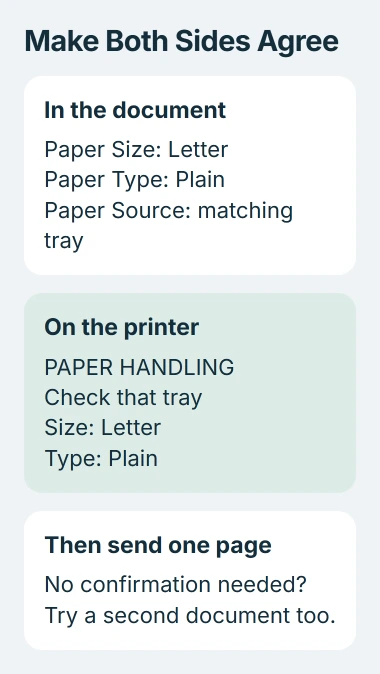
Slide the tray guides against the sheet edges, then choose the same paper size and type in the menu. For example, a tray loaded with Letter plain paper shouldn't still be set to A4 letterhead from an earlier job.
Keep the correct type selected for special paper. Labeling letterhead or heavy paper as plain paper just to silence a prompt can make the printer choose the wrong sheets or handle them incorrectly.
Print the one-page document again after correcting the tray. If it prints without confirmation, try another document. If only the second file pauses, check its saved app preferences; the tray may be keeping its settings correctly.
4. Turn off unwanted manual feed, or change its prompt
For normal automatic feeding, check Menu > CONFIGURE DEVICE > PRINTING > MANUAL FEED. Set it to OFF if manual feeding was turned on by mistake. Off is the default.
A job can still request manual feeding through its driver, so check its source as described in section 2 too. Turning this printer option off doesn't change a document that asks for manual feeding from Tray 1.
If you use Tray 1 and want it to feed loaded paper without confirmation, open CONFIGURE DEVICE > SYSTEM SETUP > TRAY BEHAVIOR > MANUALLY FEED PROMPT. Choose UNLESS LOADED, confirm with Select, then exit the menu.
With ALWAYS, the printer prompts before pulling from Tray 1. With UNLESS LOADED, it prompts when that tray is empty. Keep the loaded paper and the job's requested size and type matched as well.
I'd correct the job and tray first. Changing a shared printer's default affects later jobs from other people too, so ask whoever manages it before changing how the office uses manual feed.
5. Change fallback behavior only when another tray is acceptable
The same TRAY BEHAVIOR menu contains USE REQUESTED TRAY. Its EXCLUSIVELY setting keeps a job tied to the requested tray. FIRST permits another tray when the requested one is empty or doesn't match the job.
Choose First only if you're happy for the job to use another tray's paper. Keep jobs meant for letterhead or special stock tied to the intended tray. Printing without a pause doesn't help if the paper is wrong.
SIZE/TYPE PROMPT asks about paper settings after you open and close a tray. Hiding it won't change the paper your document requests. AUTO CONTINUE handles errors the printer can continue past; it isn't the setting for this paper wait.
If no paper prompt appears and the computer's job never reaches the printer, use the Windows printer diagnostic. The printing connection checks cover that separate branch.
If it still pauses, tell support the exact model, display message, selected tray and whether it happens in every app. For a managed printer, include the driver name and let IT check the shared defaults before reinstalling the printer.
The Short Version
Read the waiting message, match the document and tray, and remove accidental manual feed. Use Unless Loaded only for intentional Tray 1 feeding. Allow a different tray only when its paper is suitable for the job.
Checked November 5, 2026.

Isaac Smith is the founder and editor of PC Glance, a website that covers computers, laptops, and technology. He is a tech enthusiast and a computer geek who loves to share his insights and help his readers make smart choices when buying tech gadgets or laptops. He is always curious and updated about the latest tech trends.