
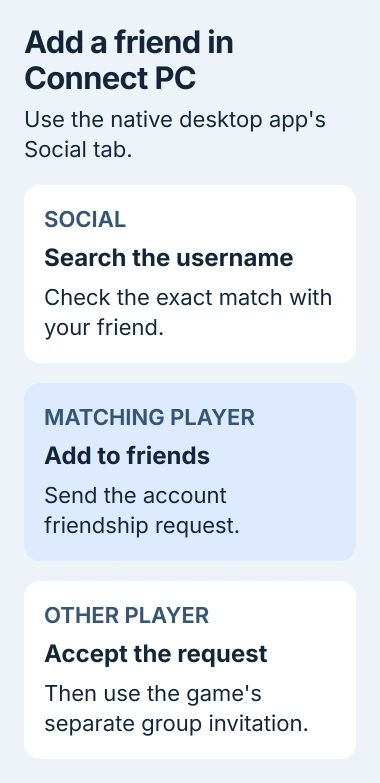
Add your friend through Ubisoft Connect PC > Social, using their Ubisoft username, then wait for them to accept the request. In The Division 2, open Social, select that friend and choose Invite to group to play together.
The friend request adds someone to your account's list; the group invitation brings them into your game session. Before retrying, check whether they're missing from the friends list or can't join the group.
Start with the Ubisoft account used by the game
Open Ubisoft Connect PC with your usual Division 2 account signed in. Check the displayed username before searching for anyone. If you're signed into a different account, your friend won't see the request under your usual username.
Ask your friend for their Ubisoft username. Their Steam display name, console name or character name may be different, so have them read the username from the account they're actually using.

The PC game setup guide covers getting the launcher, game and Windows inputs working first. Sign into your normal game accounts on both computers before trying a group invitation.
Don't unlink a storefront account simply because a friend search fails. First compare usernames and the account currently signed in. Correcting a username in the search field is a smaller change than unlinking an account.
Send the request from Ubisoft Connect's Social tab
Select Social in Ubisoft Connect PC. Enter the other person's Ubisoft username in its search field, find the matching player and choose Add to friends next to their name.
Ubisoft's friend-management instructions describe this current desktop route. If an old video shows a different launcher layout, look for Social instead of trying to find an icon in the same position.
Check the result carefully before sending the request. Several players can have nearly identical names. Ask your friend to confirm their username rather than adding close matches and hoping one is correct.
Wait for the other person to accept; that's when they'll appear in your friends list. Sending the request isn't enough, so ask them to check the invitation on the right Ubisoft account.
If they're already listed as your friend, continue to the game instead of removing and adding them again. Being friends and being able to join the same session are separate things to check.
The desktop app handles this whole procedure, so you can manage your friends without signing into the Ubisoft website in a browser.
Invite the accepted friend into The Division 2
Launch The Division 2 on both computers and wait until you're both connected. From the game's main menu, open Social, choose the player in Friends, then select Invite to group.
The co-op session instructions also provide Join Group in that menu. Use Invite to group to bring your friend into your session, or Join Group to enter theirs.
Decide who'll host the activity and have that person send the invitation for the other to accept. That way, you both know whose session you're joining.
Check that your friend has joined before you start the activity. Appearing in your friends list doesn't mean they've joined your current group.
If your friend receives the request but can't join the group, check the join error. Save its wording and note the activity you're trying to enter instead of sending another friend request.
Use the in-game overlay for the account friends list
The Ubisoft Connect overlay gives access to friends and chat without leaving the game. Its default shortcut is Shift + F2. Open it when you need to check the account list while The Division 2 is running.
The overlay instructions identify that shortcut and note that the overlay can be disabled in Ubisoft Connect PC settings. If the keys do nothing, check whether you've turned the overlay off before treating this as a friends-service problem.
If your laptop's top-row keys adjust brightness or volume, check its function-key mode. The Windows controller settings guide covers a separate issue: whether a connected gamepad sends inputs at all.
The overlay's friends list manages account friendships; the game's Social menu handles your game group. Use the account controls to add a friend, then the game's Invite to group control to play together.
If the overlay remains unavailable, return to the desktop app to finish the friend request. Once your friend accepts, use the game's own Social menu. You can try both routes without fixing the optional overlay first.
Confirm which platforms can share the session
The Division 2's crossplay support covers supported PC platforms and is enabled automatically. That doesn't mean PC players can join players on every console edition.
For PC storefronts, the cross-progression instructions name Steam, Epic and Ubisoft Connect and require the same Ubisoft account for the saved progress. Still check your friend's name in the Ubisoft account you're using.
The co-op help page's console subscription requirement applies to consoles. Adding a Ubisoft friend on Windows doesn't require a console multiplayer subscription.
If you're on different platforms, check current support with the game's help team before troubleshooting your router. You can be Ubisoft friends even if the game doesn't let your platforms play together.
Separate ordinary invitations from the referral program
The game's friend referral program is a rewards offer with its own eligibility rules and website. You don't need it to add a friend or use Invite to group.
I'd finish the normal friendship and co-op steps first. A referral-rewards form is for that offer, so it won't help you with the normal friend request or group invitation.
If your friend has accepted but still can't join, tell game support both players' platforms and usernames, the error and which stage failed. Use the Snipping Tool instructions to capture just the relevant Windows message.
The Short Version
Search the Ubisoft username in Connect PC's Social tab and send Add to friends. After acceptance, use the game's Social menu to Invite to group or Join Group. Check platform support if session entry fails.
Checked November 5, 2026.

Isaac Smith is the founder and editor of PC Glance, a website that covers computers, laptops, and technology. He is a tech enthusiast and a computer geek who loves to share his insights and help his readers make smart choices when buying tech gadgets or laptops. He is always curious and updated about the latest tech trends.